Provisioning a bare metal server
Use Lumen Connect to provision Lumen® Edge Bare Metal servers to run your dedicated services without interruption on reliable, physical hardware.
As you configure a bare metal server, you are prompted to provision a network for the same location or select an existing network already configured with either IPv4 internet, IPv4/IPv6 dual-stack, or private network using a VRF (virtual routing and forwarding) that segments your network paths. When you finish configuring a bare metal server, it can take up to 30 minutes to provision and become available. After bare metal server provisioning is complete, you can view the server details, edit the server details, and stop, start, or restart the bare metal server. You can add additional networks to a provisioned bare metal server. If you no longer need the bare metal server, you can delete it.
Important: You must provision a bare metal server in the same location (e.g., Denver, CO) as the provisioned network.
To provision a bare metal server:
- Click the Servers tab.
Lumen Connect shows the servers created for your organization with a status and brief summary for each server (name, location, IP address, server ID, and tags assigned to the server).
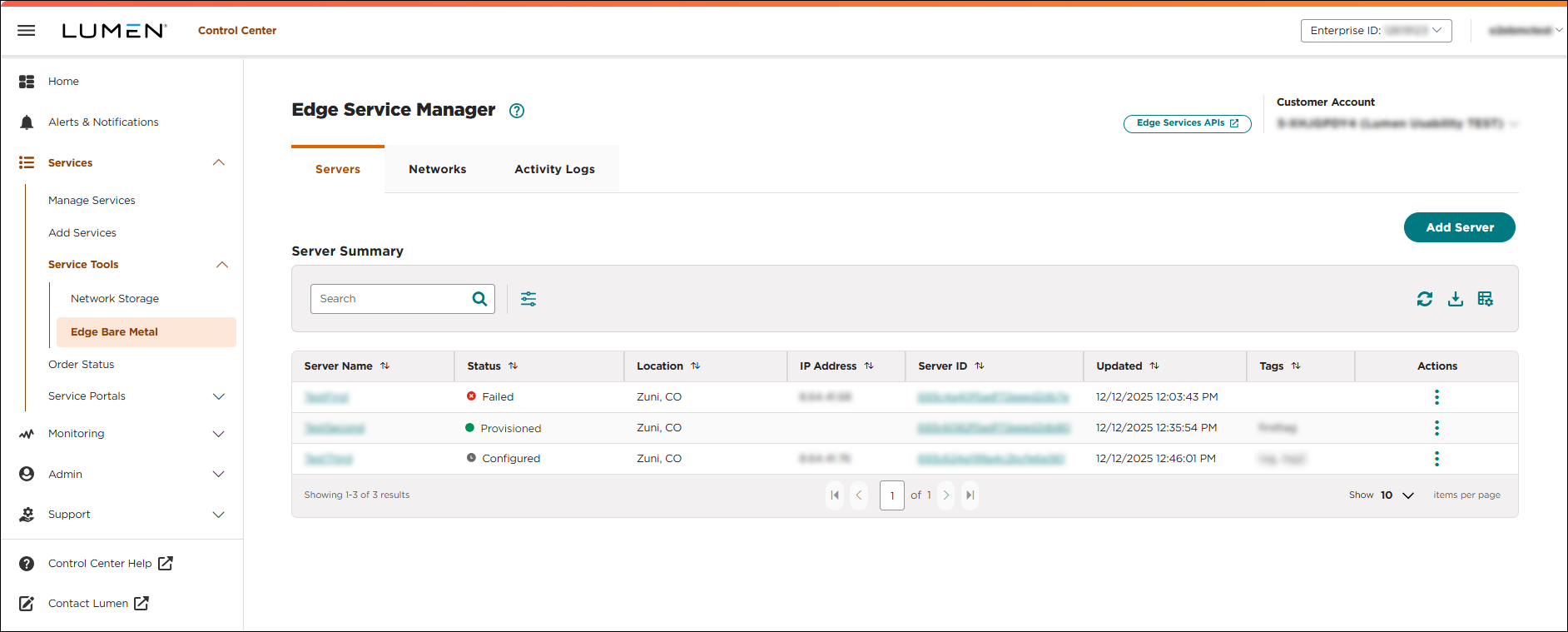
- Click ADD SERVER.
The Select Location section appears.
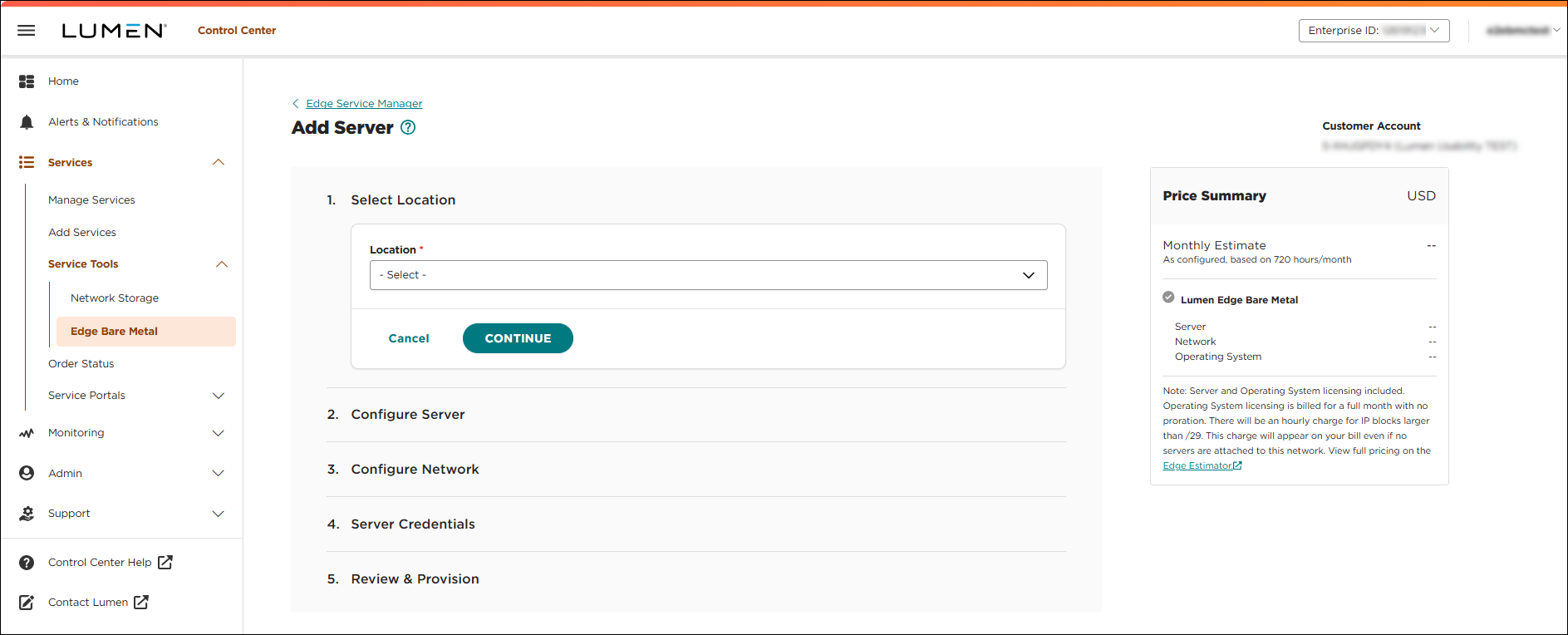
- Select a physical location for the bare metal server, then click CONTINUE. Bare metal servers must be in the same location as the assigned network.
The Configure Server section appears.
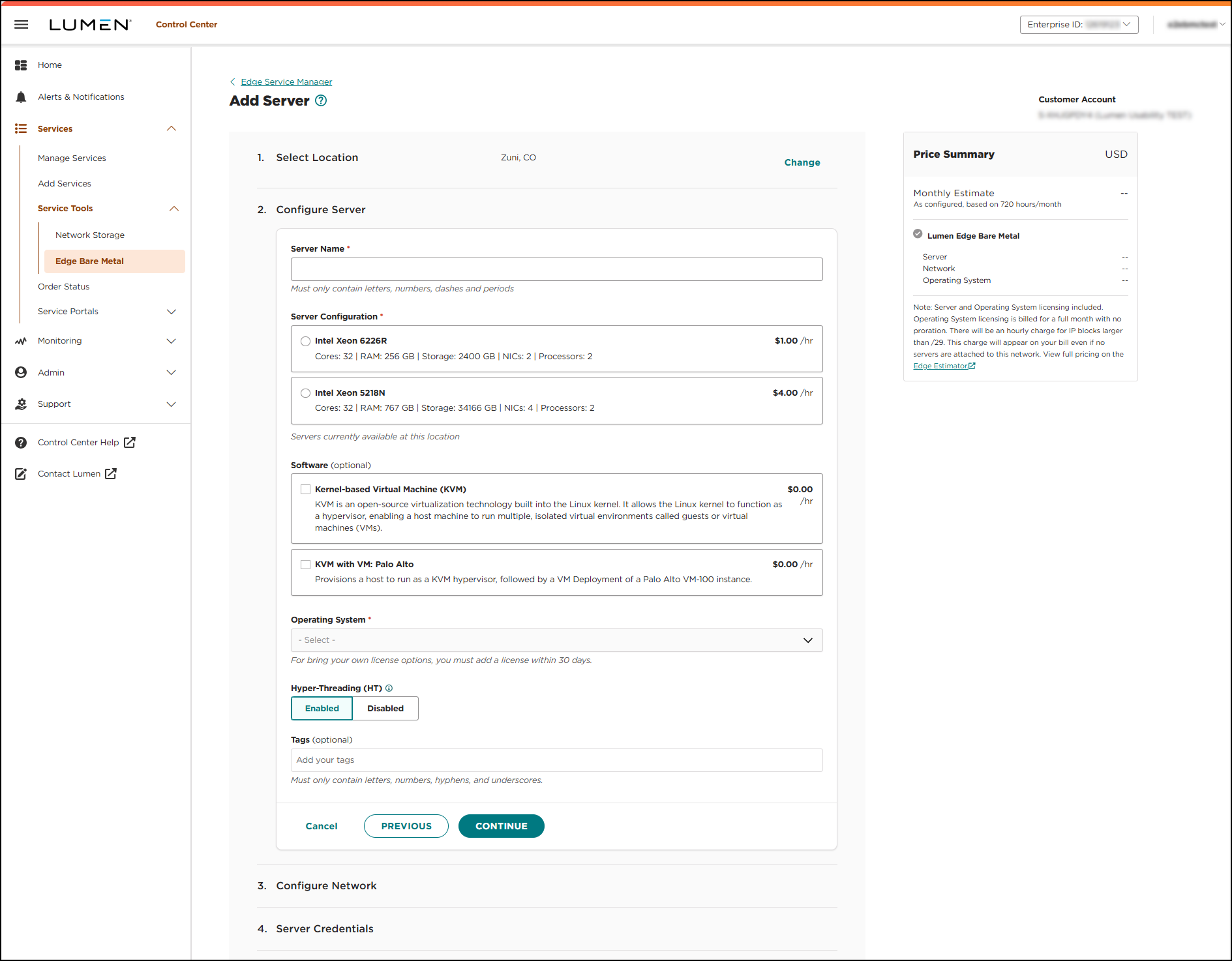
- Fill in the Configure Server section to select options for your server configuration:
- Server Name—Type a name for the server.
- Server Configuration—Select a server size. The choice of server size affects the price of the bare metal server.
- Software (optional)—Select the software you want to install while provisioning your server. (Software selections are operating system dependent. Selecting software first shows the compatible operating systems for the software. Selecting an operating system first shows the compatible software selections.)
- Operating System—Select an operating system for the server. The choice of operating system affects the price of the bare metal server. Learn more about how server drives are partitioned
- Hyper-Threading (HT)—By default, Lumen enables Intel® Hyper-Threading Technology on your server. (This means each physical CPU core simulates two separate cores. The operating system assigns two separate software threads that run in parallel instead of sequentially.) We recommend you leave this enabled. To disable it, select Disabled.
- Tags (optional)—Type the name for the tag you want to assign to the server, then press Enter. Continue adding tags, as needed. Remember to press Enter after each tag. You can always edit tags after the server is provisioned.
- Server Name—Type a name for the server.
- Click CONTINUE.
The Configure Network section appears.
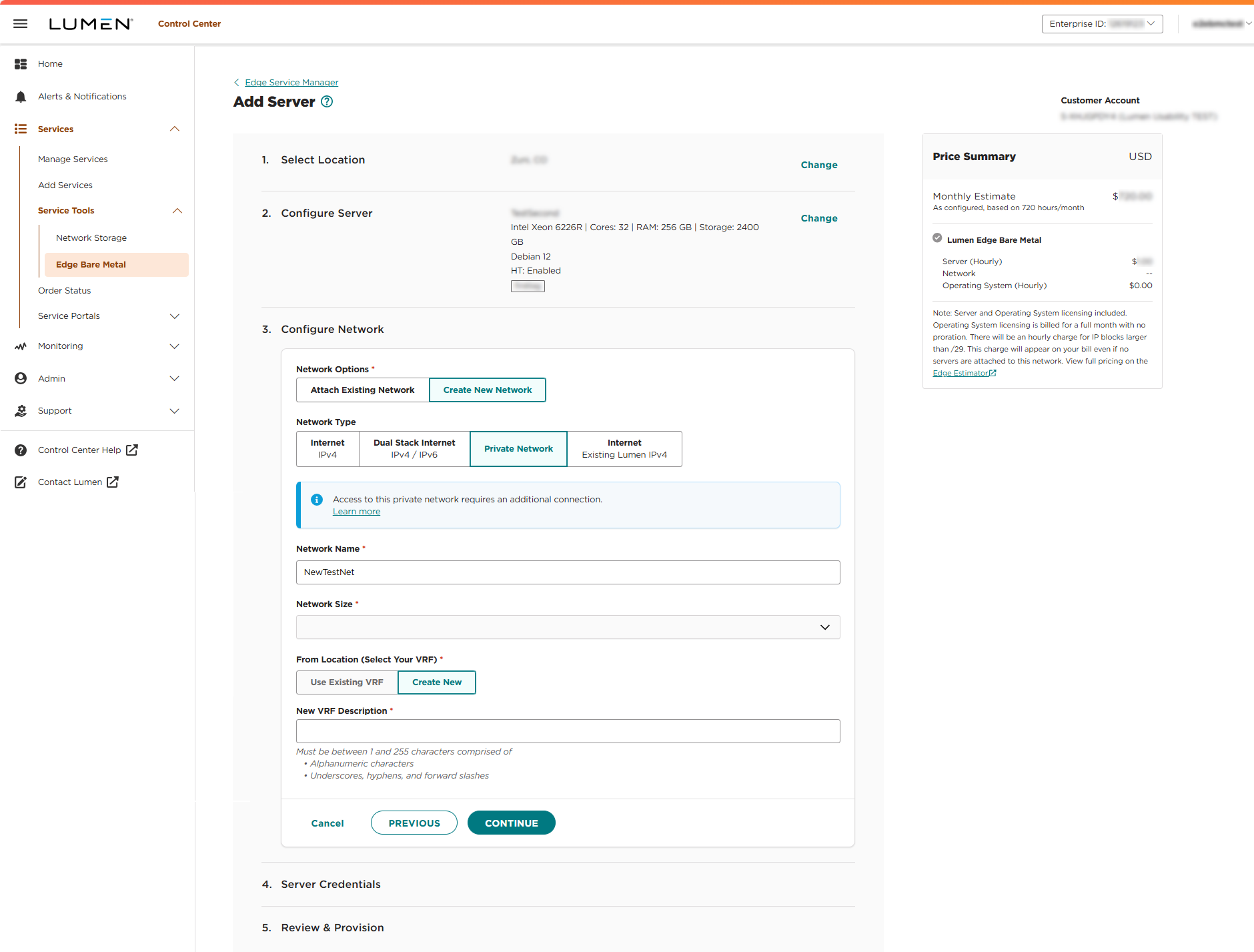
- Use the Configure Network section to choose the type of network you want to use for the server:
- In the Network Options section, select Attach Existing to attach an existing network to the server.
- Internet Networks—Select an existing network from your network list. Dual-stack IPv6 networks are only available as /64 networks. They appear in the list as the network name you chose, the word dual, the IPv4 internet block, then the IPv6 internet block. (e.g,. Network A - dual (111.222.111.200/29) (2001:1901:11b3:d02::/64))
- If you create a dual-stack network, do one of the following under Assign IPv6 Address:
- To assign an IPv4/IPv6 address to the network, click Yes. If you choose this option, Lumen Connect reserves an IPv6 address for the server and assigns an IPv4 address to the server. You must manually assign all IPv6 addresses within the server's configuration file.
- To assign an IPv4 address to the server and not reserve an IPv6 address for the server, click No.
- To assign an IPv4/IPv6 address to the network, click Yes. If you choose this option, Lumen Connect reserves an IPv6 address for the server and assigns an IPv4 address to the server. You must manually assign all IPv6 addresses within the server's configuration file.
- In the Network Options section, select Create New Network.
- In the Network Type section, select one of the following:
- Internet—Creates an IPv4 network block.
- Dual Stack Internet—Creates a dual-stack IPv4/IPv6 network block.
- Internet—Creates an IPv4 network block.
- Network Name—Type a name for the network.
- Network Size—Select a network size in CIDR (Classless Inter-Domain Routing) length based on the IP address. Each network is assigned its own IPv4 or IPv4/IPv6 subnet (/29-/26) where /29 has fewer networks and hosts than /26. A /29 sized network is available for no additional charge. The size of the network determines the number of IP addresses available for server use. The first four and the last IP addresses are consumed by infrastructure configuration. Larger CIDR blocks affect the price of the network.
- If you create a dual-stack network, do one of the following under Assign IPv6 Address:
- To assign an IPv4/IPv6 address to the network, click Yes. If you choose this option, Lumen Connect reserves an IPv6 address for the server and assigns an IPv4 address to the server. You must manually assign all IPv6 addresses within the server's configuration file.
- To assign an IPv4 address to the server and not reserve an IPv6 address for the server, click No.
- To assign an IPv4/IPv6 address to the network, click Yes. If you choose this option, Lumen Connect reserves an IPv6 address for the server and assigns an IPv4 address to the server. You must manually assign all IPv6 addresses within the server's configuration file.
- In the Network OptionsCreate New Network.
- In the Network Type section, select Private Network. If you provision a server with a private network, you need to have another accessible endpoint to access that network and server (such as a server connected to public internet).
- Network Name—Type a name for the network.
- Network Size—By default, private networks are only available as /26 network blocks with 59 IP addresses for use. You cannot make changes to the network size.
- In the From Location (Select Your VRF) section, select or create a VRF for the other end of your connection.
- To use an existing VRF, select or search for the VRF in the Virtual Routing and Forwarding (VRF) Inventory section.
- To create a VRF, click Create New, then type a description in the New VRF Description field.
- To use an existing VRF, select or search for the VRF in the Virtual Routing and Forwarding (VRF) Inventory section.
- Click CONTINUE.
The Server Credentials section appears.
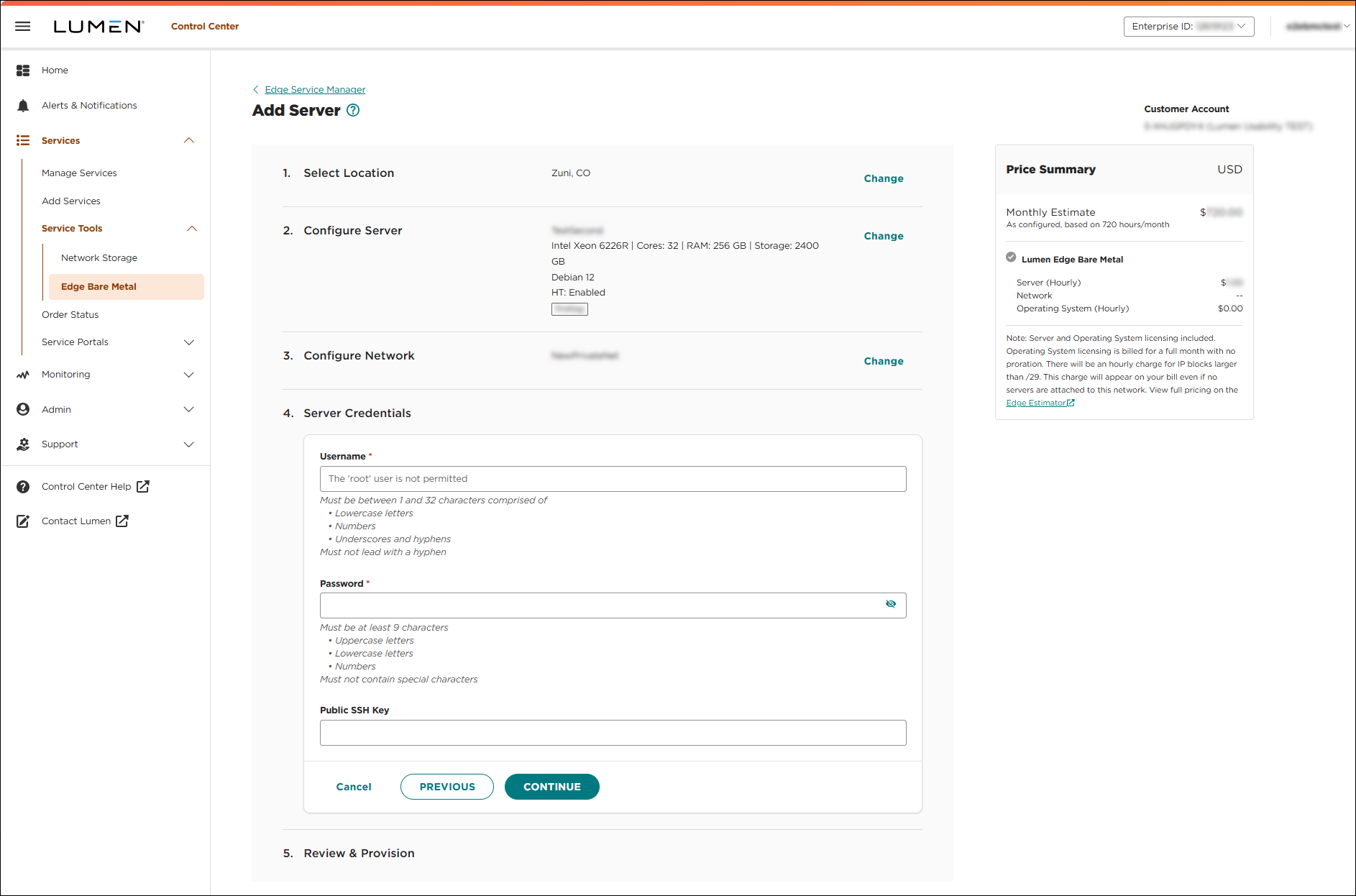
- Fill in the Server Credentials section by providing a username and a password. The public SSH key is optional:
- Username—Type a username associated with the server.
- Password—Create a password associated with the server. Ensure that your password complies with the password guidelines.
- Public SSH Key—Type the public SSH key associated with the server.
- Username—Type a username associated with the server.
- Click CONTINUE.
The Review & Provision section appears.
- Review your selections, then click PROVISION NOW. Lumen Connect starts to provision the bare metal server. This process can take up to 30 minutes to complete. You can track the provisioning progress and view the estimated time to completion on the Servers tab. When provisioning is complete, a success message shows. If you need to make changes, click PREVIOUS to go back into configurations.
Note: Additional IP addresses are unassigned and can be assigned as needed on your servers. Lumen does not track additional IP addresses assigned to servers after initial server provisioning. You are responsible for managing any IPs assigned to servers outside of Lumen Connect.
Lumen has limited insight into hardware-level failures due to the low level of hardware owned by customers. If a failure is detected, a specialist will contact you to coordinate maintenance.
Failed components
If your bare metal server experiences one of the following failed components, contact Edge Customer Care and provide the server name and your tenant (account) name:
- disk: one or more disks have failed
- memory DIMM (dual in-line memory module): seeing DIMM errors or not seeing the expected quantity of RAM (random access memory)
- NIC (network interface card) or port: failure of NIC or a port on a NIC
- power supply
Server failover issue
If your bare metal server experiences a problem with server failover, it could be an issue with the miimon value in the network configuration file. We recommend resolving the failover issue by either changing the miimon value or upgrading the version of kernel on the server.
Full failure
If your bare metal server experiences a full server failure (dead server), meaning the server is unable to ping, unable to perform power operations, fails on boot, or you have problems logging in to your bare metal server, contact Edge Customer Care. Provide the server name and your tenant (account) name to the specialist.
In the case of an unrecoverable hardware failure, we recommend deleting the bare metal server and provisioning a new bare metal server to replace it.
Important: It is your responsibility to maintain any data recovery or restoration process that may be necessary in the case of a critical hardware failure. There is no default configuration to protect against this.
Lumen is responsible for all hardware replacement for bare metal servers. Physical hardware support for servers is available only during core business hours (Monday through Friday, 9:00 am-5:00 pm) in the bare metal server location time zone. There is no SLA (Service Level Agreement) for hardware replacement; however, most hardware replacements are completed within four business days.
Some hardware failure scenarios require coordination with other customers in the shared environment and can take up to 12 days to coordinate maintenance. It is your responsibility to prepare for hardware failures and to architect redundancy of critical services running on bare metal servers.
If the standard storage for a bare metal configuration is not enough for your use case, you can add additional storage with Lumen® Network Storage.
Lumen Network Storage enables you to add and manage Edge storage all within Lumen Connect.
Already have Network Storage? Learn more about managing Network Storage
Lumen Edge Bare Metal supports Terraform®. Terraform is an open-source infrastructure tool that uses declarative configuration files to define API calls using a write, plan, and apply workflow process. For more information, refer to the following documentation:



