Viewing a standard detail billing report in Bill Analyst
If you want to understand patterns you're seeing in your data, run a standard detail report in Bill Analyst. With it, you can get more details about your telecom use and costs. (If you want to see high-level trends, view a view a standard summary billing report or create a custom summary billing report.)
You can edit any of the reports or create a custom detail billing report to better suit your needs. By default, when you run a summary or detail report, Bill Analyst tries to extract data from every account you have permission to, which increases processing time and creates bigger reports. If you want to see a report immediately (and not wait for an order to be processed), you can reduce the number of records it contains by using the hierarchy/level feature or creating a filter to search for specific service IDs and account numbers. You can also add a description to a service to add more meaning to your reports.
To view a standard detail billing report:
- Using the left menu, click Billing, then click Bill Analyst.
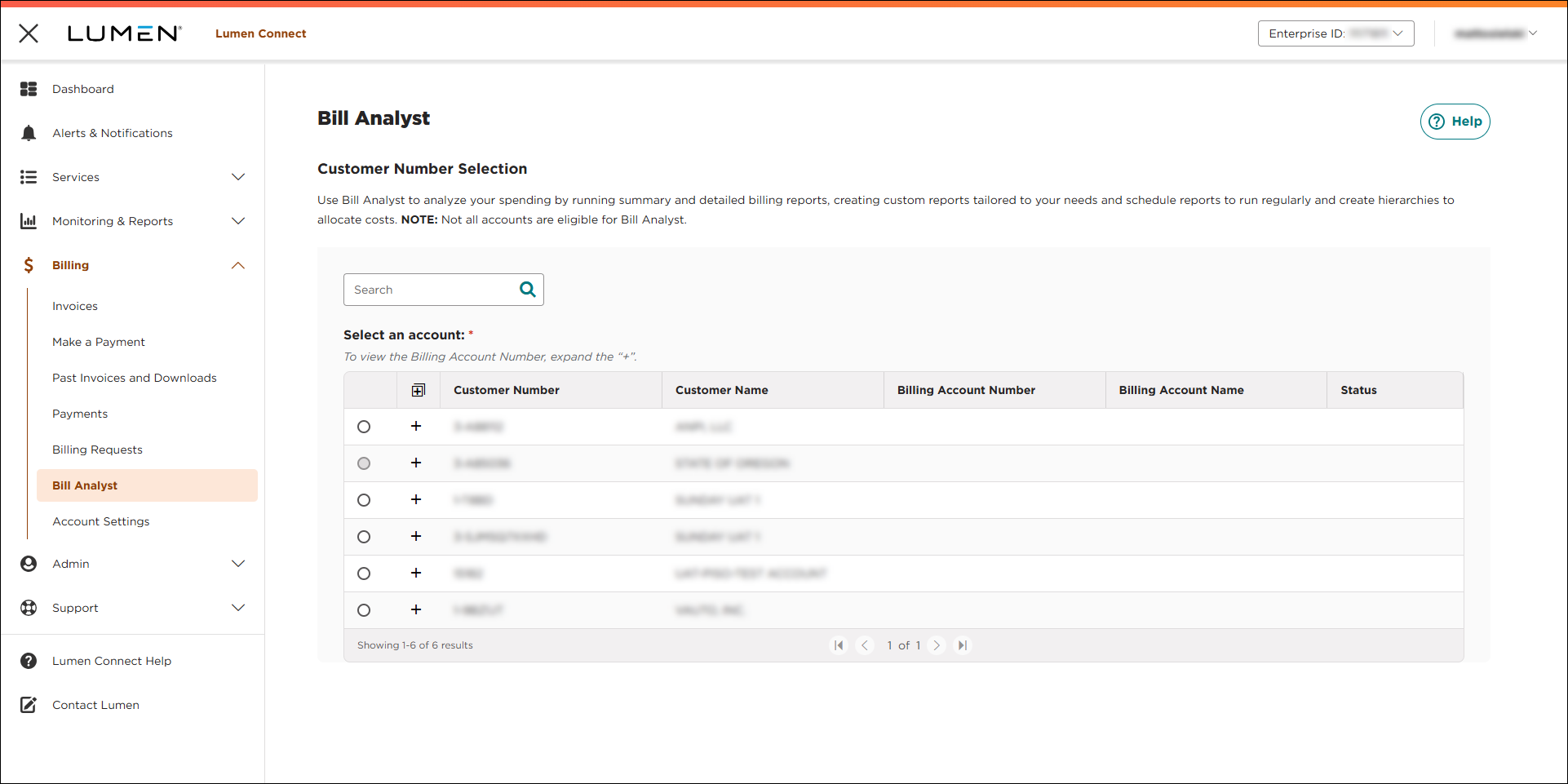
- Select the radio button next to the account you want to view, then click LAUNCH BILL ANALYST.
Lumen Connect opens Bill Analyst on a new tab.
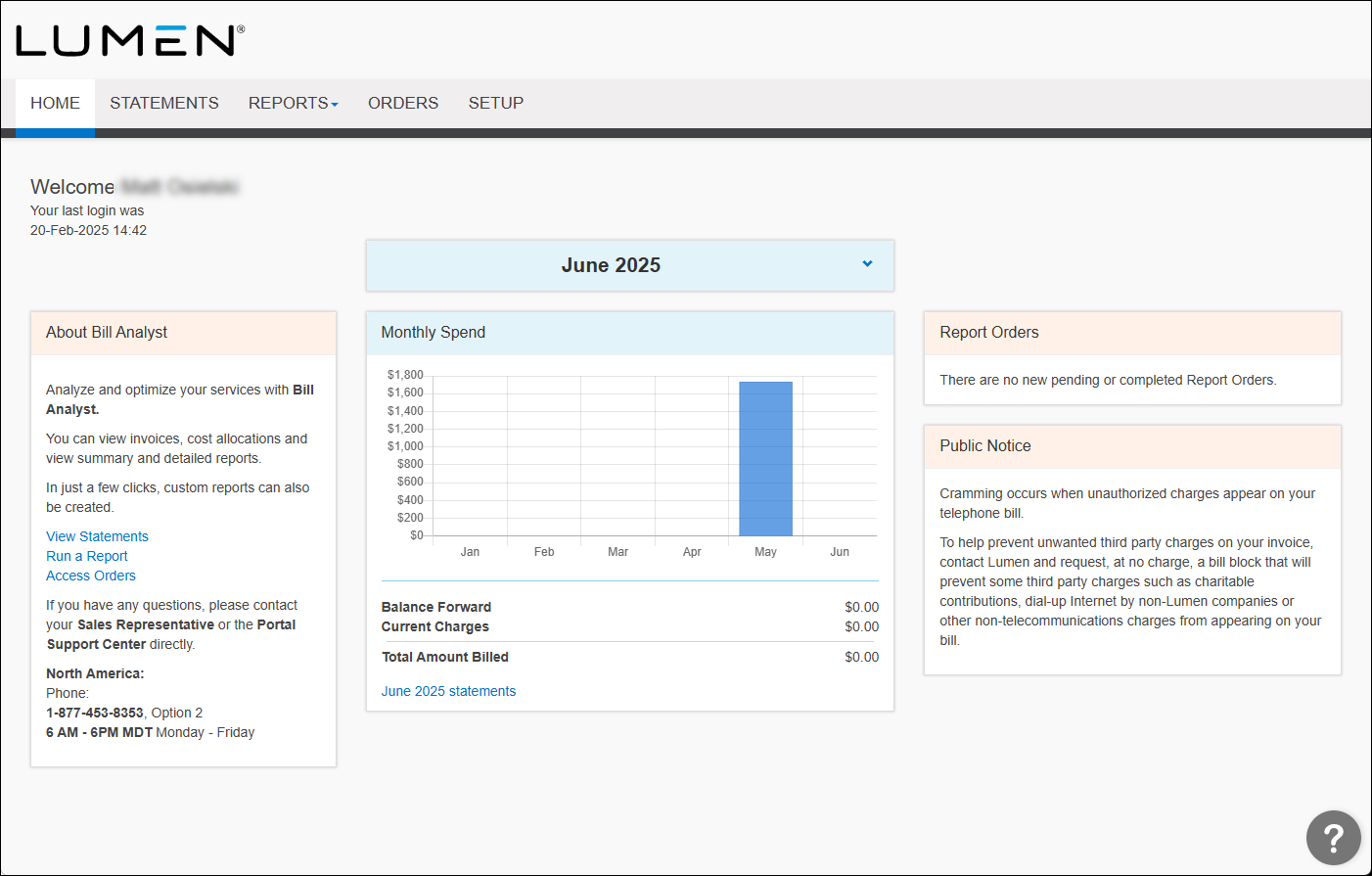
- Click the Reports tab, then click Detail Reports.
Bill Analyst lists the available detail billing reports.
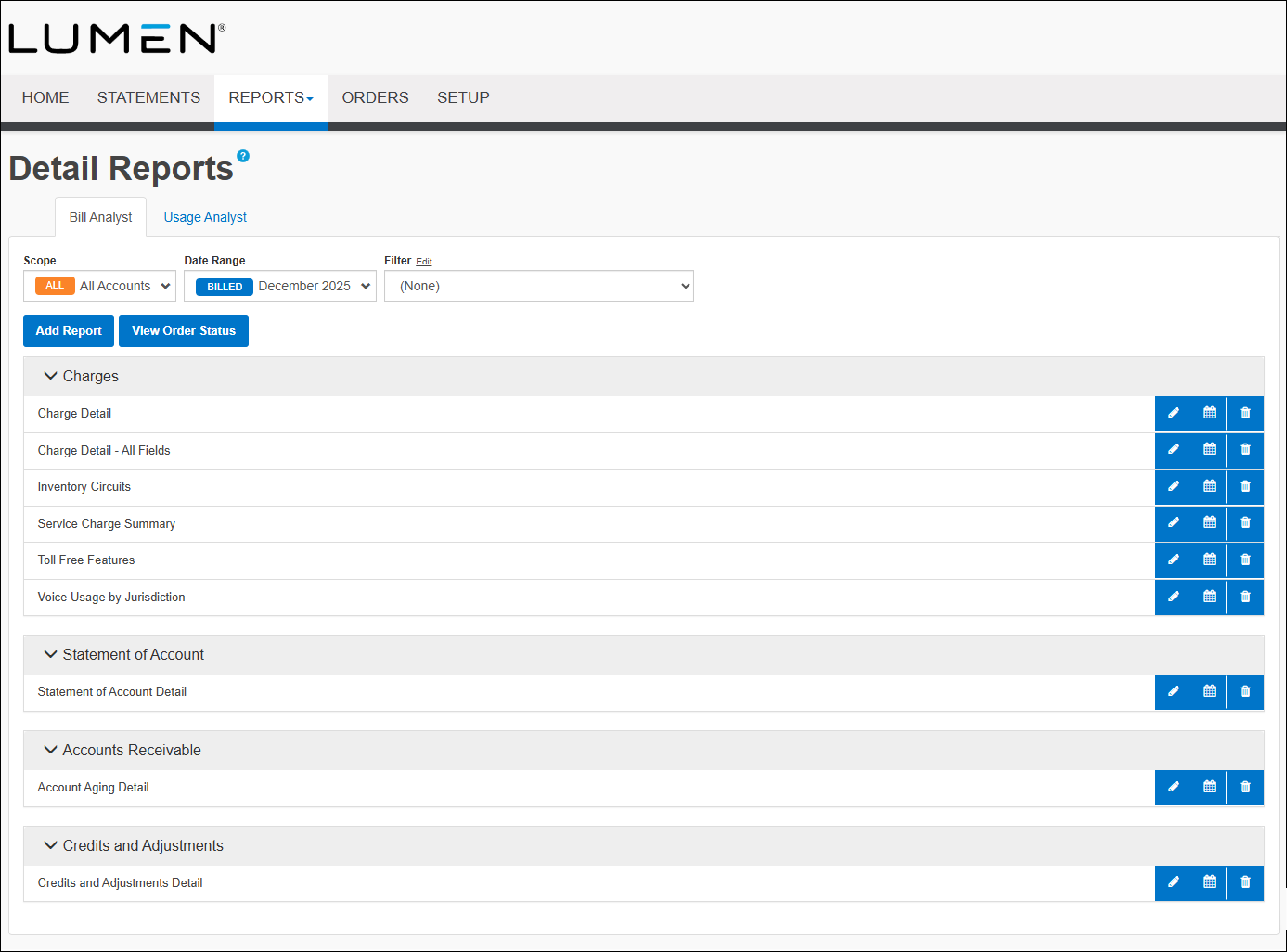
- Click the row for the report you want to view.
Bill Analyst shows the report you selected.
- To refine your search results and reduce the size of your report do one or more of the following:
- From the Data list, select the date for the data you want to see.
- From the Level list, select the level within the organization you want.
- From the Filter list, select the filter you would like to apply.
- From the Data list, select the date for the data you want to see.



