Viewing an invoice
Rather than rummage through a thick stack of Lumen invoices, you can view them online. Lumen Connect gives you access to your previous 18 months of invoices. You can also download an invoice using Lumen Connect.
Need to request an invoice adjustment or change your billing address? Learn how to create a billing request
Viewing a current invoice
To view a current invoice:
- Using the left menu, click Billing, then click Invoices.
Lumen Connect shows a list of invoices for active accounts. (To view all accounts, select All Accounts from the Active Accounts list.)
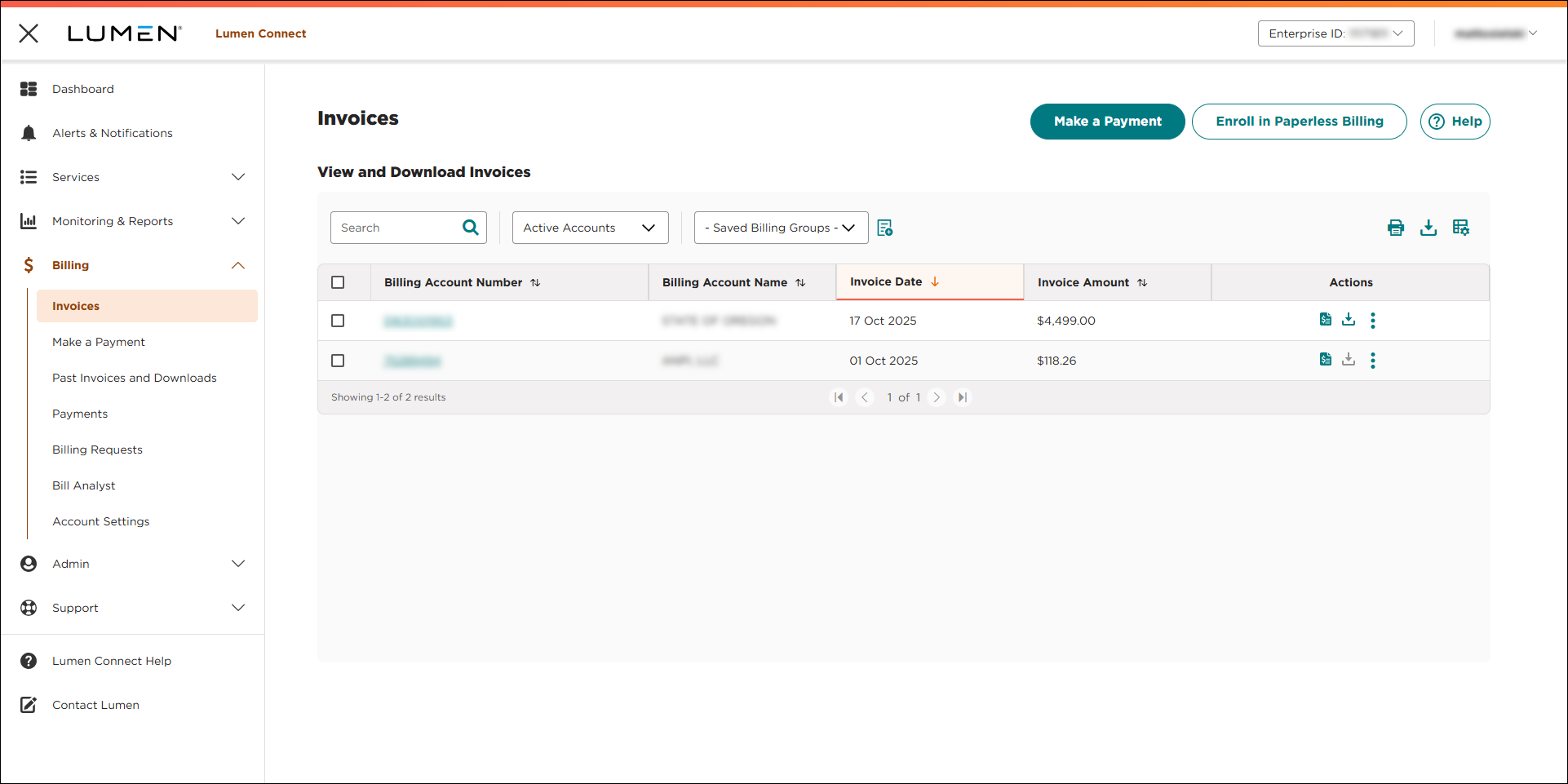
- Search for the account(s) you want to work with by doing one of the following:
- Scroll through the list of accounts. If you have more than 20 accounts, use the arrows at the bottom of the page to move between pages.
- Sort your accounts using the column headings (e.g., Account Number). You can toggle between descending and ascending order using the arrows to the right of the column heading.
- Filter your accounts by billing group by selecting an option from the All Account Groups list.
- Search for a specific account (by invoice number, account number, etc.) using the Search field.
- Scroll through the list of accounts. If you have more than 20 accounts, use the arrows at the bottom of the page to move between pages.
- After you find the account you want to view an invoice for, click the icon (in the Actions column). Depending on the type of account you selected, you may have to select how want to view the invoice: View Invoice PDF or View Invoice Online.
Lumen Connect shows the invoice for the account you selected. Invoice details and presentation vary based on the type of account. To view the details you need, use the navigation on the invoice.
Viewing a past invoice
Use the Past Invoices and Downloads page in Lumen Connect to access most of the past invoices for your organization. For select accounts (account numbers with 13–15 digits), you can view a past invoice from a current invoice.
To view a past invoice:
- Using the left menu, click Billing, then click Past Invoices & Downloads.
Lumen Connect shows the invoices available for the prior month (if any).
- Use the date filter (to the right of the All Account Groups list) to select the month you want to view an invoice for.
Lumen Connect lists the invoices available for the month you selected.
- Search for the account(s) you want to work with by doing one of the following:
- Scroll through the list of accounts. If you have more than 20 accounts, use the arrows at the bottom of the page to move between pages.
- Sort your accounts using the column headings (e.g., Account Number). You can toggle between descending and ascending order using the arrows to the right of the column heading.
- Filter your accounts by billing group by selecting an option from the All Account Groups list.
- Search for a specific account (by invoice number, account number, etc.) using the Search field.
- Scroll through the list of accounts. If you have more than 20 accounts, use the arrows at the bottom of the page to move between pages.
- After you find the account you want to view a past invoice for, click the View link (in the Actions column).
Lumen Connect shows the invoice PDF for the account you selected. Invoice details and presentation vary based on the type of account.
Viewing a past invoice from a current invoice
For select accounts (account numbers with 13–15 digits), you can view a past invoice from a current invoice. Once you select a current invoice, you can switch between months to view and download past invoices for the account.
To view a past invoice from a current invoice:
- Using the left menu, click Billing, then click Invoices.
Lumen Connect shows a list of invoices for active accounts. (To view all accounts, select All Accounts from the Active Accounts list.)
- Search for the account(s) you want to work with by doing one of the following:
- Scroll through the list of accounts. If you have more than 20 accounts, use the arrows at the bottom of the page to move between pages.
- Sort your accounts using the column headings (e.g., Account Number). You can toggle between descending and ascending order using the arrows to the right of the column heading.
- Filter your accounts by billing group by selecting an option from the All Account Groups list.
- Search for a specific account (by invoice number, account number, etc.) using the Search field.
- Scroll through the list of accounts. If you have more than 20 accounts, use the arrows at the bottom of the page to move between pages.
- After you find the account you want to view an invoice for, click the icon (in the Actions column).
Lumen Connect shows the current invoice for the account you selected.
- To view a past invoice, select an invoice date from the View past bills list, then click View.
Lumen Connect shows the invoice PDF for the date you selected. To download a copy of the invoice, click Request Bill Copy (PDF).



