Canceling a disconnect request
If you no longer want to disconnect a service, you can cancel a disconnect request.
To cancel a disconnect request:
- Using the left menu, click Services, click Service Requests, then click Disconnect Requests.
Lumen Connect shows all disconnect requests for your organization (by default, within the past 30 days) with a status for each request and the date the request was last updated:
- Open—Lumen received your request.
- In Progress—a Lumen representative is assigned to your request and is working on it.
- Pending Customer Clarification—a Lumen representative needs additional information from you to complete the request. Please read the most recent notes within the request and provide the requested information.
- Request Accepted—we accepted your request and created one or more Lumen disconnect orders.
- Cancelled—your request has been cancelled. For more information, view the most recent notes.
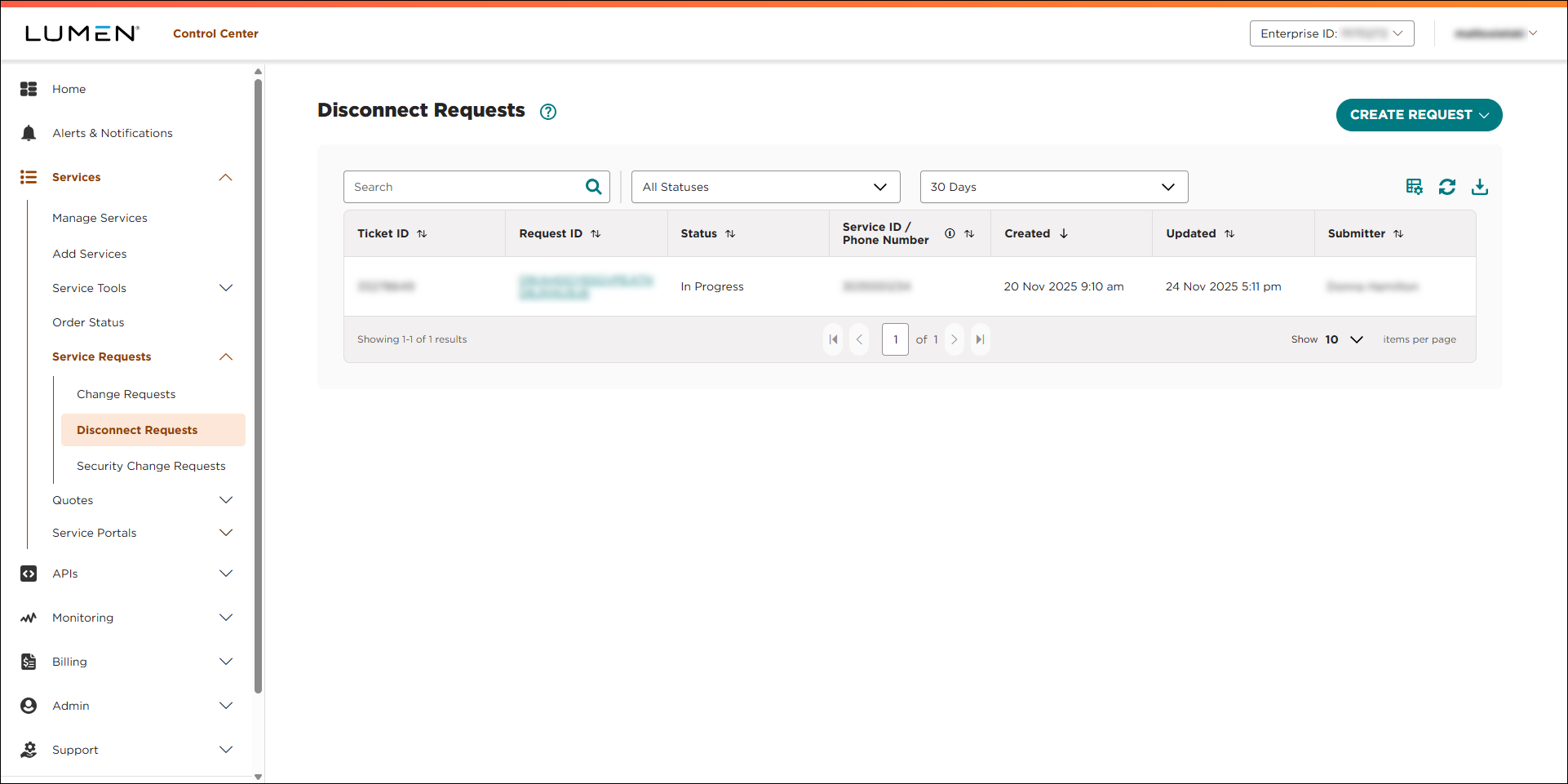
- Search for the disconnect request you want to work with by doing one of the following:
- Scroll through the disconnect requests to find the one you want to update. If you have more than 10 disconnect requests, you can view the rest of your requests by using the arrows at the bottom of the list to view more requests.
- Search for the request by typing search criteria in the Search field. (Lumen Connect filters as you type.)
- Filter the list of requests using the Status and Date lists. (By default, Lumen Connect shows disconnect requests submitted in the past 30 days.)
- Scroll through the disconnect requests to find the one you want to update. If you have more than 10 disconnect requests, you can view the rest of your requests by using the arrows at the bottom of the list to view more requests.
- On the row for the disconnect request, click the link in the Request ID column.
Lumen Connect shows details for the disconnect request.
- In the Services section, select the checkbox on the row for the service(s) you want to cancel the disconnect for, then click Cancel Disconnect.
- In the window that appears, select the reason you're canceling the disconnect, then click CANCEL DISCONNECT.
Lumen Connect adds a row to the Request History section to track the changes to the request. To view details for a change, click the icon (in the Actions column), then click View Details.



