Running diagnostic testing on a service
For eligible Lumen services, you can run diagnostic testing while viewing details for the service. Use diagnostic testing to help you troubleshoot issues with a service. After viewing the testing results, you can continue to create a repair ticket if you need help from Lumen resolving an issue. You can also run diagnostic testing on a service from Network Visibility. Learn more about service diagnostics
AI option: Use Swigert AI email agent to run diagnostic testing (for eligible services) without signing in to Lumen Connect.
To run diagnostic testing on a service:
- Search for the service in one of these ways:
- Start typing details for the service (e.g., the product name, location, or service ID). Lumen Connect filters the list of services as you type.
- Filter your services by selecting an option from the All Service Types list.
- To filter your services based on a specific value, select an attribute from the icon, click the section(s) you want to filter by, type your filter criteria, then click Apply.
- Start typing details for the service (e.g., the product name, location, or service ID). Lumen Connect filters the list of services as you type.
- When you find the service you want to run diagnostics on, click the link in the Service ID column.
Lumen Connect shows details for the service.
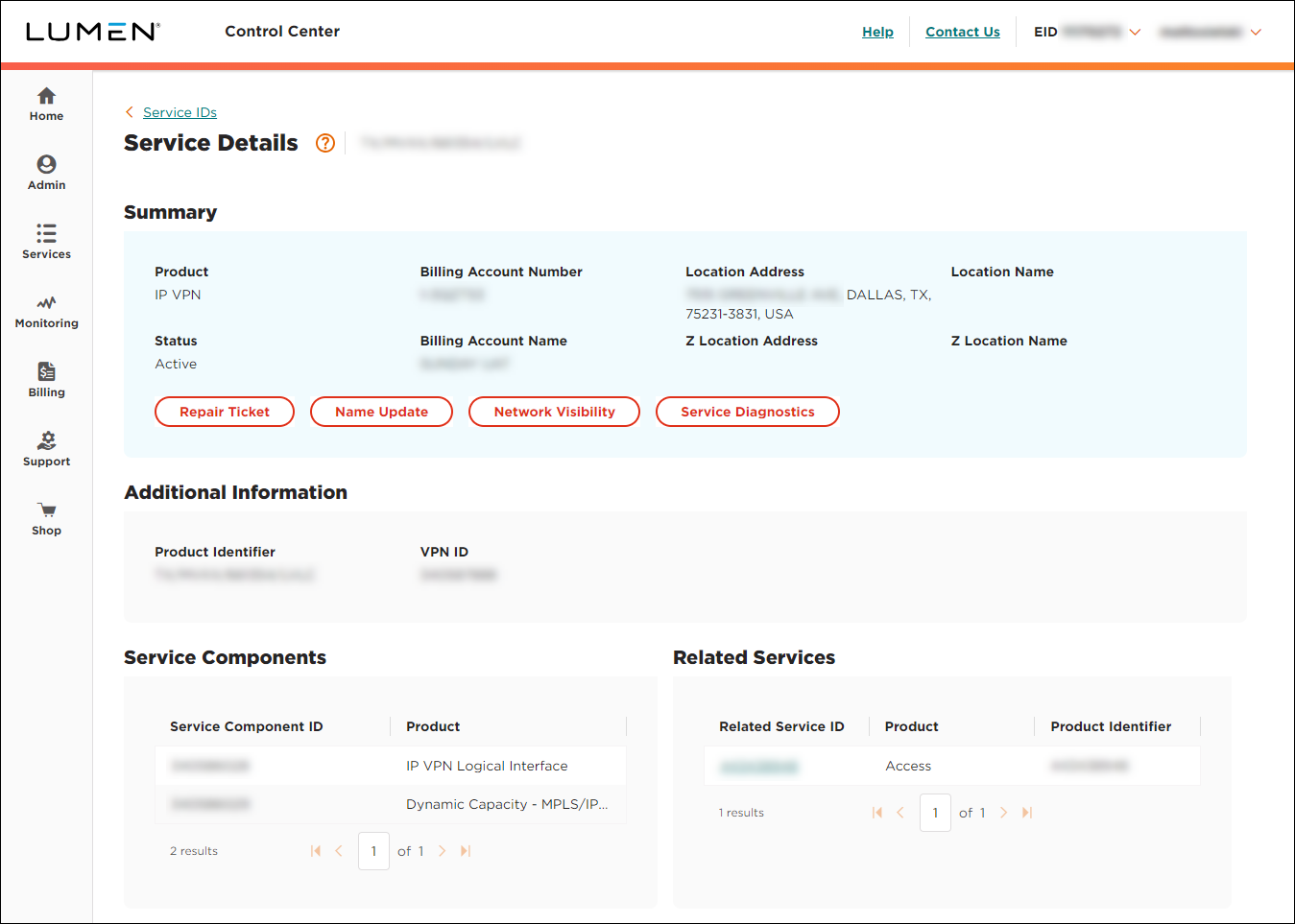
- Click Service Diagnostics.
Lumen Connect starts running service diagnostics for the service.
- Scroll down to the Service Diagnostics section.
- Review the test results, then do any of the following:
- To download a PDF of the diagnostic testing results, click Diagnostics PDF.
- To close the diagnostics testing, click TICKET NOT NEEDED.
- To create a repair ticket for the service, click CREATE TICKET.
- To download a PDF of the diagnostic testing results, click Diagnostics PDF.



