Creating a repair ticket
If you're experiencing a problem with your service, you can create a repair ticket to get it working correctly. For many products, you can also run diagnostic testing for the service to help you troubleshoot the issue. If you're having a problem with a security service, create a security repair ticket. If you're having trouble with Lumen Connect, you can also create a portal support ticket to get help from our portal experts.
AI option: Use Swigert AI email agent to create and manage repair tickets without signing in to Lumen Connect.
To create a repair ticket:
- Using the left menu, click Support, then Ticketing.
Lumen Connect lists all tickets—repair, potential repair, activation, configuration, billable field tech, maintenance inquiry, portal support, and reason for outage (RFO)—including tickets Lumen created on your behalf. By default, Lumen Connect shows tickets created in the past 90 days and tickets are organized by the date the ticket was created (starting with the newest). The Status column shows the status for each ticket: Active, Canceled, Closed, etc. Potential tickets are marked with a yellow flag (). Tickets needing a reply from you are marked with a green flag ().
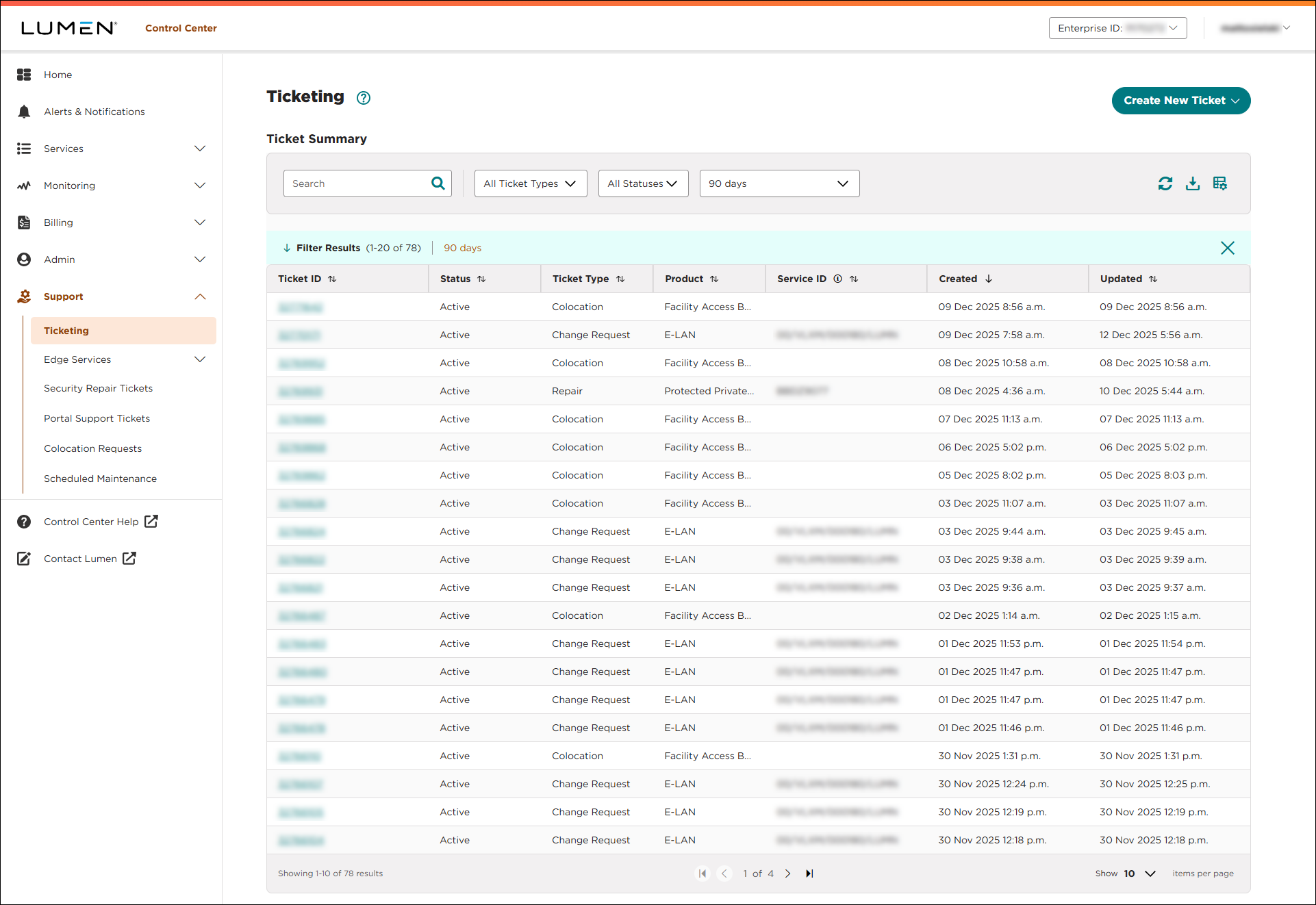
- From the Create New Ticket list, select Repair.
- Do one of the following to locate the service:
- If you know all or part of the product or service ID, type it into the Search field. (Lumen Connect filters the list of services as you type.)
- If you don't know the product or service ID, scroll through the list to look for the service.
- If you know all or part of the product or service ID, type it into the Search field. (Lumen Connect filters the list of services as you type.)
- When you find the service, click the link in the Service ID column. If your issue is with a phone number or if you don't see the service ID listed, click the Service ID not listed or issue is with a phone number? link. (Lumen Connect shows a next to services with active tickets.)
Lumen Connect opens a form for you to fill out for your repair ticket and, (if applicable) starts running diagnostic tests to check service performance.
- In the Repair Information section, tell us more about the problem you're having with the service:
- Select the type of problem from the list.
- Tell us the day and time (including time zone) when the problem started.
- Tell us whether you're still having the problem.
- If necessary, tell us the impact this service is causing your business (so we can prioritize this issue if needed).
- Describe the issue you're having with your service.
- If you're tracking the ticket in another system within your organization, you can type it in the Customer Internal Ticket field.
- Tell us whether you've checked your local equipment to verify it's working correctly.
- Select the type of problem from the list.
- Do one of the following:
- If Lumen Connect runs diagnostic tests, continue with step 8 to review your test results. The results of the testing can often help you resolve your service issue faster than opening a repair ticket and waiting for Lumen to troubleshoot.
- Otherwise, skip to step 9 to continue creating your repair ticket.
- If Lumen Connect runs diagnostic tests, continue with step 8 to review your test results. The results of the testing can often help you resolve your service issue faster than opening a repair ticket and waiting for Lumen to troubleshoot.
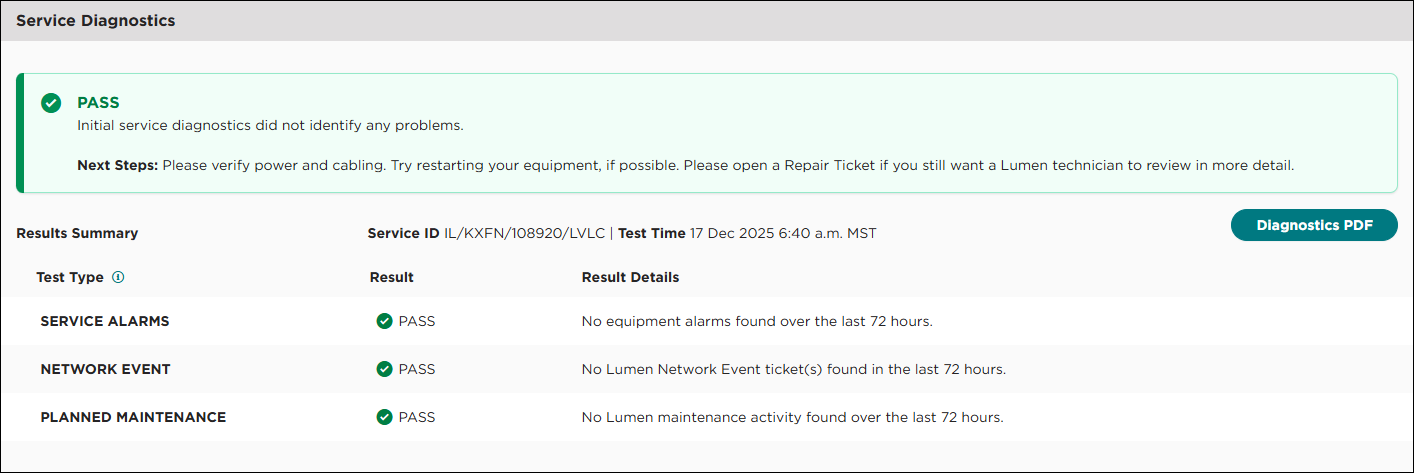
The tests run in real time, showing you results as each test completes. To view test details, can click the + icon next to a test type; you can also download a PDF with test results.
If the diagnostic results show Pass, you can choose Continue, Create a Ticket if you still want to create a repair ticket (skip to step 8), otherwise, click Cancel, Ticket Not Needed.
If the diagnostic test results show Needs Attention or Fail status, Lumen Connect shows you recommended next steps. To continue with creating a repair ticket, go to step 8.
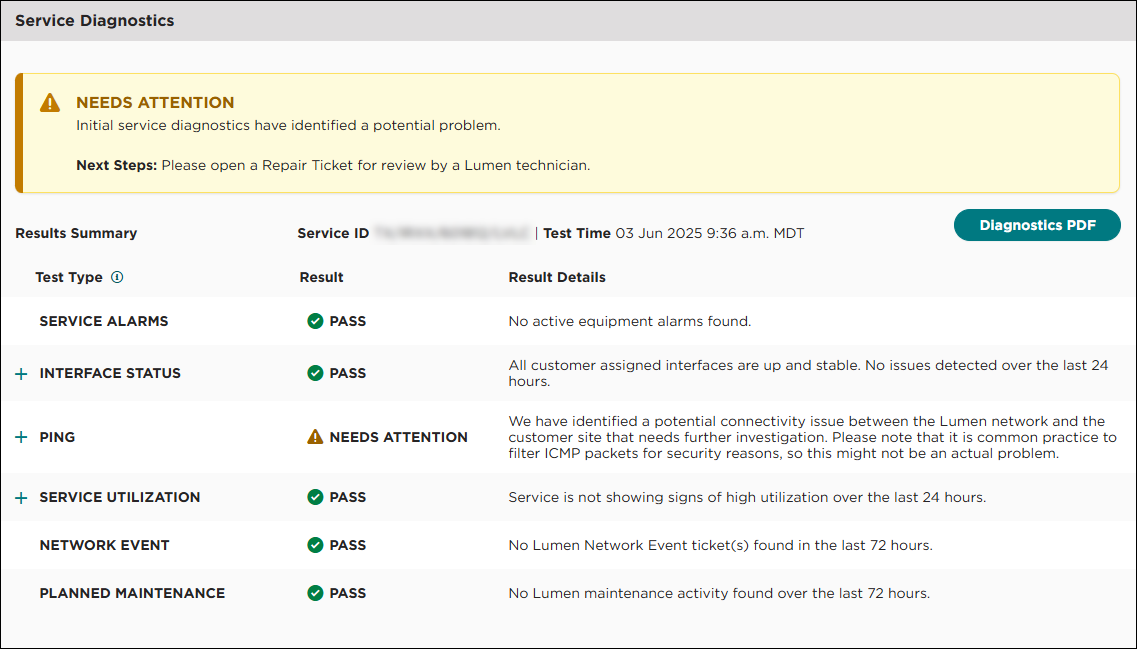
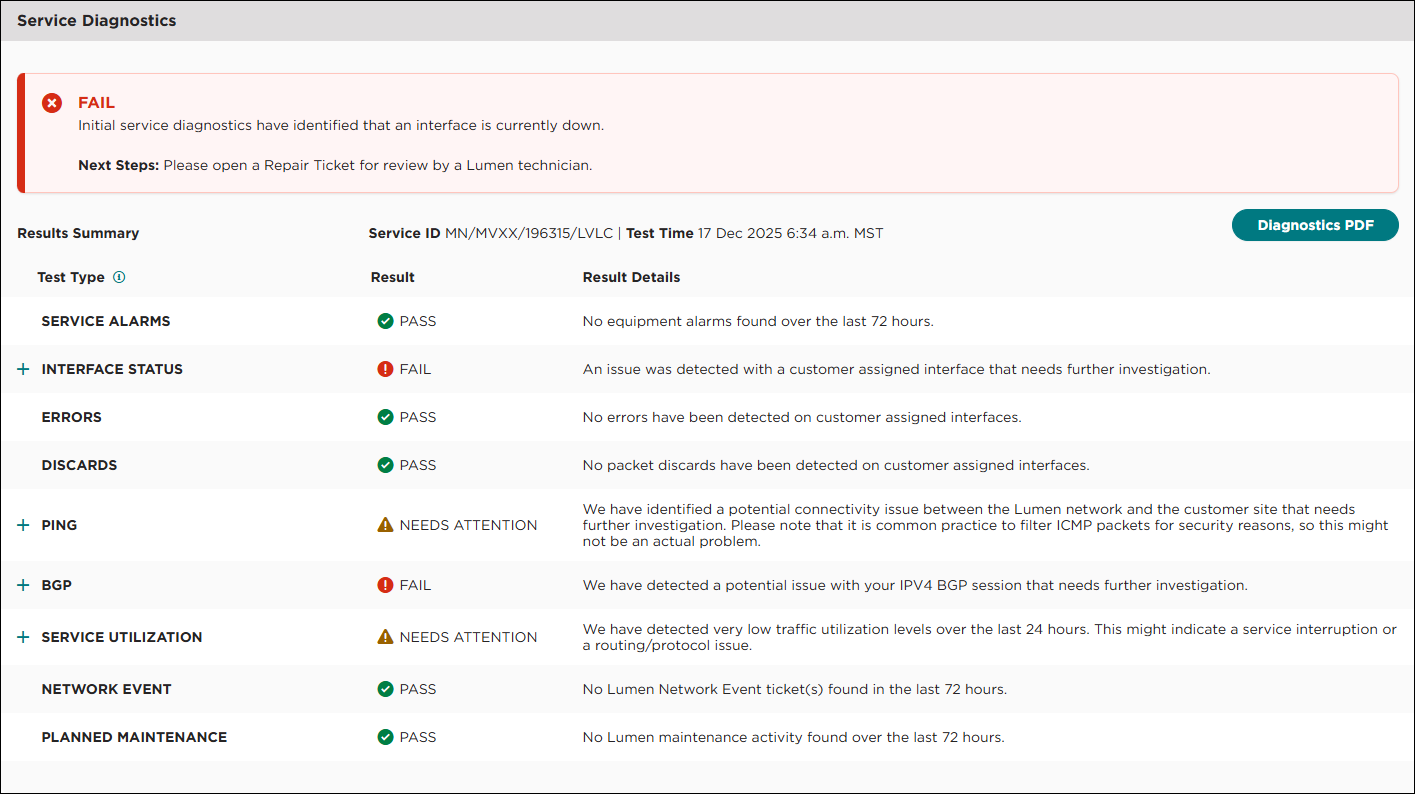
- Review the diagnostic test results. (To learn more about the tests, expand the section above.)
- If the service looks like it's working correctly, click CANCEL, TICKET NOT NEEDED.
- If you're still seeing issues with your service and want to open a repair ticket, click CONTINUE.
- If the service looks like it's working correctly, click CANCEL, TICKET NOT NEEDED.
- If diagnostic testing was available for the service you selected, use the Additional Tools and Feedback section to tell us whether the diagnostic testing helped you to diagnose the problem. Please provide any feedback about the testing (positive or negative) to help us adjust the testing to better meet your needs.
- In the Authorization section, do the following:
- Tell us whether we can run remote intrusive testing to help diagnose the problem. If you authorize testing, you can select whether we can test 24x7 or within certain timeframes and on certain days (e.g., only on after 5:00pm on weekdays and all day on weekends).
- Tell us whether you authorize us to send a technician to your location. Again, you can select 24x7 or only within certain timeframes and on certain days. If you authorize us to send a technician, you also need to provide a local contact for the location.
- Tell us whether we can run remote intrusive testing to help diagnose the problem. If you authorize testing, you can select whether we can test 24x7 or within certain timeframes and on certain days (e.g., only on after 5:00pm on weekdays and all day on weekends).
- In the Attachments section, you can attach any documents (such as a more detailed explanation of the problem or additional details pertaining to your request). You can upload up to five documents (up to 2MB each). To attach a document, click Add Attachment, browse to locate the file, then click Open. (If diagnostic testing was available for your service, Lumen Connect automatically attaches the results of the test.)
- In the Contacts section, do the following:
- From the Preferred Contact Method list, select how you want us to contact you about this issue.
- Either leave yourself as the primary contact or manually fill in the contact information for that person.
- If you want to add a secondary contact for this issue, type their information.
- From the Preferred Contact Method list, select how you want us to contact you about this issue.
Note: By default, you'll be listed as the primary contact using the information in your Lumen Connect profile. You can edit your contact information or select an alternate contact from the Primary Contact list.
- Click Submit.
Lumen Connect submits your ticket. A representative will be assigned to your ticket within one to four hours. You can now track the status of your ticket with other tickets open for your organization.



