Creating a day‑of‑week routing plan
Do you want to redirect calls some days of the week, but not others? Maybe you'd like to direct incoming calls to an answering service over the weekend. For Lumen® Toll Free Service, you can use the day-of-week feature in Lumen Connect to send your call traffic to a different location on different days of the week. You can also update the routing plan as your business needs change.
To route call traffic based on the day of the week:
- In the Services widget on the homepage, select Toll Free from the Find by Product or Service Tool list.
Lumen Connect shows all Toll Free services on the enterprise ID.
- Search for the service you want to work with. When you find the service you want to work with, click the hyperlinked service ID or click the icon (in the Actions column), then click View Details.
Lumen Connect shows details for the toll-free service you selected.
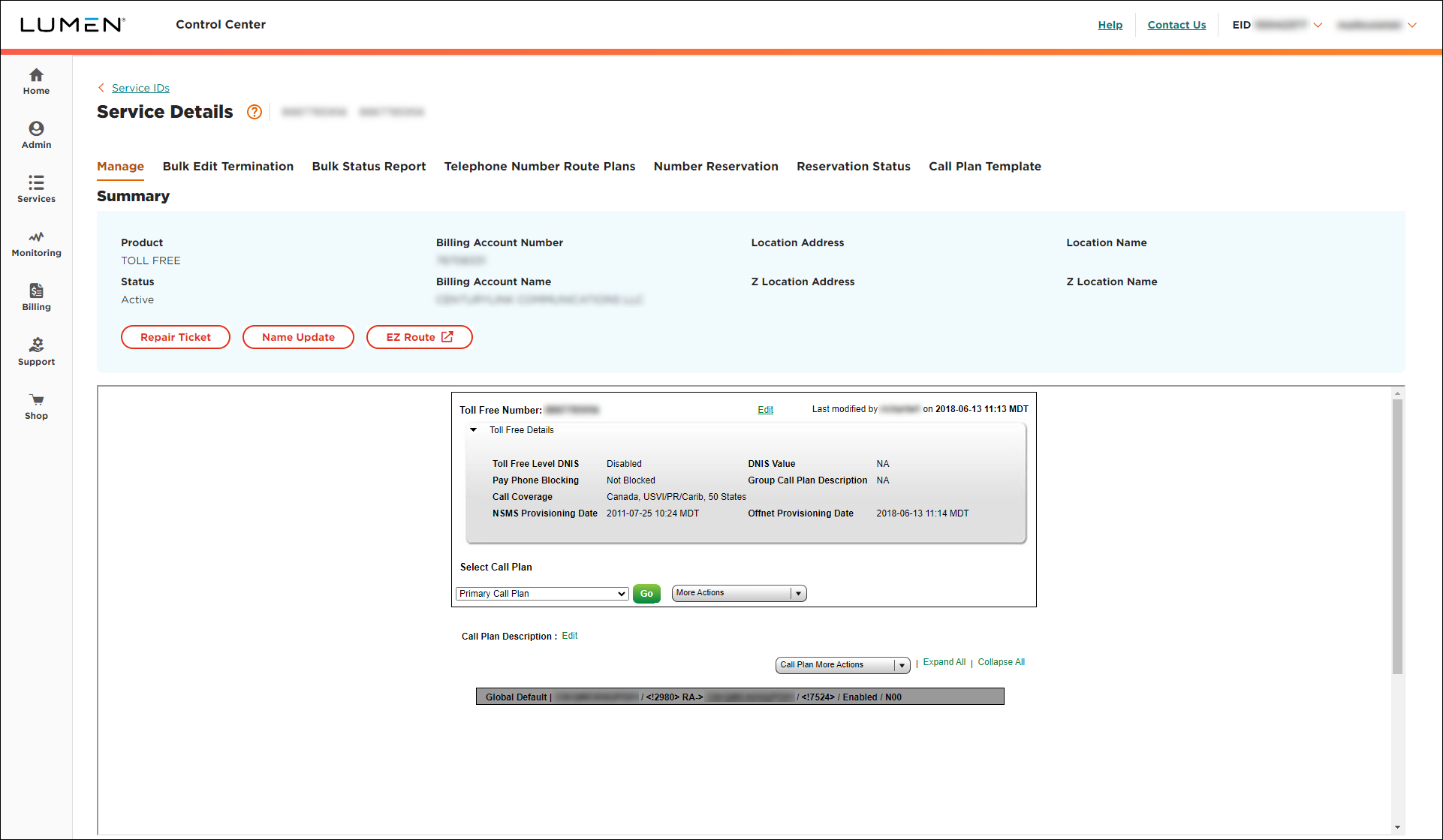
- From the Call Plan More Actions list, select Edit Call Plan.
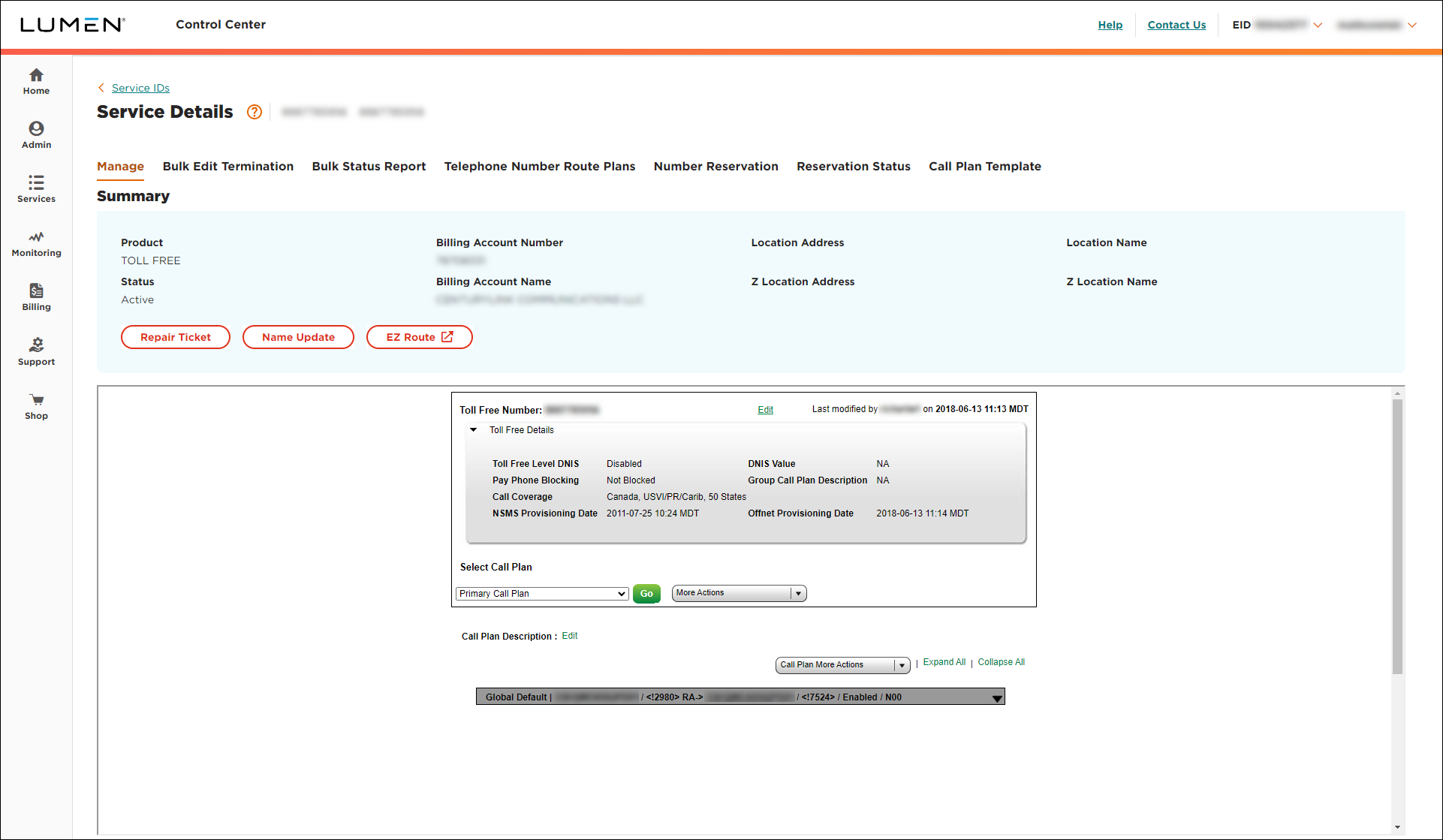
- On the right of the global default (dark gray) bar, click the down arrow, then click Add New Feature.
- In the popup window, from the Select Feature list, select Day of Week, then click Submit.
- If the Confirm Feature ADD/Delete window appears, click Accept.
- In the Default Routing Type section, select the radio button for the routing type you want to use for the feature.
- From the Time Zone list, select a time zone for the routing plan.
- Click Add Rule.
From here, you're creating a rule to tell the system what to do when someone calls a specific phone number. For example, when customers call your toll‑free number on Monday, they get routed to a designated phone number.
- Depending on what kind of number you want to route, in the Terminating Route Type section, do one of the following:
- To add a dedicated trunk:
- Select the DED radio button.
- From the Primary Trunk list, select the trunk.
- Select the DED radio button.
- To add a switched ANI:
- Select the SWI radio button.
- From the ANI list, select the terminating route. (If you don't see the trunk/ANI you need, click the ADD ANI TO THE LIST button, fill in the fields, click Add, then select the number from the list.)
- Select the SWI radio button.
- To add a dedicated trunk:
Note: If you give the ANI a description, describe it so you and your colleagues will remember it. If you leave the description blank, the phone number will show in the list.
- Scroll down within the popup, in the Start Day list, type the day you want the routing plan to start.
- In the End Day list, select the day you want the routing plan to stop.
- Click Update.
- Click Save Changes (you may need to scroll down in the window).
- Select the date and time you want your changes to take effect, then click Submit.
Important: After you schedule the changes, you cannot edit the plan until the pending changes are activated. You can check the status of the request by selecting Job List from the More Actions list.



