

Viewing DDoS alerts
The DDoS Mitigation and Reporting portal shows DDoS Alerts based on importance. The Peakflow system automatically assigns importance based on various criteria.
Alert details show the type of alert and the name of the managed object (often called "zone") that is affected.
You can also view a DDoS alert summary, DDoS alert traffic details, and recent or ongoing mitigations.
To view DDoS alerts:
- Depending on your DDoS product, you can access the DDoS Mitigation and Reporting dashboard using one of the following methods:
- Using the left menu, click Services, click Service Portals, then click DDoS Mitigation and Reporting. Confirm that you are going to an external site, then click Log In with SSO.
- Using the left menu, click Monitoring & Reports, click Security Solutions Analytics, then click DDoS Mitigation and Reporting (in either the Reports or DDoS Mitigation Service sections).
- Using the left menu, click Services, click Service Portals, then click DDoS Mitigation and Reporting. Confirm that you are going to an external site, then click Log In with SSO.
The DDoS Mitigation and Reporting portal shows the dashboard.
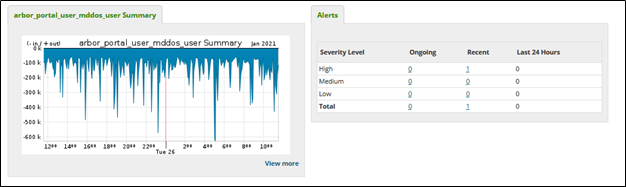
- Click the Alerts tab, then click All Alerts or Ongoing.
The DDoS Mitigation and Reporting portal shows all DDoS Alerts.
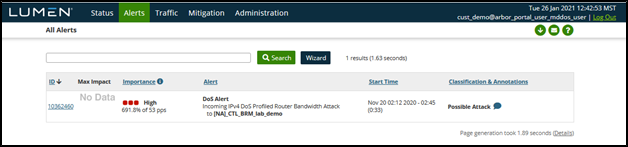
- Do any of the following to change DDoS Alerts view:
- Click the ID column to sort by ID.
- Click the Units menu to switch between bits per second (bps) and packets per second (pps), then click Update.
- Click the Graph Type menu to change the graph from stacked to pie or bar, then click Update.
- Uncheck an application to remove it from the graph.
- Click a column header to sort the table. Click the header again to reverse the order.
- Click the ID column to sort by ID.



