

Connecting a VNF to a vendor orchestrator
Use Lumen Edge Gateway Manager to connect a VNF (Virtual Network Function) on an Edge Gateway™ device to the third‑party orchestrator using a Virtual Network Computing (VNC) console. Before making a connection, you must add a VNF to your Edge Gateway device. For VNFs to work correctly, you must connect them to the third‑party orchestrator when you add them to your Edge Gateway device. While you can use Lumen Edge Gateway Manager to manage and configure Edge Gateway devices and their VNFs, you will use the vendor‑specific orchestrator to utilize VNFs. After you make the connection, you do not need to use the VNC console for that VNF again.
To learn more about the third‑party orchestrator, refer to the third‑party documentation.
If you use cloud‑init with your cloud services, you may not need to connect using a VNC console. To learn more, check your cloud‑init configuration and refer to the third‑party documentation.
To connect a VNF to a vendor orchestrator:
- Sign in to Lumen Edge Gateway Manager.
- Use the search field to search for the Edge Gateway device, then click View VNFs on the Edge Gateway device.
The VNF information expands.
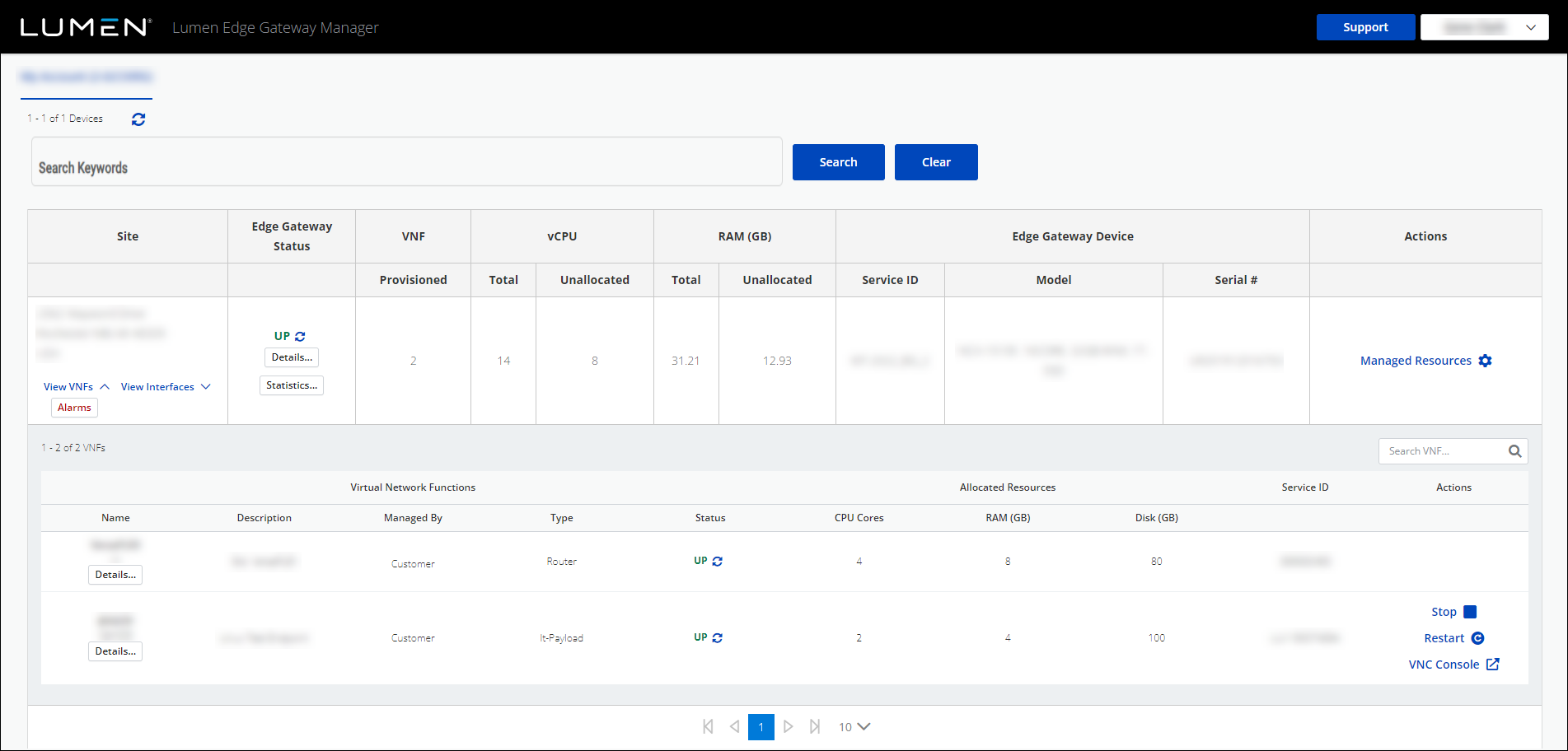
- Click VNC Console, then click Yes in the confirmation window.
Lumen Edge Gateway Manager shows the third‑party application in the VNC in a new window.
- Using vendor‑specific credentials, log in and configure the connection of the VNF to the orchestrator.
The VNC connects the VNF to the vendor orchestrator.



