Enabling a distributed firewall
Use the Lumen® Managed Support portal to submit a request to enable a distributed firewall for cloud networks on your Lumen® Edge Cloud Services Lumen® Private Cloud on VMware Cloud Foundation™ product. If needed, configure networks the distributed firewall protects. For more security, configure a site‑to‑site VPN for IPsec VPN sites.
Note: If you don't have access to the Managed Support portal, call 888‑638‑6771 to speak with a specialist who can submit your request.
To enable a distributed firewall:
- Open a browser and sign in to the Managed Support portal.
- Click Create.
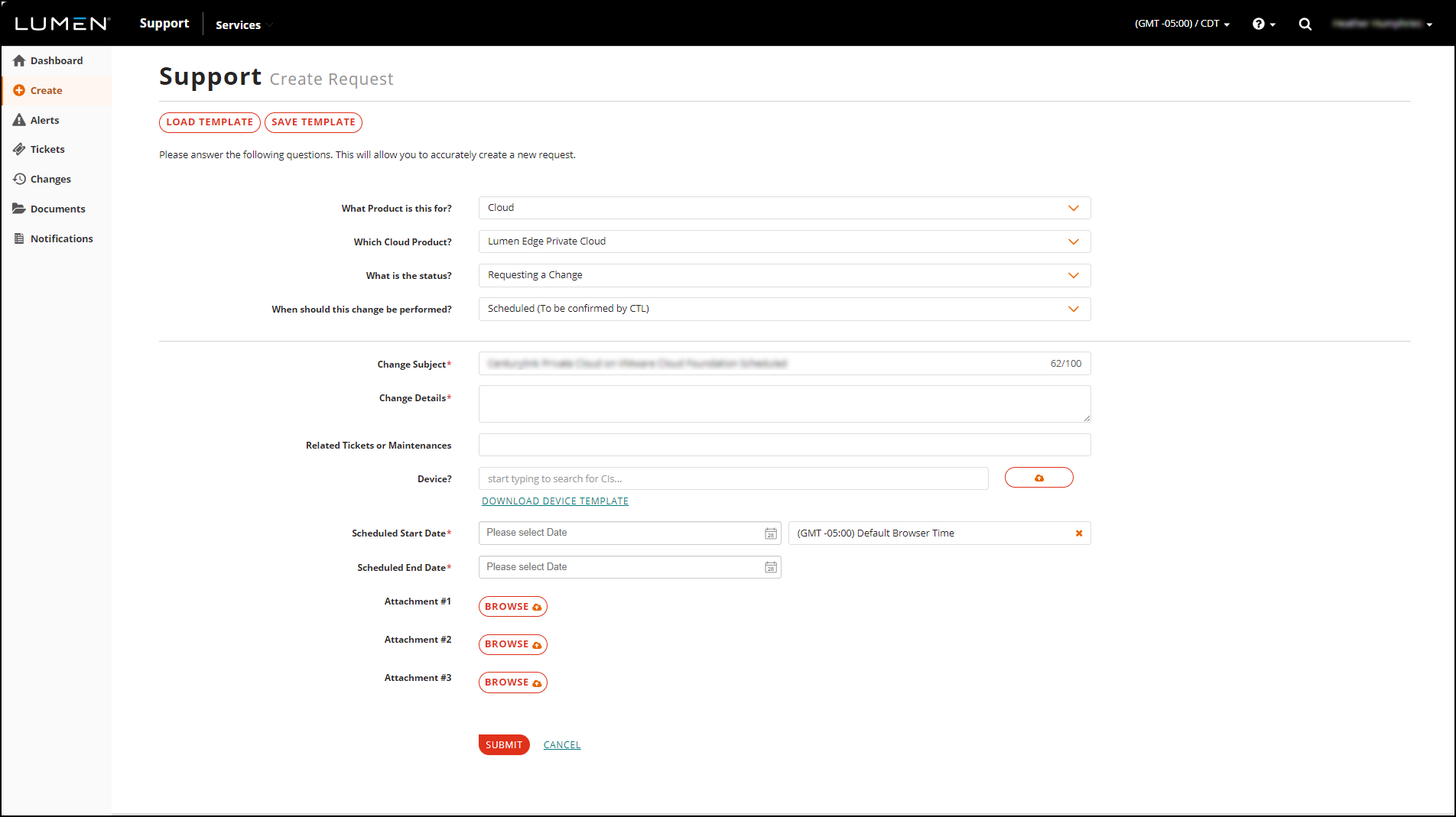
- On the request screen, complete the following fields:
- What Product is this for?—Select Cloud.
- Which Cloud Product?—Select Lumen Edge Private Cloud.
- What is the status?—Select Requesting a Change.
- When should this change be performed?—Select Scheduled (To be confirmed by CTL).
- Change Subject—This field defaults based on your selections for the Which Cloud Product? and When should this change be performed? fields. To change this field, delete the default entry and type a subject.
- Change Details—Type Please enable distributed firewall on my LPC on VCF environment ‑ <your URL>.
- Related Tickets or Maintenances—Type the identification of related request tickets or maintenance orders.
- Device?—Type the name for the device.
- Scheduled Start Date—Select a scheduled start date and time zone for the request.
- Schedueld End Date—Select a scheduled end date for the request.
- Attachment #1, #2, and #3—Click BROWSE, then select a maximum of three files relating to the request.
- What Product is this for?—Select Cloud.
- Click SUBMIT.
The Managed Support portal submits the request to enable the distributed firewall. After receiving the request, Lumen contacts you to coordinate the change request.



