

Updating information in an LNP ticket
After you create an LNP ticket, you can edit the contact information, add notes to communicate with Lumen, or add attachments to update the ticket without having to close it and create a new ticket.
Note: You cannot make changes to closed tickets.
To update information in an LNP ticket:
- Using the left menu, click Services, click Service Tools, then click ELS & LI Management.
- If you have more than one customer number on your enterprise ID, select the customer number you want to work with, then click PROCEED.
- Click LNP Tickets.
Lumen Connect lists all open LNP tickets for your organization and tickets closed within the past 30 days.
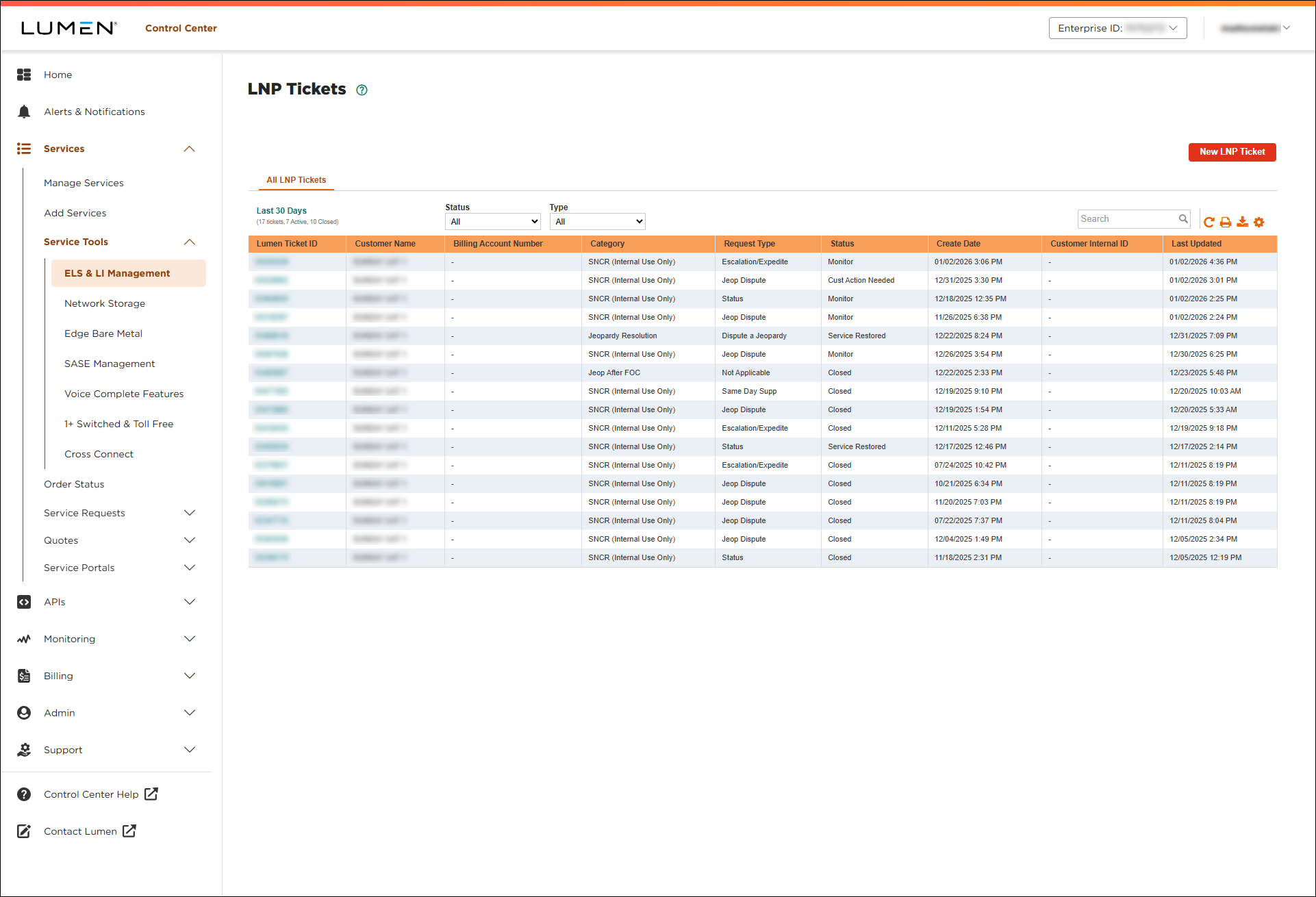
- Search for the LNP ticket you want to work with by doing one of the following:
- Scroll through the LNP tickets. If you have more than 20 LNP tickets, you can view the rest of your LNP tickets by using the arrows at the bottom of the list.
- Search for the LNP tickets by typing search criteria in the Search field.
- Filter the list of LNP tickets using the Status or Type lists.
- Scroll through the LNP tickets. If you have more than 20 LNP tickets, you can view the rest of your LNP tickets by using the arrows at the bottom of the list.
- When you find the LNP ticket you want to update, click the link in the Lumen Ticket ID column.
Lumen Connect shows details for the LNP ticket. (Before you update the ticket, review it to verify you're updating the correct one.)
- Make your updates to the ticket:
- To add a note (to communicate with your Lumen technician), type your note in the Add a Note field.
- To change your authorization for remote intrusive testing, make your changes in the Authorization section. (If you select Yes to authorize us to dispatch a technician, be sure to provide a local contact for the site and include and dispatch instructions you think we might need.)
- To update the contact information for the ticket, edit the information for the contact(s) in the Ticket Contact Information section.
- To attach a document (such as a more detailed explanation of the problem or additional details pertaining to your request), click Add Attachment (in the Notes And Attachments section), browse to locate the file and click Open. You can upload up to two files—no more than 2MB each.
- To add a note (to communicate with your Lumen technician), type your note in the Add a Note field.
- When you're done, click Save Changes.
Lumen Connect updates the LNP ticket.



