

Customizing your Lumen Connect dashboard
To help you prioritize the Lumen information you want to see when you sign in, you can customize your view of the Lumen Connect dashboard to select which snapshots appear and in what order they appear.
To customize your Lumen Connect dashboard:
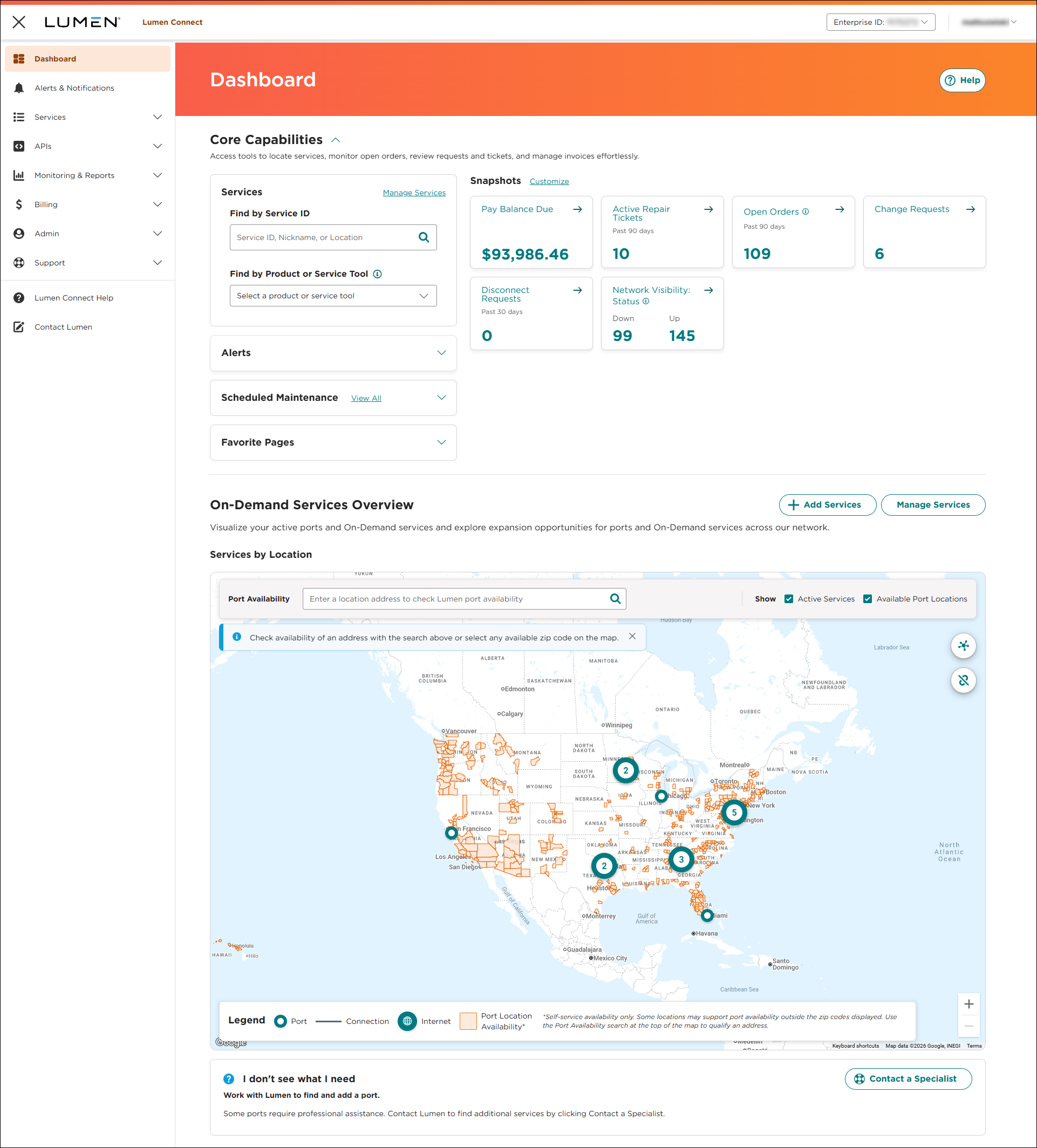
- At the top of the Snapshots section, click Customize.
- Do any of the following:
- To remove a snapshot from the dashboard, click the icon on the row for the snapshot.
- To add a snapshot to the dashboard, select the checkbox for the snapshot(s) you want to add, the click Add Snapshots.
- To move a snapshot to a new location on the dashboard, use the icon to drag the snapshot to location you want, then release the icon.
- To reset your snapshots to the default view, click Reset to Default.
- To remove a snapshot from the dashboard, click the icon on the row for the snapshot.
- When you're finished making changes, click Save.
Lumen Connect saves your changes.



