

Creating a threshold alert in Network Visibility
In Network Visibility, you can create threshold alerts (watches or warnings) to be notified when a service exceeds a specific metric. After you create the threshold alert, you can edit it to change the criteria triggering the alert or who the alert is sent to. You can also delete a threshold alert if you no longer want to be notified of the condition.
Note: The type of performance metric you can create threshold alerts for varies based on the service.
To create a threshold alert in Network Visibility:
- Using the left menu, click Monitoring, then click Network Visibility.
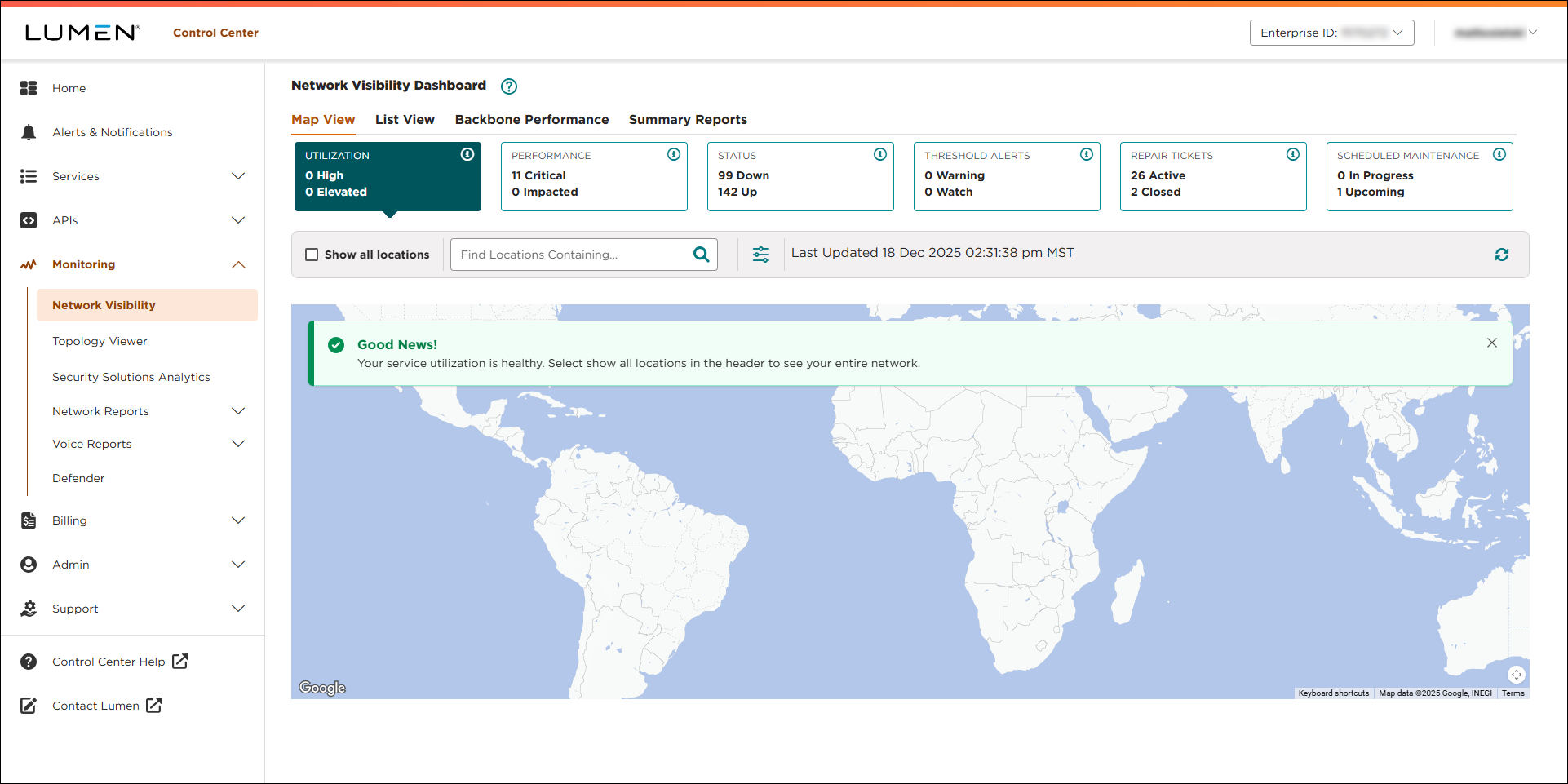
Lumen Connect opens Network Visibility. On the map, Lumen Connect shows locations with services needing your attention. Tiles show services with high utilization or critical issues, services that are down or have threshold warnings, as well as open tickets and scheduled maintenance for your services. Use the Map View, List View, Backbone Performance, and Summary Reports tabs above the tiles to toggle between views.
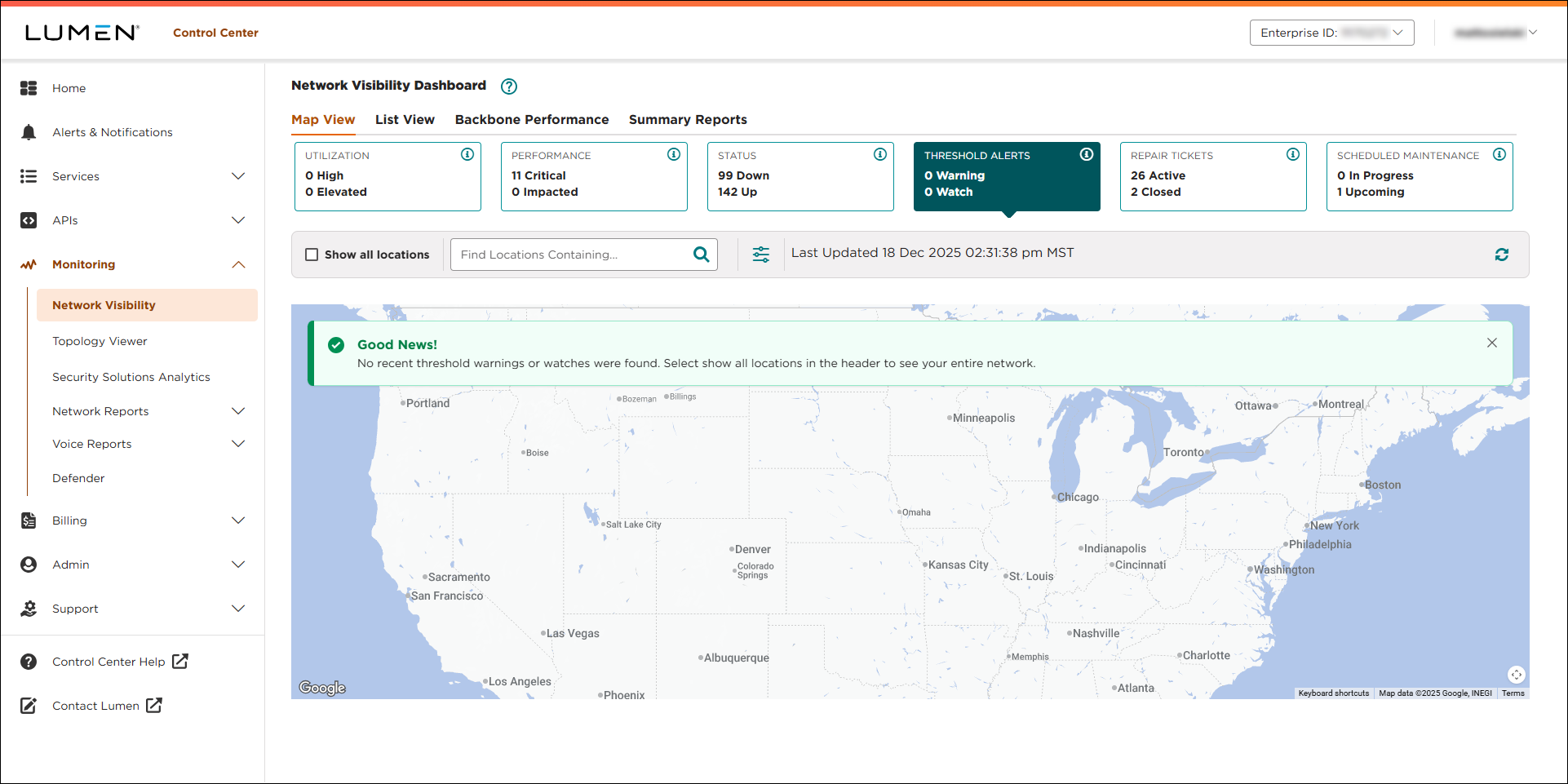
- Click the Threshold Alerts tile.
Lumen Connect shows locations with threshold watches or warnings (if any).
- Select the service you want to manage threshold alerts for by doing one of the following:
- Click a service location on the map (or in the list), then click Threshold Alerts.
- Type a location or service ID in the Find Locations Containing… field, select a location, then click Threshold Alerts.
- Click the Show All Locations checkbox, select a location, then click Threshold Alerts.
- Click a service location on the map (or in the list), then click Threshold Alerts.
- Click Manage Alerts.
If you've threshold alerts for the service, Control Center shows an arrow () on the left of performance metric(s) containing alerts.
- To create a threshold alert for one of the metrics listed, click the icon on the row for that metric.
- Fill in the details for the threshold alert:
- If the performance metric allows for class of service, select the class of service from the CoS list. (If the performance metric doesn't allow for class of service, Lumen Connect shows N/A.)
- From the Threshold list, select the preformance threshold that triggers the alert.
- From the Hours list, select when you want the threshold alert to notify you if the threshold is met (during peak hours, off hours (including weekends), or all the time).
- From the Timezone list, select the timezone to use for the hours of operation. (For example, if you're located in Chicago, you may want to be notified if a service supporting your London office reaches a certain threshold during peak hours in London.)
- In the Recipient field, verify your email address or type the email address you want Lumen Connect to send the threshold alert to.
- If the performance metric allows for class of service, select the class of service from the CoS list. (If the performance metric doesn't allow for class of service, Lumen Connect shows N/A.)
- When you're done, click Save Alert.
Lumen Connect creates the threshold alert.



