

Editing a pending use report order
If you've placed an order for a summary or detail use report in Usage Analyst, you can edit it before the order is complete. If you no longer need a report, you can delete the pending use report order from your list of pending orders.
To edit a pending use report order:
- Using the left menu, click Monitoring, click Voice Reports, then click Usage Analyst.
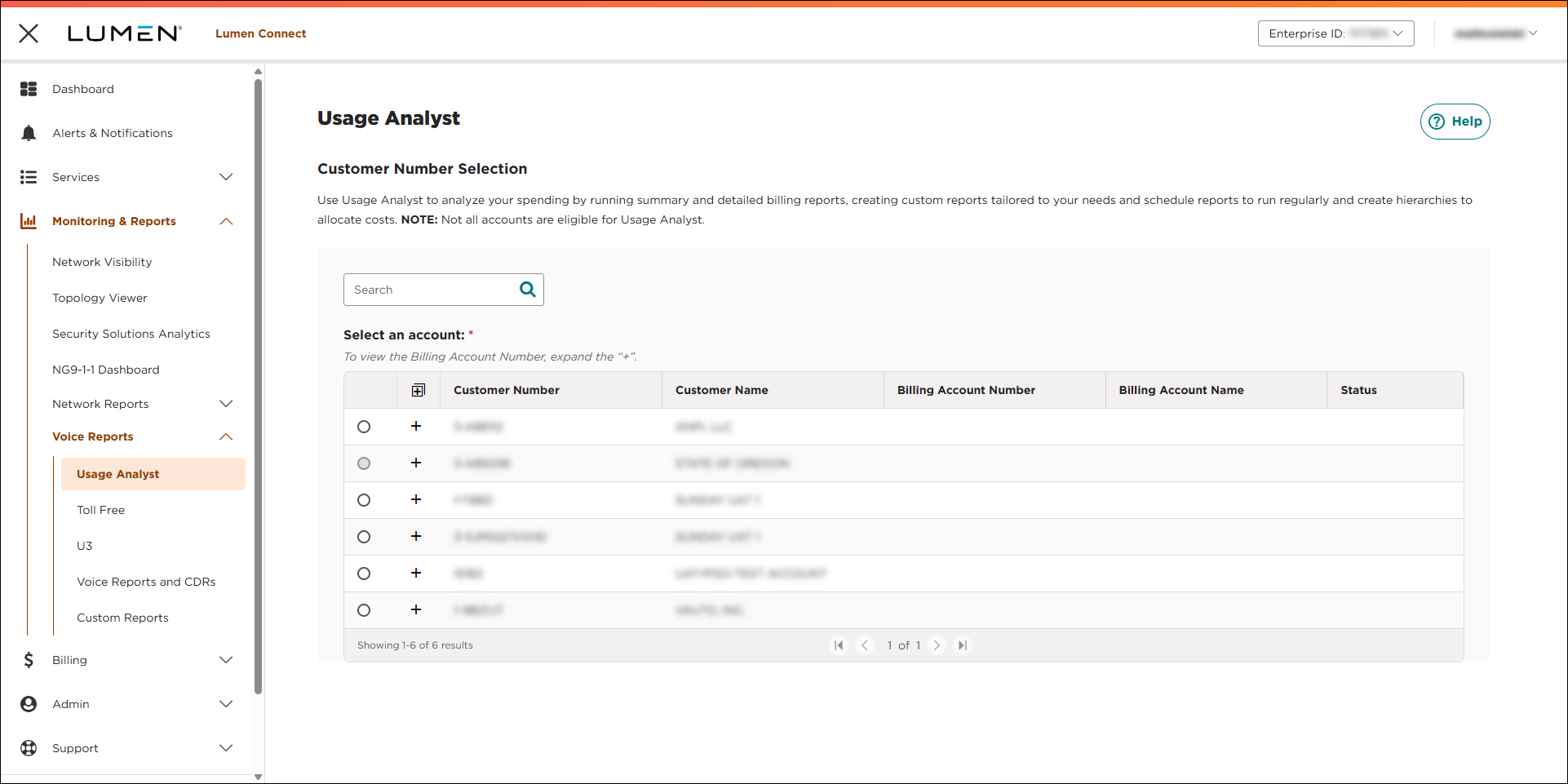
- Select the radio button next to the account you want to view, then click LAUNCH USAGE ANALYST.
Lumen Connect opens Usage Analyst in a new tab.
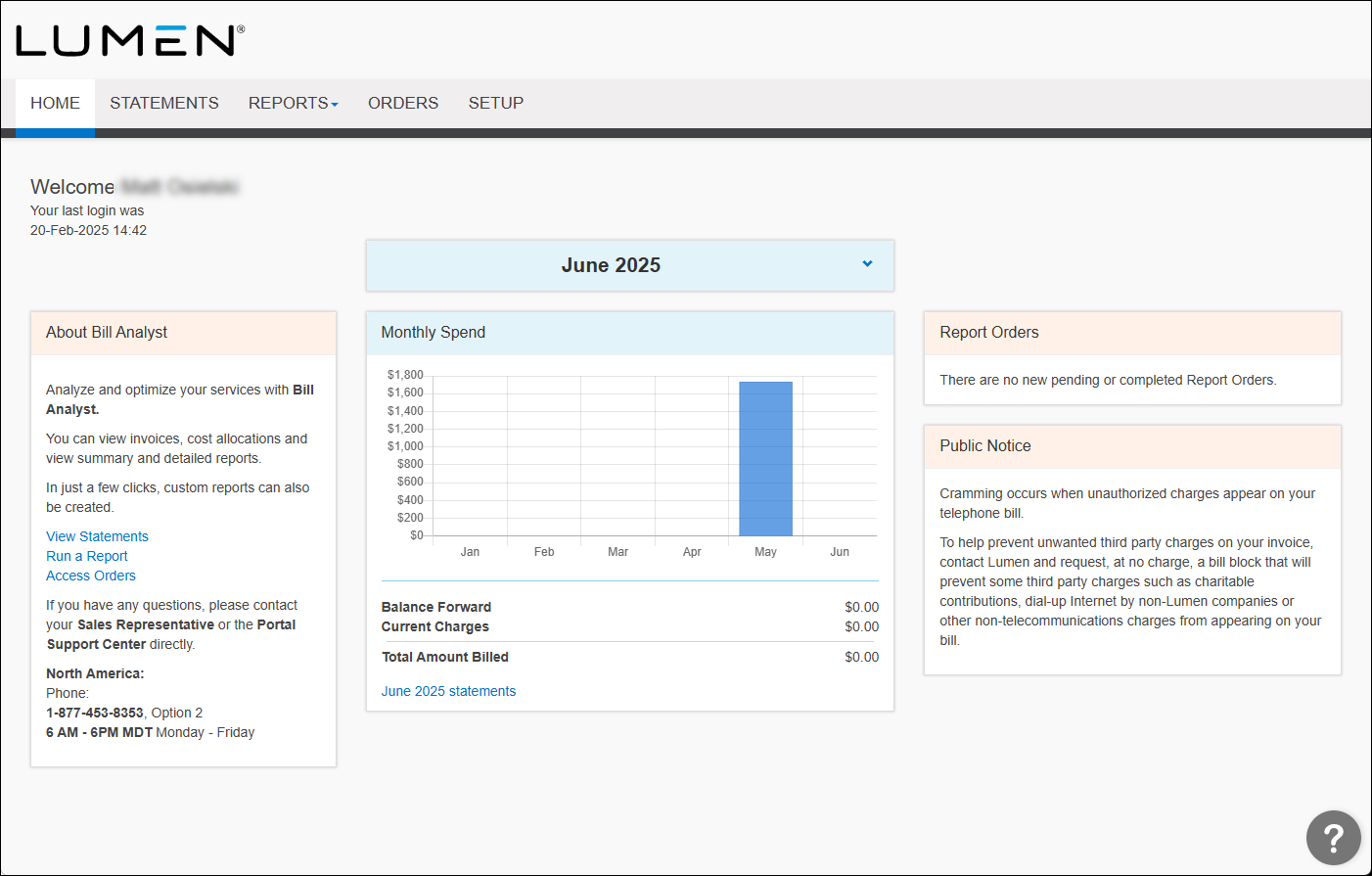
- Click the Orders tab.
Usage Analyst shows completed orders for use reports for your organization. Above the list of completed orders, Usage Analyst shows the amount of storage your orgainzation is currently using.
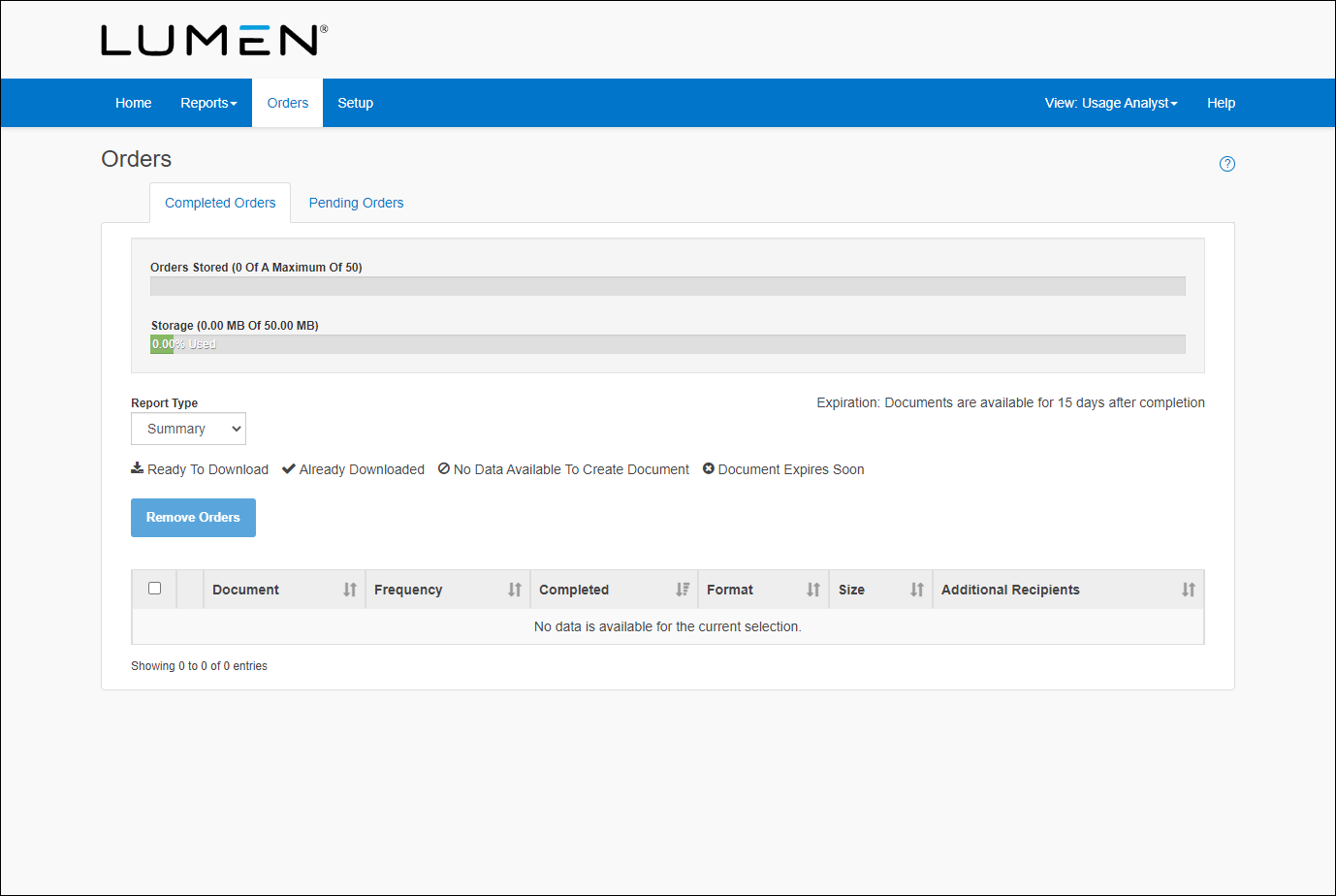
- Click the Pending Orders tab.
Usage Analyst lists the pending orders for reports. You can use the Report Type list to view a specific type of pending reports (e.g., Summary).
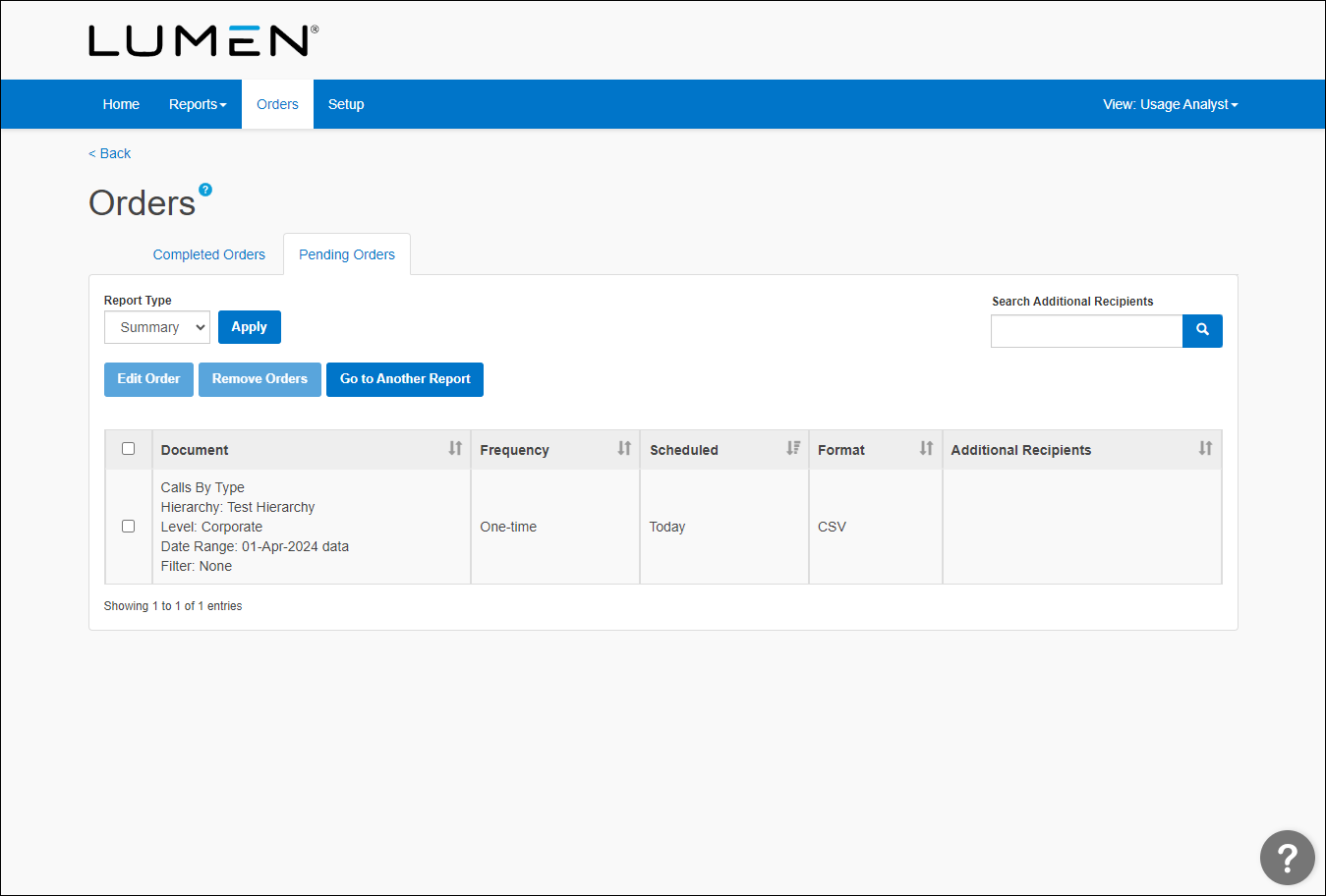
- Select the checkbox next to the order you want to edit, then click Edit Order.
- Edit the Order, Order Frequency, Order Format, and Order Delivery sections.
- Click Submit Order.



