

Fixing errors with use reports
Sometimes when you’re running a use report in Usage Analyst, you'll get an error message that there’s no data for the report (a no‑data‑found error) or that the report couldn’t be sent to your SFTP site (an SFTP‑delivery failure). These use report errors are easy to troubleshoot and fix.
Fixing a no-data-found error
If you get a no‑data‑found error when you're running a use report, confirm there's data available for the report you're running, then check that your search parameters are valid.
Why you’re getting a no‑data‑found error
- account data isn't available for the date you selected
- there's a problem with how the search parameters are set up
- you may be using the wrong hierarchy
- an incorrect filter has been applied
Avoiding no‑data‑found errors
- Before you run a report, confirm there's data available for the month you want to view. If the data is available, you'll see use data associated with that account (such as [x], [y], and [z]). If those fields are blank, the data for the selected month hasn't been loaded into the portal yet; you will be able to run a report after data is available.
- If you get an error message after confirming there's data available for your report, check that your search parameters—such as date, hierarchy, level, and filter‑‑are correct.
To fix a no-data-found error:
- Using the left menu, click Monitoring, click Voice Reports, then click Usage Analyst.
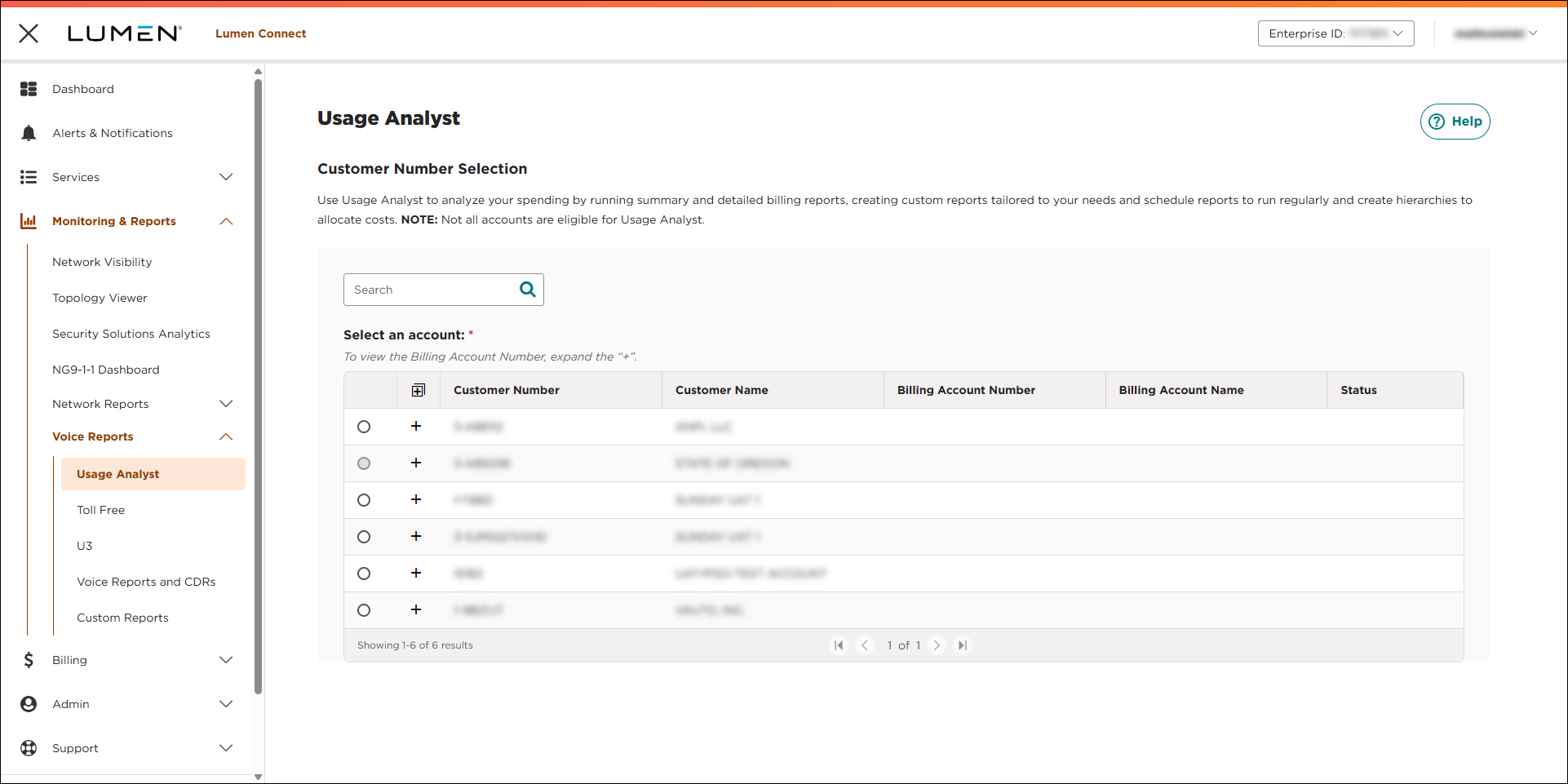
- Select the radio button next to the account you want to view, then click LAUNCH USAGE ANALYST.
Lumen Connect opens Usage Analyst in a new tab.
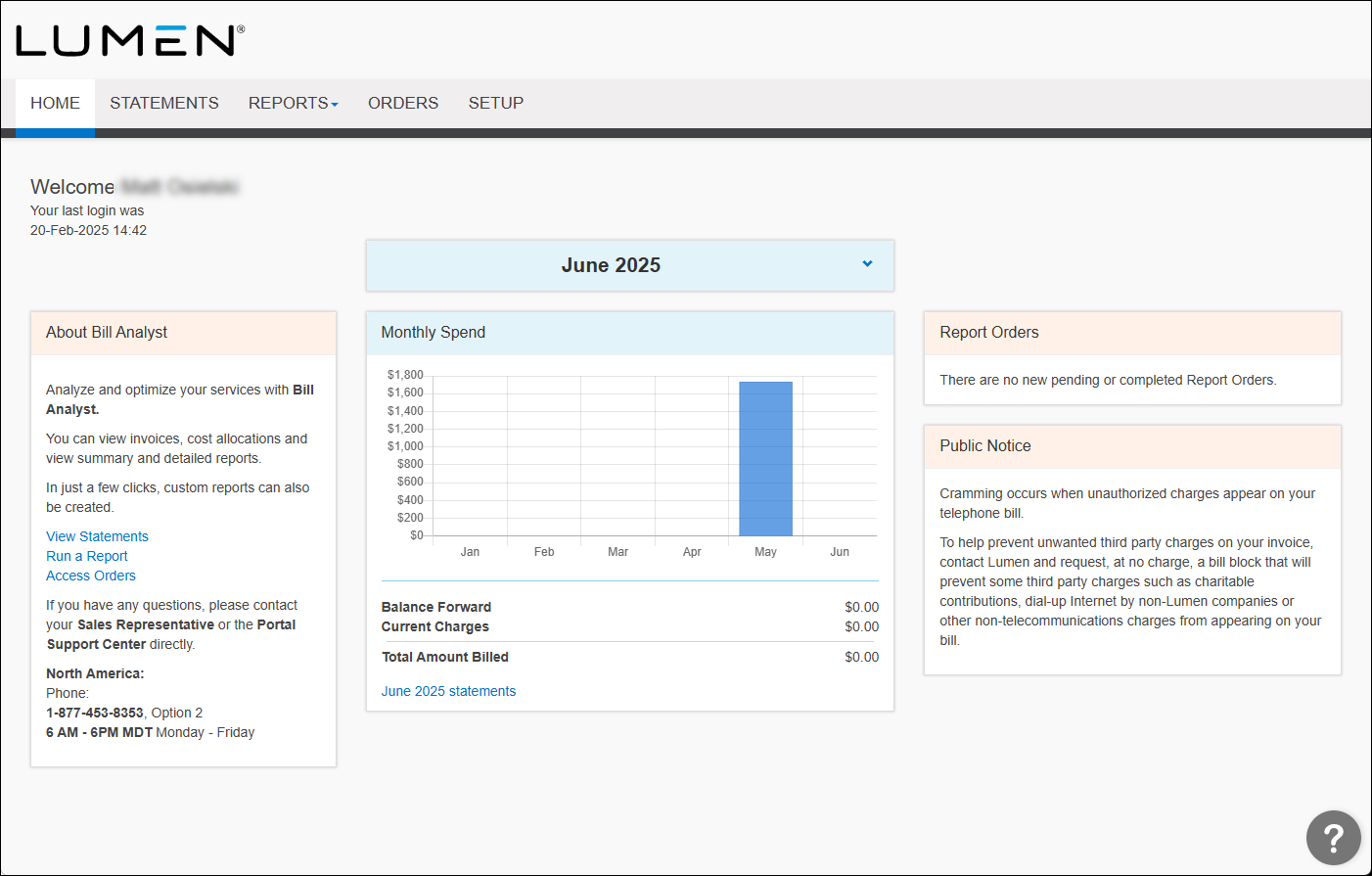
- If there's data available for the month you're trying to run a use report on, but you're still getting a no‑data‑found error, the problem could be how you have your search parameters set up. If they're too restrictive, there won't be any data for the system to return and you'll get an error. Double check the settings of these parameters at the top of the Summary and Detail pages. (Exactly which parameters you find varies based on the screen you're on and the type of report you're running.)
- hierarchy
- level
- filter
- month
- account group
- group
- subgroup
- hierarchy
- To troubleshoot your search parameters, remove as many parameters as you can. For example, change the Hierarchy to Public, Level to Corporate, Filter to None, etc.
Fixing an SFTP-delivery error
Each month, before we send send out regularly scheduled use reports, our systems ping the receiving SFTP locations to confirm connectivity. If our system doesn’t receive an answer from your SFTP site, we put the report on hold.
Any time we send a report to your SFTP location, we also send you an email. If the SFTP delivery is successful, you’ll get an email letting you know your report is available on your SFTP site. If there is an issue with your SFTP site, you’ll get an email with an SFTP‑delivery failure error message telling you to check your SFTP site.
Note: If you've sent scheduled reports to your SFTP location previously without a problem, check to make sure your search parameters such as hierarchy, level, field, and date are correct on the report that was not delievered.
To fix an SFTP-delivery error:
- Check the status of your SFTP location in Usage Analyst.
- Make sure your search parameters are correct.
- Contact the person who set up the SFTP location to revalidate it.



