

Viewing a standard summary use report
You can view a standard summary use report in Usage Analyst. Standard reports provide an overview of trends in your use data. You can also create a custom summary use report if you want to tailor a report to your needs. (To view detailed use reports view a standard detail use report or create a custom detail use report.)
To view a standard summary use report:
- Using the left menu, click Monitoring, click Voice Reports, then click Usage Analyst.
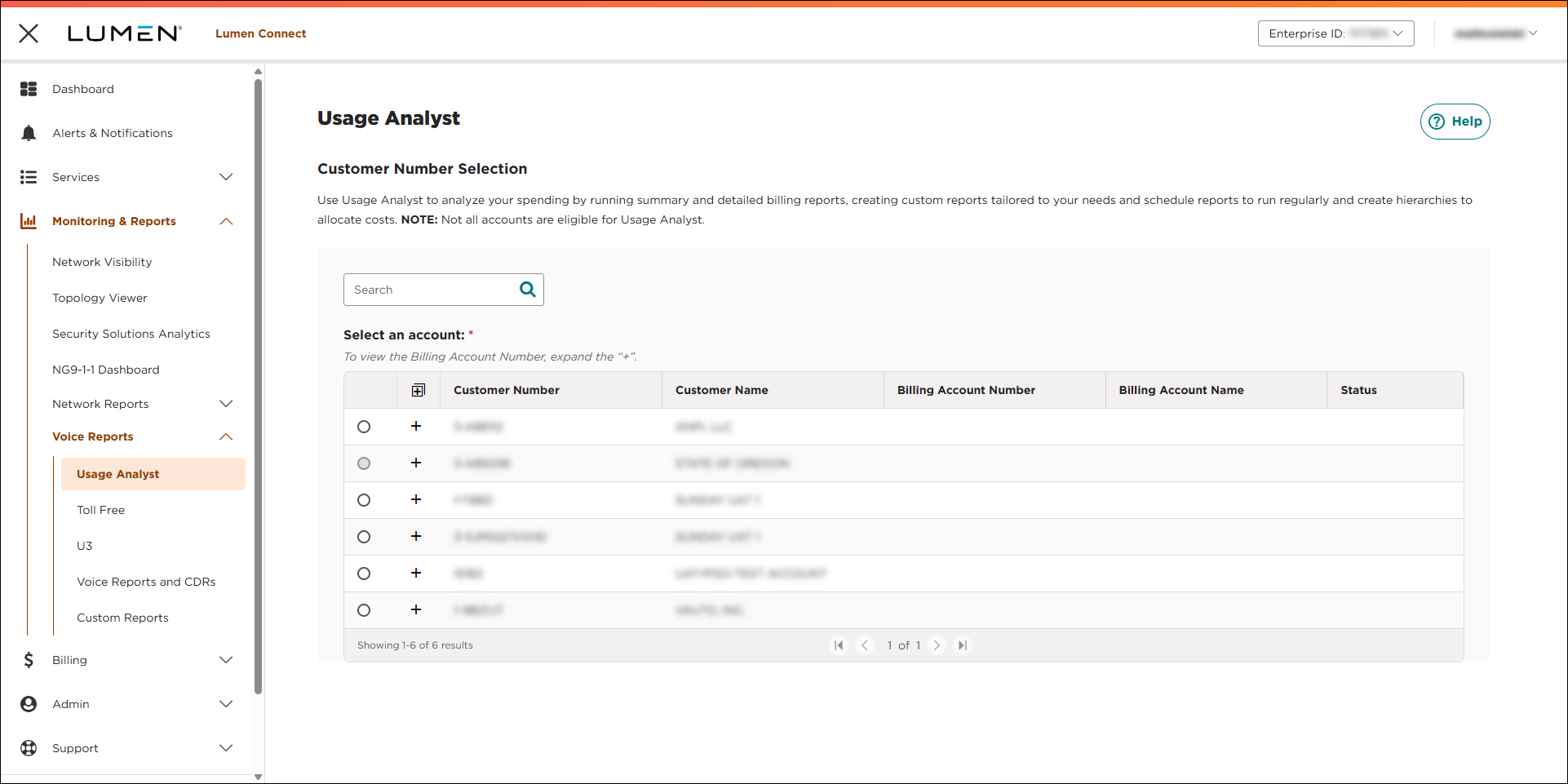
- Select the radio button next to the account you want to view, then click LAUNCH USAGE ANALYST.
Lumen Connect opens Usage Analyst in a new tab.
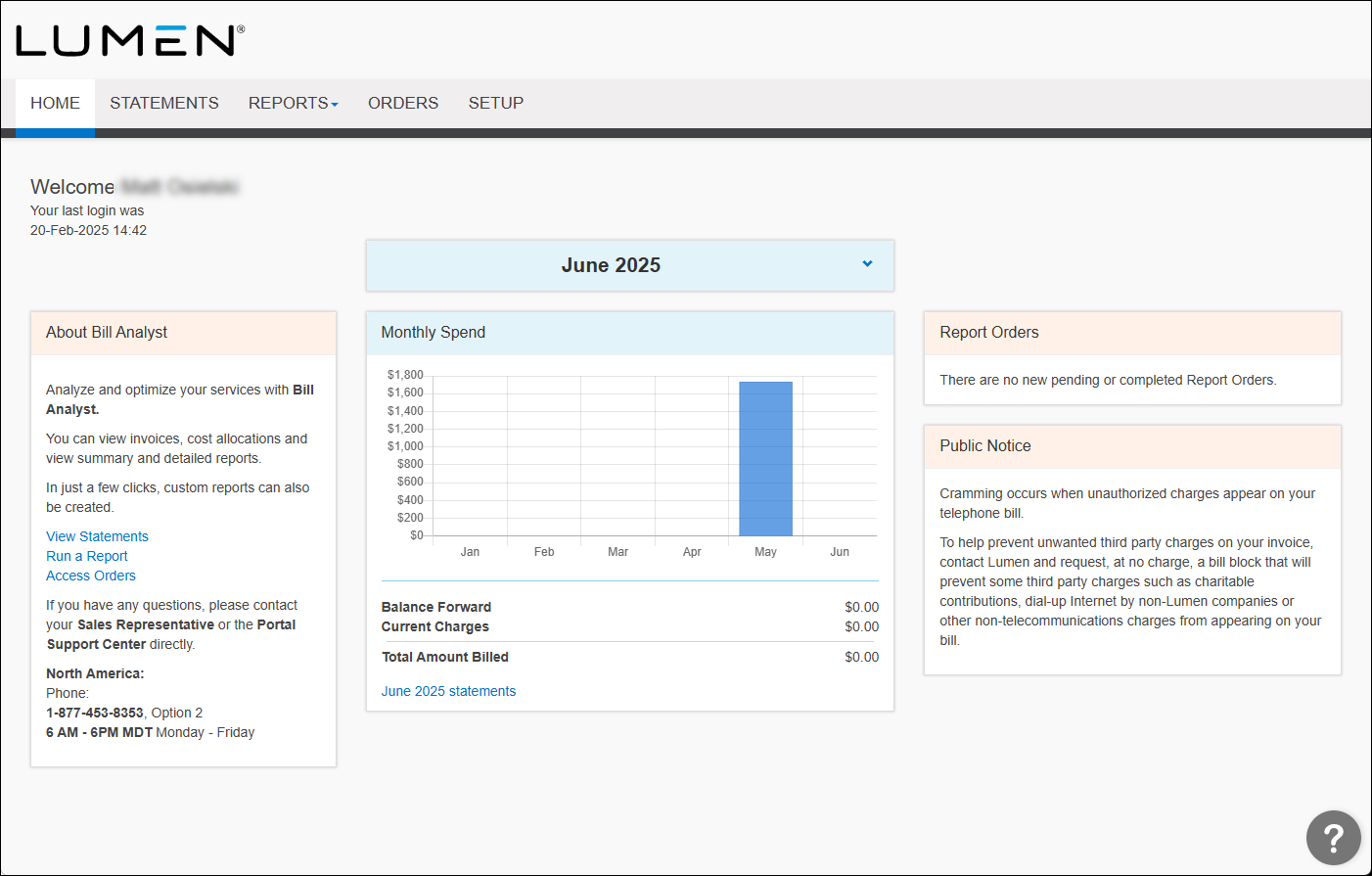
- Click the Reports tab, then click Summary Reports.
- Click the Usage Analyst tab.
Usage Analyst lists the available summary use reports.
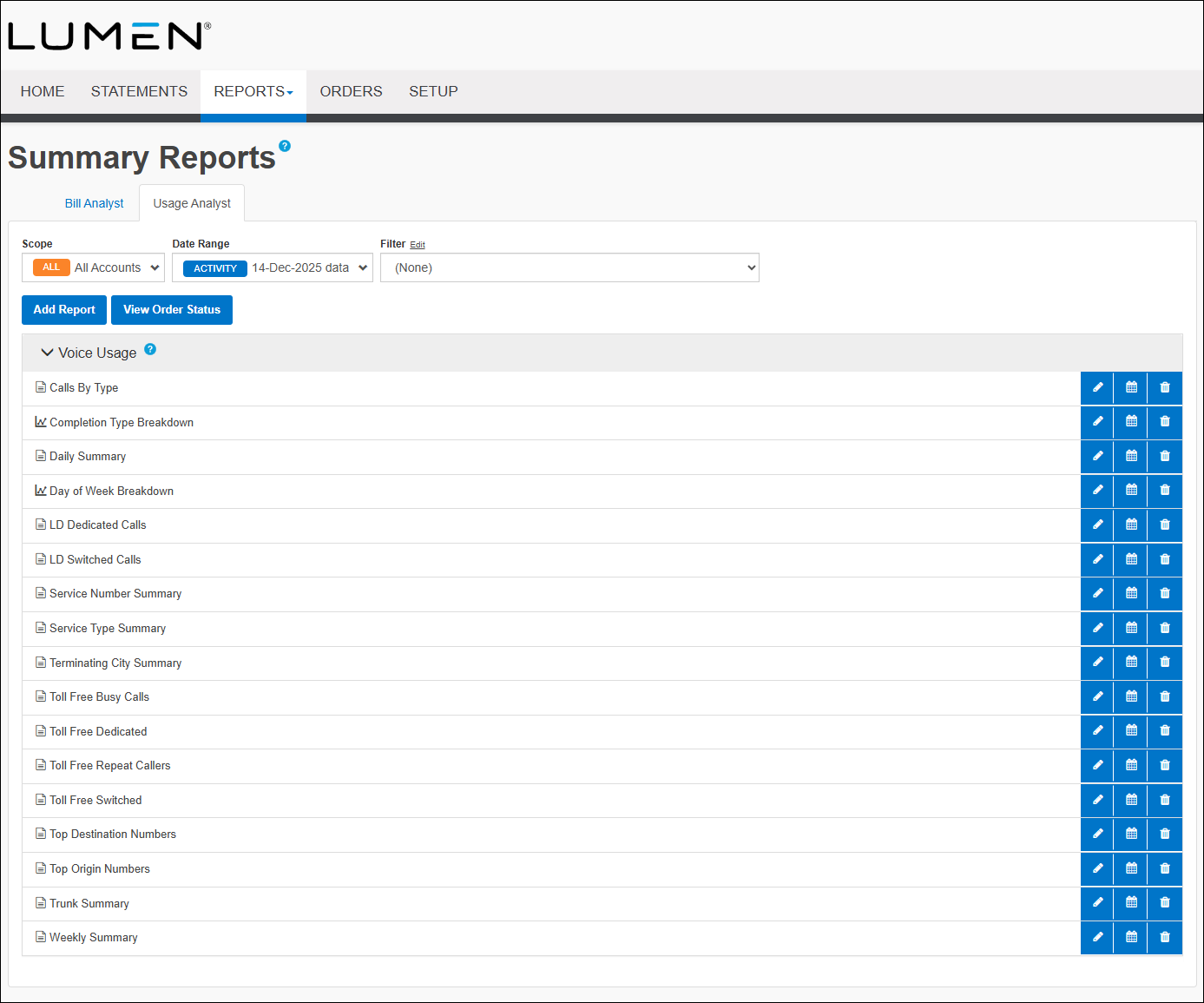
- In the Voice Usage section, click on the name of the report you want to view.
- To view the data in a graph instead of a table, click graph icon.



