

Viewing planned network maintenance for a service
Using Network Visibility (within Lumen Connect), you can view in progress, upcoming, and recently completed Lumen planned network maintenance impacting a service. You can also view all planned network maintence events for your organization's services in Lumen Connect and even open an inquiry ticket if you have questions or need to request that Lumen reschedule the maintenance event.
To view planned network maintenance for a service:
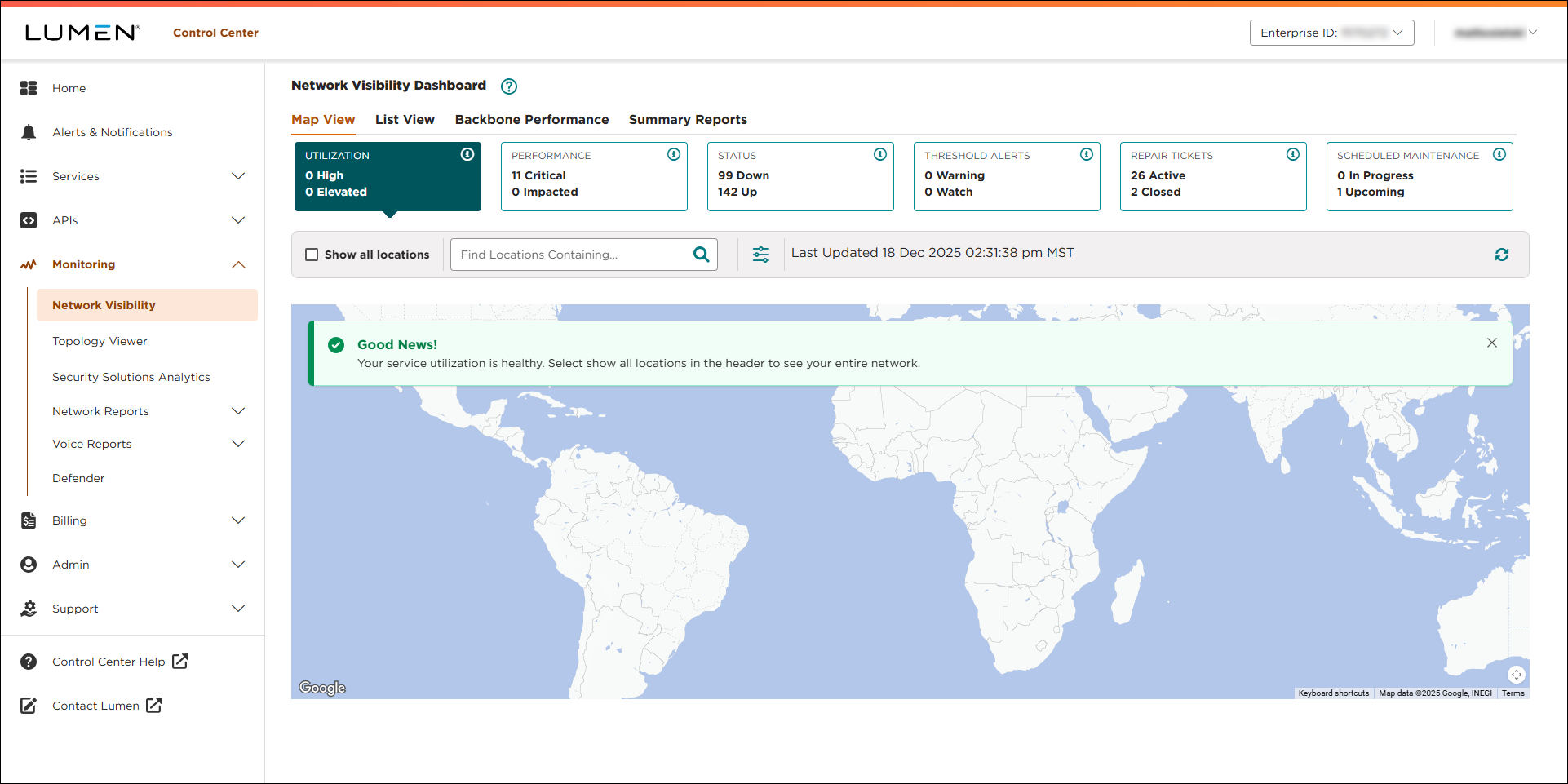
- Using the left menu, click Monitoring, then click Network Visibility.
Lumen Connect opens Network Visibility. On the map, Lumen Connect shows locations with services needing your attention. Tiles show services with high utilization or critical issues, services that are down or have threshold warnings, as well as open tickets and scheduled maintenance for your services. Use the Map View, List View, Backbone Performance, and Summary Reports tabs above the tiles to toggle between views.
- Search for the service you want to work with:
- From the List View tab, do any of the following:
- Use the Locations tab to scroll through the list of locations or search for a location with the service you want to work with, click the hyperlink in the Location Address column for the location, then click a service in the left panel for the location.
- Use the Services tab to scroll through the list of services or search for a service, then click the hyperlink in the Service ID or SCID column for the service.
- Use the Select All Products list to see locations with that product or services matching that product type.
- Filter the list by clicking the icon, then using any of the filters that appear. You can filter by service ID, product, device, location address, location name, VPN ID, or service component ID (SCID).
- Use the Locations tab to scroll through the list of locations or search for a location with the service you want to work with, click the hyperlink in the Location Address column for the location, then click a service in the left panel for the location.
- From the Map View tab, do any of the following:
- Select a location on the map, then click a service in the left panel for the location.
- Select the Show all locations checkbox, select a location on the map, then click a service in the left panel for the location.
- Use the search box to find a location with the service you want to work with, select the location on the map, then click a service in the left panel for the location.
- Filter the list by clicking the icon, then using any of the filters that appear. You can filter by service ID, product, device, location address, location name, VPN ID, or service component ID (SCID).
- Select a location on the map, then click a service in the left panel for the location.
- From the List View tab, do any of the following:
Lumen Connect shows details for the service you selected.
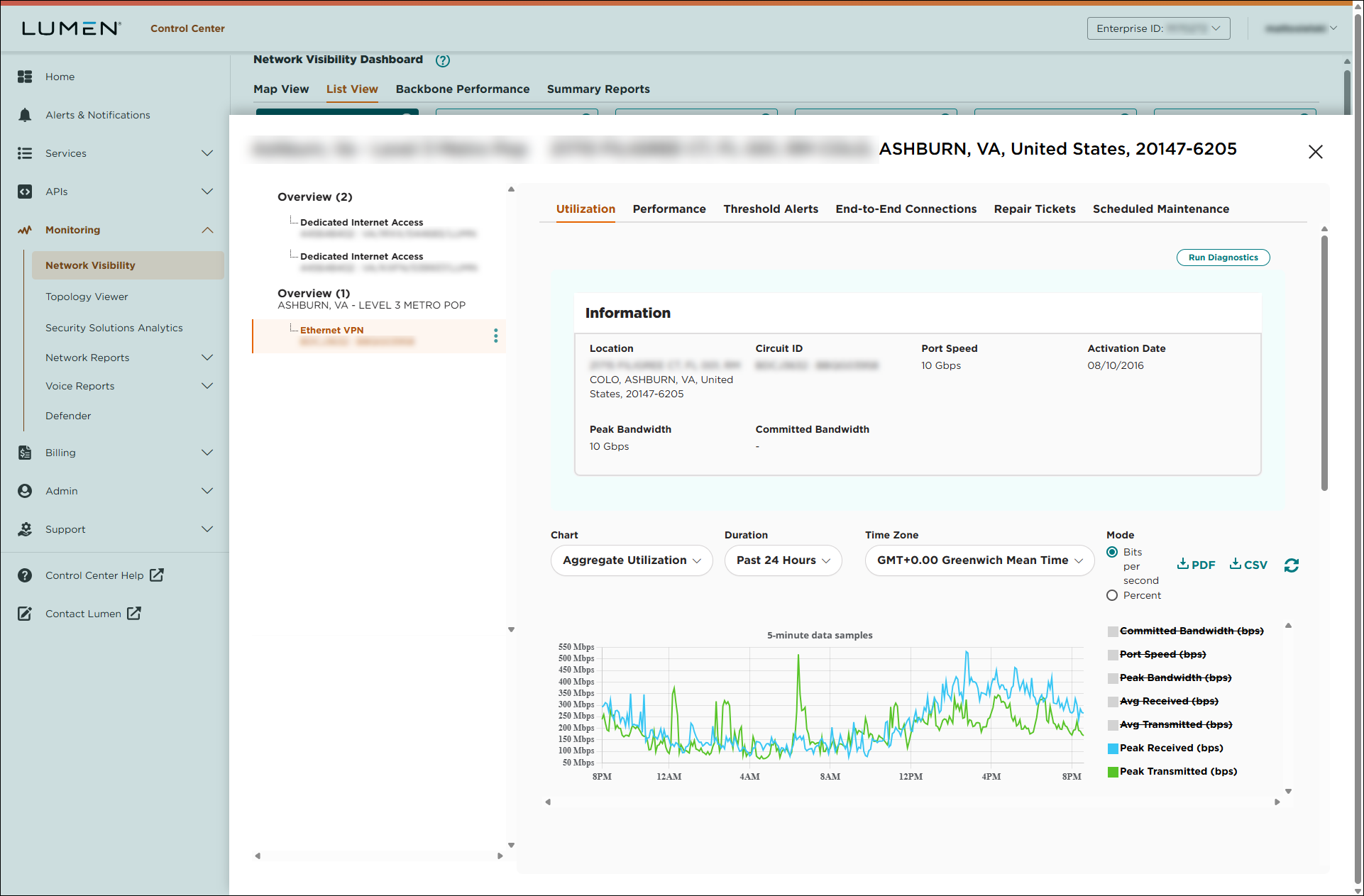
- Click the Scheduled Maintenance tab.
Lumen Connect shows in-progress, upcoming, and completed planned network maintance for the service you selected.
- To view details for the maintenance event(s) for a a category, click the gray bar to expand the section.
Lumen Connect shows maintenance events affecting the service you selected. The maintenance event lists the location, start/end times, estimated duration, and whether the maintenance will affect the service.



