

Changing your default order status view
In Lumen Connect, you can use a saved order status view as your default view when viewing the status of your orders. If you no longer want to use a particular view as your default, you can change which saved view you use or you can return to the default Lumen Connect view. You can also edit a saved view or delete it if you no longer need it. If you delete a saved view which is set as the default view, you'll see the default Lumen Connect view until you select a new view as your default.
To change your default order status view:
- Using the left menu, click Services, then click Order Status.
Lumen Connect shows all open orders and those completed in the past 90 days and lists status of each order in the Status column. If an order has child orders, a icon appears to the left of the order number. (You can use the cards at the top of the page to filter your orders to view install, change, or disconnect orders.)
- Pending—we priced and designed a solution and you accepted it. We’re working on the final details of the order so our team can submit your order.
- Submitted—we submitted your order and are getting credit approval. Once your credit is approved, we will assign a customer care manager to work on your order (depending on the service you purchased).
- In Progress—we’re working on building and testing your service. As progress continues, we’ll email you to let you know the status. If you have questions about your order, contact the customer care manager listed on your order.
- Cancelled—we canceled your order and your service(s). No further progress will be made. For questions concerning the cancellation, contact the customer care manager listed on your order.
- Complete—we completed your order and your service(s) is ready for you to use and manage. We’ve also started billing you for this service.
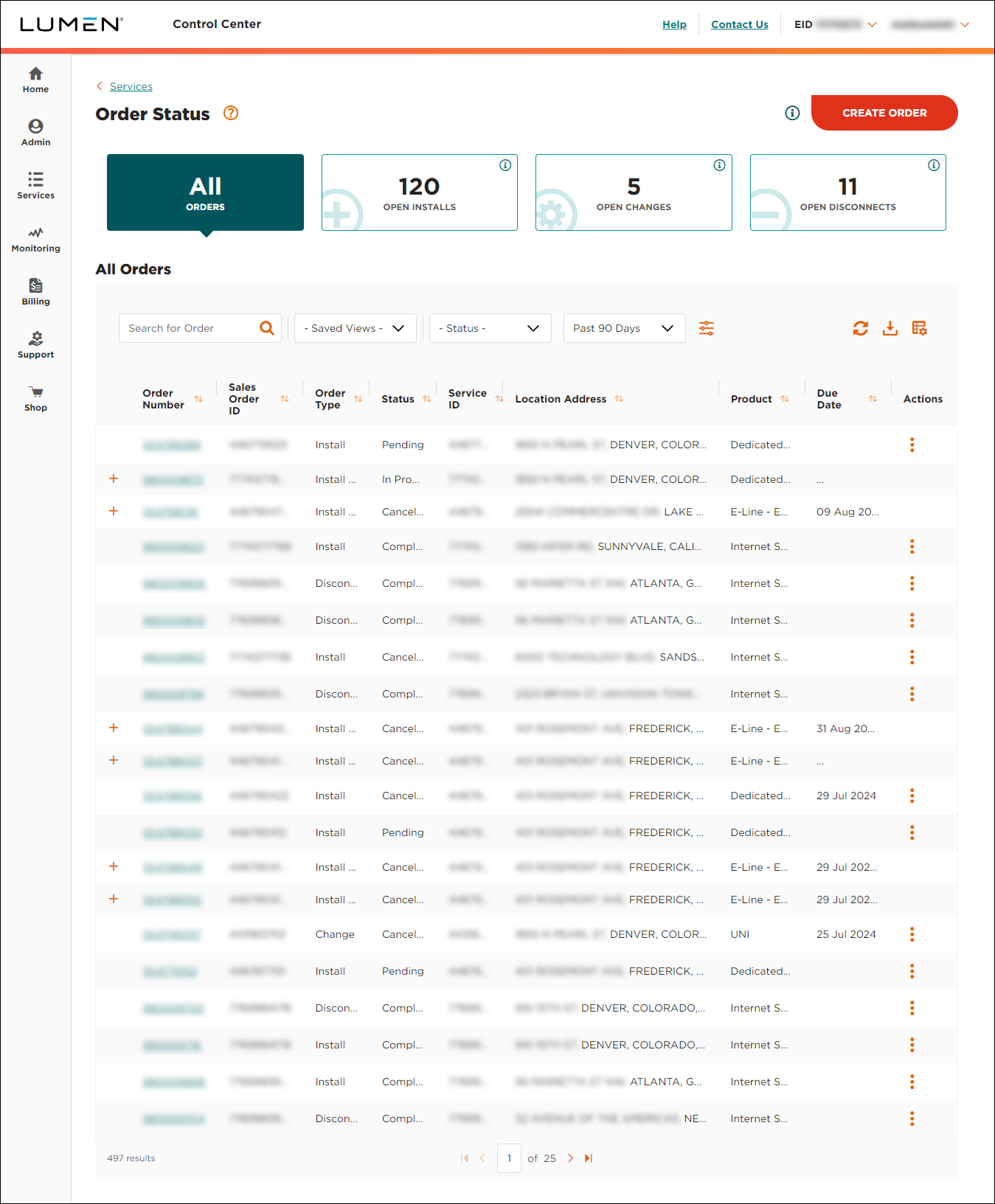
- Do one of the following:
- To return to the default Lumen Connect order status view, click the icon (on the light teal bar), clear the Default checkbox, then click Save.
- To change your default view to another saved view, select the saved view you want to use as your default view from the Saved Views list.
- To change your default view to a new view, click the icon (on the light teal bar), search or filter the orders, click Save View, type a name for the new view, select the Default checkbox, then click Save.
- To return to the default Lumen Connect order status view, click the icon (on the light teal bar), clear the Default checkbox, then click Save.



