

Viewing a list of Lumen wholesale services on an enterprise ID
As a Lumen Wholesale customer, you can view a list of all wholesale services on an enterprise ID in one list. From the list, you can then view details for each service and manage the service.
Looking for a list of accounts rather than services? You can view a list of accounts on an enterprise ID.
Looking for a list of users? You can also view a list of users on an enterprise ID.
To view a list of Lumen wholesale services on an enterprise ID:
- Using the left menu, click Services, then click Inventory.
Lumen Connect lists all wholesale services assigned to the billing accounts under the enterprise ID.
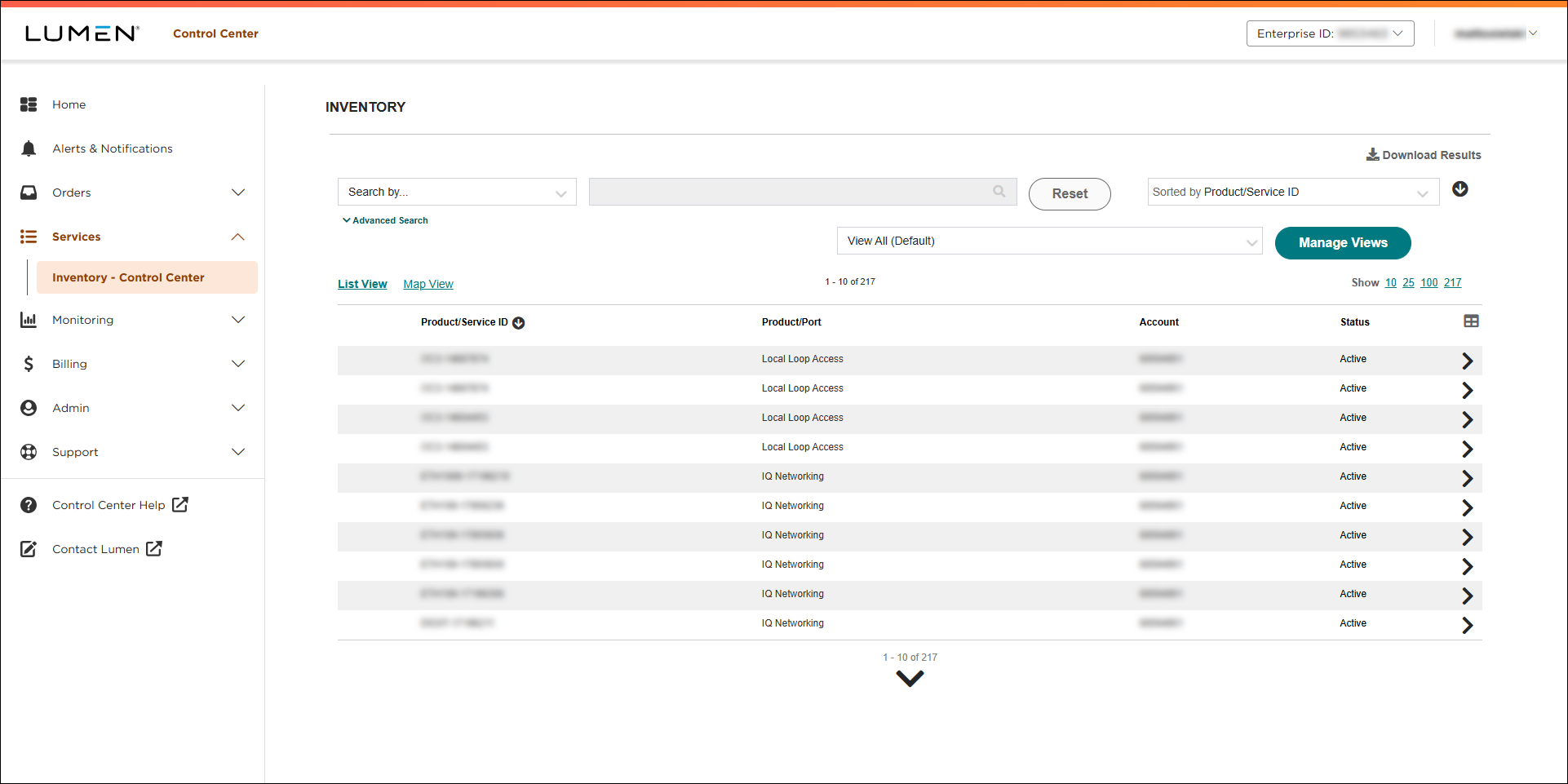
- You can customize your view to better examine your services by doing any of the following:
- To see your services on a map, click the Map View link.
Green dots indicate service locations with no open repair tickets. Red triangles with exclamation marks indicate service locations with open tickets.
- To download a spreadsheet of all your services, click Download Results.
- To see details for a particular service, click the blue arrow to the right of the service address.
- To search for a particular service, do one of the following:
- Sort your services using the Sort by… list (e.g., Service Type). You can toggle between descending and ascending order using the arrow to the right of the Sort by… list.
- Filter your services by selecting an option from the View All (Default) list.
- Search for a specific service (by service type, account, etc.) using the Search by… field and search box. (To search using multiple search criteria, click Advanced Search, then fill in your search criteria and click Apply Search Filters. When you're done, click Close Advanced Search.)
- Sort your services using the Sort by… list (e.g., Service Type). You can toggle between descending and ascending order using the arrow to the right of the Sort by… list.
- To see your services on a map, click the Map View link.



