

Creating a reservation
Using Media portal, you can create a reservation for Lumen® Vyvx® services. Once you create the reservation, you can view a list of all your reservations, access a confirmation letter for the reservation, and more.
To create a reservation:
- Sign in to Media portal. (Get help resetting your password)
- From the main menu, select Orders > Create Reservation.
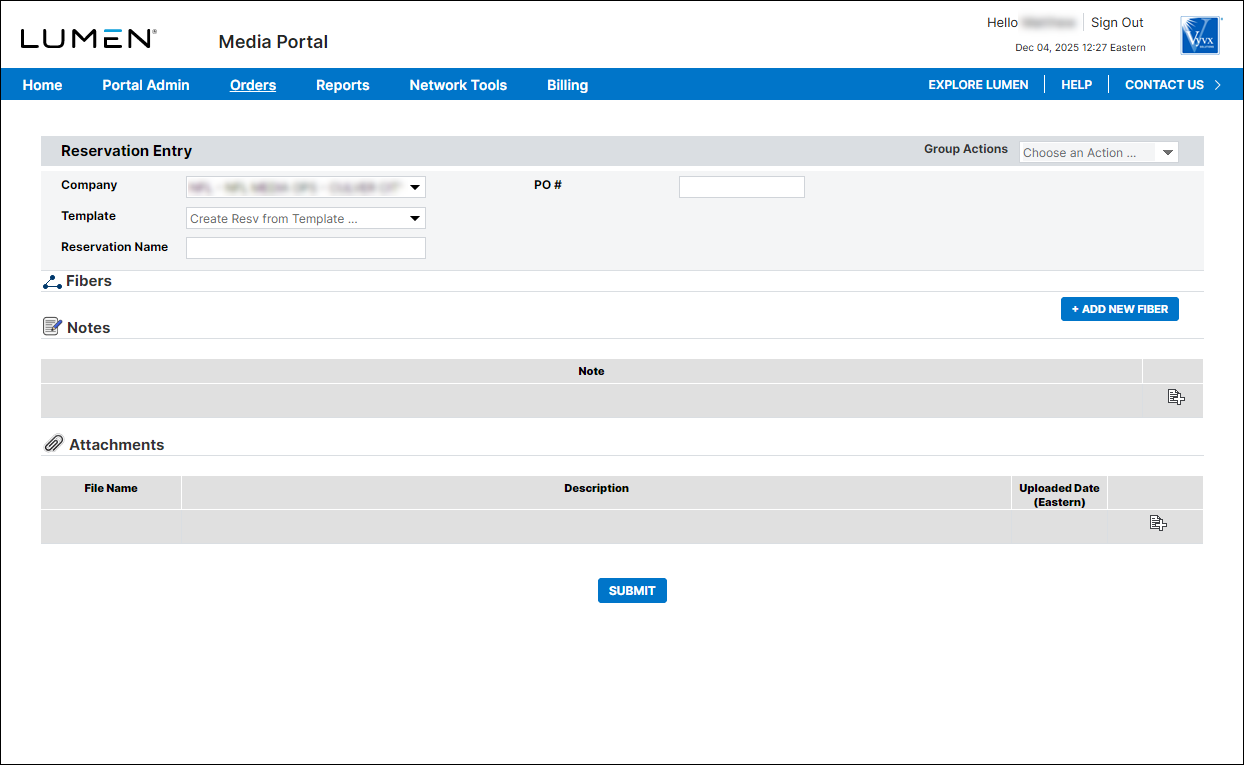
- Fill in the General Information section:
- From the Company list, select the company you want to create a booking for.
- If you want to create a reservation using a saved template, select the template you want to use from the Template list.
- In the Reservation Name field, type a name for the reservation that makes it easy for you to identify it.
- If you need to add a purchase order number, type it in the PO# field.
- From the Company list, select the company you want to create a booking for.
- In the Fibers section, click + Add New Fiber(s).
Media portal opens a form for the new fiber connection.
- From the Type of Service list, select the type of service you want to use for the reservation. The options shown vary based on your contract (e.g., JPEG, HD‑SDI, Broadcast, etc.)
Based on your selection, Media portal adds additional fields for you to fill in: Bit rate (Mbps), Sampling Profile, Compression, Resolution.
- If you want a quote for this service before commiting to the reservation, select the Inquiry checkbox.
- In the Dates section, do the following to schedule the reservation:
- Select the start date/time, end date/time, and time zone for the reservation.
- If you want to add extra, optional time for the reservation, type the number of extra minutes in the Approx. End field.
- Select the start date/time, end date/time, and time zone for the reservation.
Note: The reservation will run until end of approx time unless you call in a goodnight to Vyvx Operations. If you add approx time, it is billed at the same rate as your reservation. If you don't goodnight a reservation with an approximate‑out, Lumen charges you for the full approximate‑out time regardless of actual usage.
- Fill in the Segments section with the segments for your reservation. At a minimum, you need to fill in the from site and to site, but you can add more sites to create a multipoint reservation:
- On the From line, select the details for the origination point for the broadcast: select the site, type (IP or circuit), circuit, format, and standard (depending on the type of service you selected).
- On the To line, select the details for the termination point for the broadcast: select the site, type (IP or circuit), circuit, format, and standard (depending on the type of service you selected).
- If you want to create a multipoint connection, click the Add Destination icon and fill in the details for the additional connection point.
- Repeat step c as needed to add more connection points.
- On the From line, select the details for the origination point for the broadcast: select the site, type (IP or circuit), circuit, format, and standard (depending on the type of service you selected).
- Click Continue.
Media portal adds the fiber connection to your reservation.
- If you need to add any additional information for the reservation, click the Add New Note icon, type your information in the field that appears, then click the Valid New Note icon ().
- If you need to add an attachment (e.g., with supplemental information) for the reservation, click the Add Attachment icon, click Browse, navigate to the file you want to attach, click Open, then click SUBMIT.
- Review the reservation then, if everything looks correct, click SUBMIT.
Media portal creates the reservation. You can track the status of the reservation (and make any adjustments) by searching for the reservation and then checking the Status column or selecting an icon in the Actions column.



