Toggle Navigation Toggle Navigation
  • Lumen Connect overview
  • Getting started/General
  • Services
  • APIs
  • Monitoring & Reports
  • Billing
  • Admin
  • Support
  • Orders (Wholesale)
  • Other portals overview
  • Media portal
  • DDoS Mitigation & Reporting
  • Security Solutions portal
  • VoIP portal
  • View all product support
  • Infrastructure
  • Connectivity
  • Security
  • Communication
  • Media & Entertainment
  • LSR portal
  • Port Out Request tool
  • Virtual Front Office
  • Readiness overview
  • Product-specific readiness
  • Handbooks
  • All infrastructure services
  • Edge Bare Metal
  • Edge Gateway
  • Edge Private Cloud
  • Encrypted Wavelength Service
  • Network Storage
  • All connectivity services
  • Ethernet On-Demand
  • Fiber+ Internet
  • Internet On-Demand
  • IP VPN On-Demand
  • NaaS Port
  • On-Demand services
  • Troubleshooting tools
  • All security services
  • Adaptive Network Security
  • Adaptive Threat Intelligence
  • Application Delivery Solutions
  • DDoS Hyper
  • DDoS Mitigation Service
  • Lumen Defender Powered by Black Lotus Labs
  • Lumen SASE with Fortinet
  • Lumen SASE with Versa
  • Lumen SASE with VMware
  • Network-based Security
  • SD-WAN with Cisco Meraki
  • SD-WAN with Versa Networks
  • Security Log Monitoring
  • All communication services
  • Cloud Voice
  • Hosted VoIP
  • Local Inbound (LI)
  • Lumen Solutions for Microsoft Teams
  • Lumen Solutions for Webex
  • Lumen Solutions for Zoom
  • Lumen Solutions for Zoom for Government
  • SIP Trunking
  • Unified Communications and Collaboration
  • Voice Complete
  • VoIP Enhanced Local (ELS)
  • VoIP services
  • Vyvx® Broadcast Solutions
  • North America
  • Asia Pacific (APAC)

Creating a new Media portal user

If you're a Media portal administrator, you can create new users for your organization to help manage your Lumen services.

To create a new Media portal user:

  1. From the main menu, select Portal Admin > User Profiles.

    Media portal lists the users for your organization.
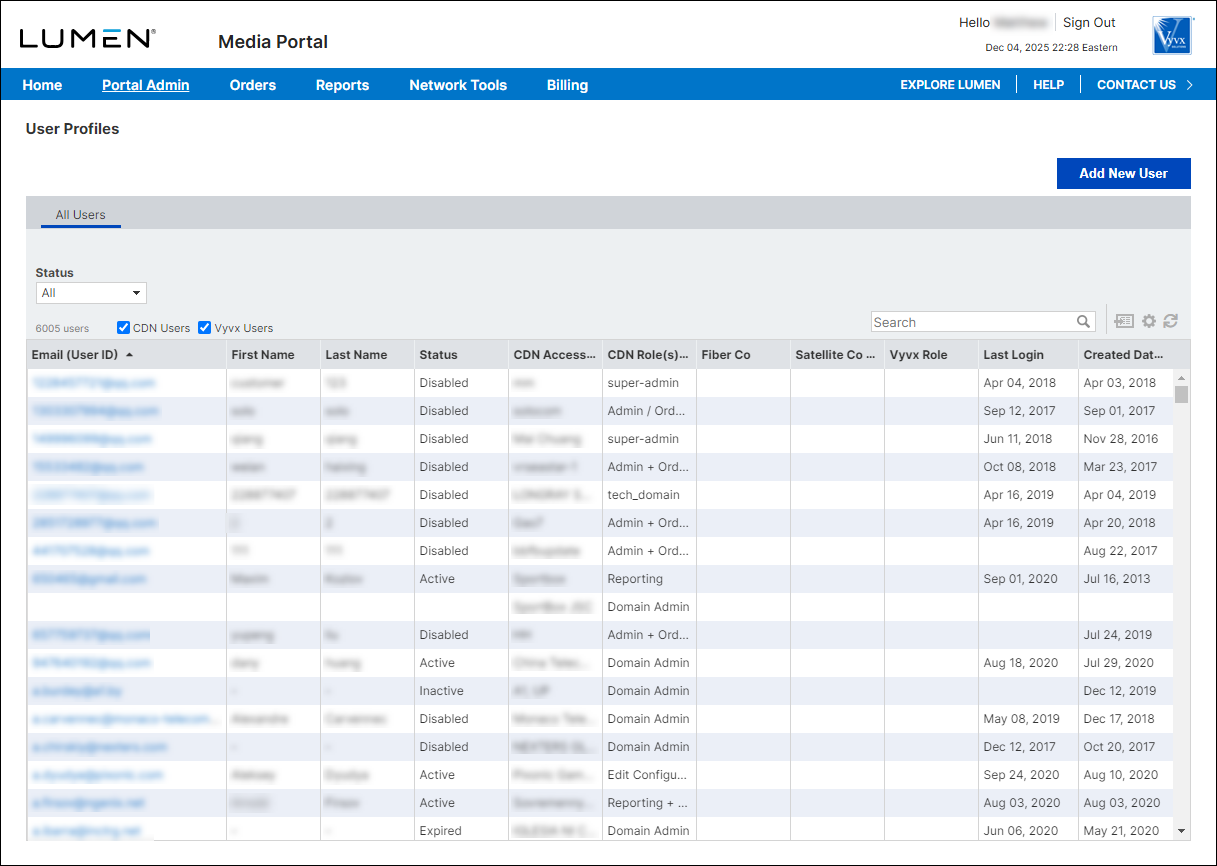
User Profiles
  1. Click Add New User.
  1. In the Contact Info section, fill in the information for the user.
  1. In the Roles section, do either (or both) of the following to add a role for the user:

    • To assign a Vyvx role to the user, click the checkbox on the Vyvx tab, then select the options from the fields to assign the user a role, select companies they can work with, etc.

    • To assign a CDN role to the user, click the checkbox on the CDN tab, click the tab, then select the access group(s) the user can work with.
  1. When you're done, click Invite User.

    Media portal sends a welcome email to the user. When the user click the link in the email, they can sign in, complete their profile, and set a password.
