

Adding a NaaS Port
A Lumen® NaaS Port is your on‑ramp to the Lumen network. Once your NaaS Port is ready, add On‑Demand services using Lumen Connect℠. Get ready for a NaaS Port.
Once your NaaS Port is ready and you have extended the connection to your equipment, you can add Internet On‑Demand and Ethernet On‑Demand. Review On‑Demand services configuration guidelines to ensure your equipment is ready.
You can also view details for your NaaS Port.
Step 1: Add a NaaS Port
To add a NaaS Port:
- Using the left menu, click Services, then click Add Services.
Lumen Connect shows services you can add with the Lumen digital experience.
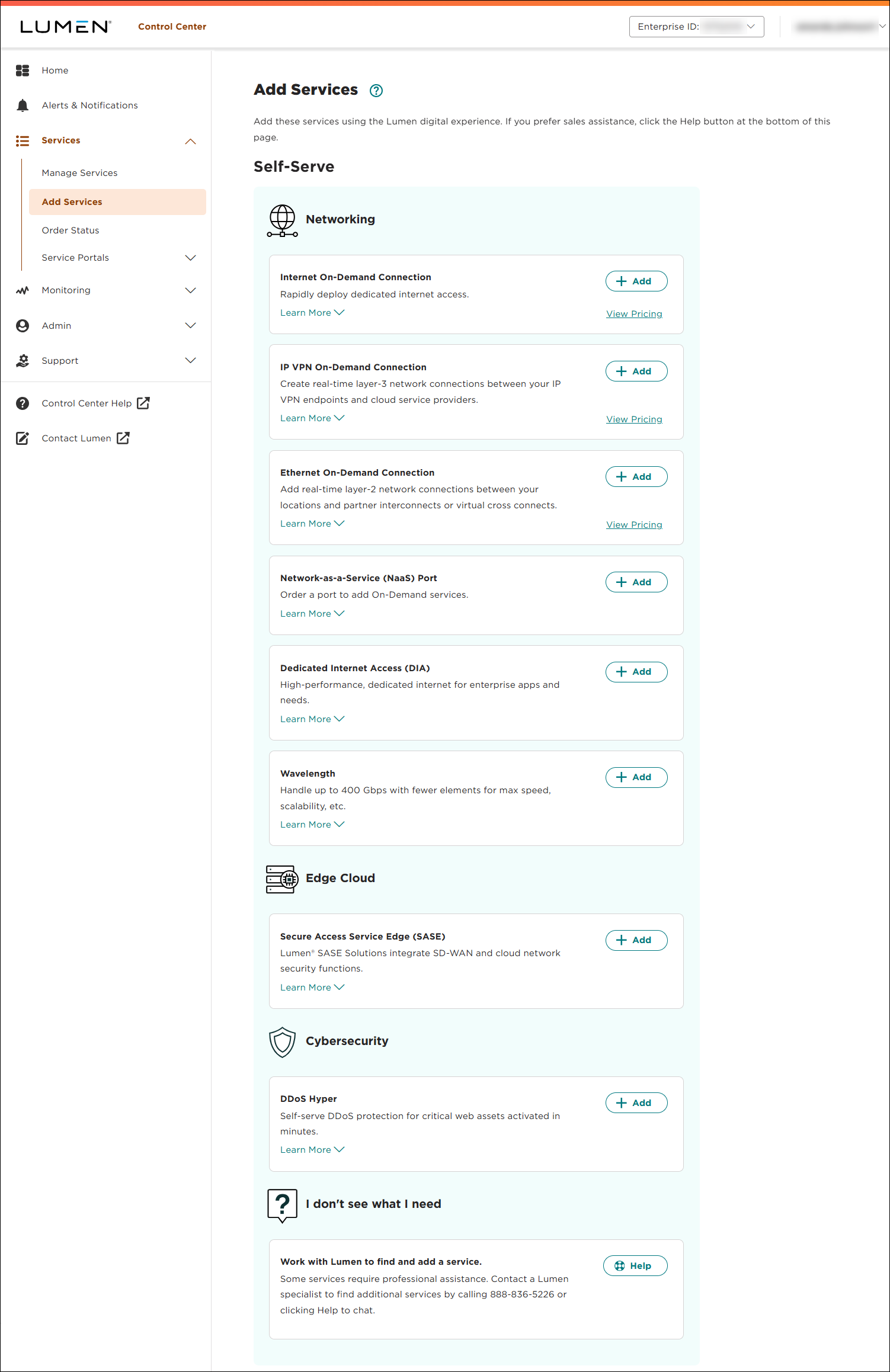
- Click Add Port next to NaaS Port.
- Type the address where you want the port, then click Check Availability.
Lumen Connect searches for ports at the address.
- Type the Floor and Suite where your equipment is located, then click Continue if the address qualifies.
You can try a different address or contact sales for other options if the address doesn't qualify.
- Fill out options and pricing.
- Type a nickname to be used as a label on the invoice.
- Select the term for the port. The term determines the monthly rate.
- Select a port speed that accommodates future service needs.
- Select a customer and billing account, then click Continue.
Not sure which billing account number to select? Consult your accounting department for help selecting a billing account number.
- Type a nickname to be used as a label on the invoice.
Note: Click Save in this step or the following steps to save the NaaS Port Configuration so you can resume later. Click Resume next to NaaS Port on the Add Services page to continue with the saved configuration.
- Select port configuration options.
- Select a UNI Handoff type. Lumen recommends using a fiber as it supports higher speeds.
Copper is available if you select a port speed of 1 Gbps. Only select this option if your equipment is less than 328' from the NaaS Port. - Select a Fiber Type. Lumen recommends Single Mode (SM).
- Select a UNI Connector Type. Lumen recommends Lucent Connector (LC).
- Select a UNI Handoff type. Lumen recommends using a fiber as it supports higher speeds.
- Click Continue.
- Fill in contact information.
Important: The property manager's contact information is essential to making your NaaS Port available as quickly as possible. This person facilitates the Lumen technician's access to the secure telecommunications room. You can edit contact information after placing your order.
- Click Continue.
- Review the order information, then click Submit Order.
Lumen Connect submits your order and notifies you when the technician is scheduled to make your port ready.
Step 2: Connect your equipment
Before you can access the Lumen network, you need to physically connect your equipment to your NaaS Port. Use the configuration guidelines to verify your equipment is connected and set up for On‑Demand services.



