

Creating an Object Tier bucket using an S3 browser
As Lumen® Network Storage Object Tier is S3 compliant, any S3 compatible browser/client may be used to configure buckets, write or retrieve data, and delete buckets or individual objects (files). Examples include Cyberduck, Cloudberry Browser, S3cmd, and others. Additionally, most enterprise backup software has the ability to write directly to an S3 target. For this example, we show how to configure Cyberduck to connect to and create buckets in your Network Storage tenant.
S3 terminology typically references “buckets” as the storage containers, with “objects” being stored in those containers. While technically inaccurate, Cyberduck presents this as a more familiar construct of directories and files. The first step is to configure our S3 client for accessing the Network Storage regional endpoint. As seen in our example, our chosen region is US‑west‑1 (PHX).
To create an Object Tier bucket using an S3 browser:
- Using the left menu, click Services, click Service Tools, then click Network Storage.
Lumen Connect shows a list of storage nodes for your organization (if any) with the name, location status, and total provisioned storage for each node.
- Launch Cyberduck.
- Click the Open Connection icon.
- Click the FTP line.
- Select the Amazon S3 transfer protocol.
- Edit the server name so that it points to your Network Storage region endpoint URL.
- Enter the user access key and secret key.
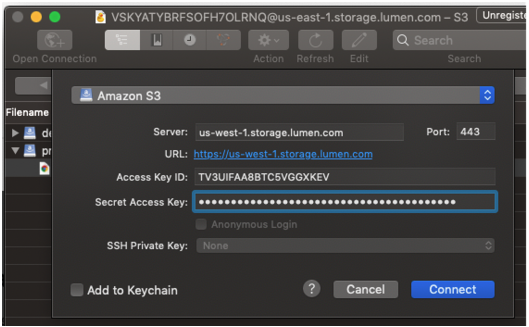
- Click Connect.
After you create a connection, you will be in the ‘root’ directory, where you can create a new bucket.
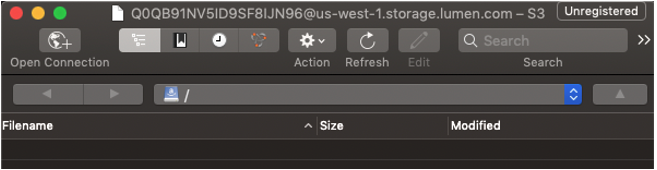
- Right-click on the list or use the menu to select File > New Folder.
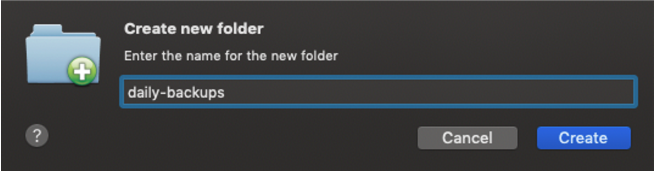
- Type a name for the folder, then click Create.
Your folder is created and is now available to write data through:
- your S3 browser using drag-and-drop functionality
- your backup software
- directly via the S3 API (Learn more about S3 protocol APIs)
Important: Individual objects have a 5GB size limit. You must upload any objects larger than 5GB using the multi‑part feature available using the S3 API. (Multi‑part upload enables you to upload a single object as a set of parts. After all the individual parts are uploaded, the S3 protocol assembles the parts and creates the object.)



