

Configuring a premise-based node
For Lumen® SASE Solutions, you can configure a premise-based node using Lumen Connect. You can also configure nodes using Lumen hosted gateways and virtual instance nodes.
Note: To avoid delays or failure configuring the node, make user the information you enter is accurate and that the contacts are correct. We use this information to complete your order.
To configure a premise-based node:
- Using the left menu, click Services, click Service Tools, then click SASE Management.
Lumen Connect shows details about your service: configured SASE nodes (with a status for each), information about your technology provider, notifications (if any) related to your SASE service, etc.
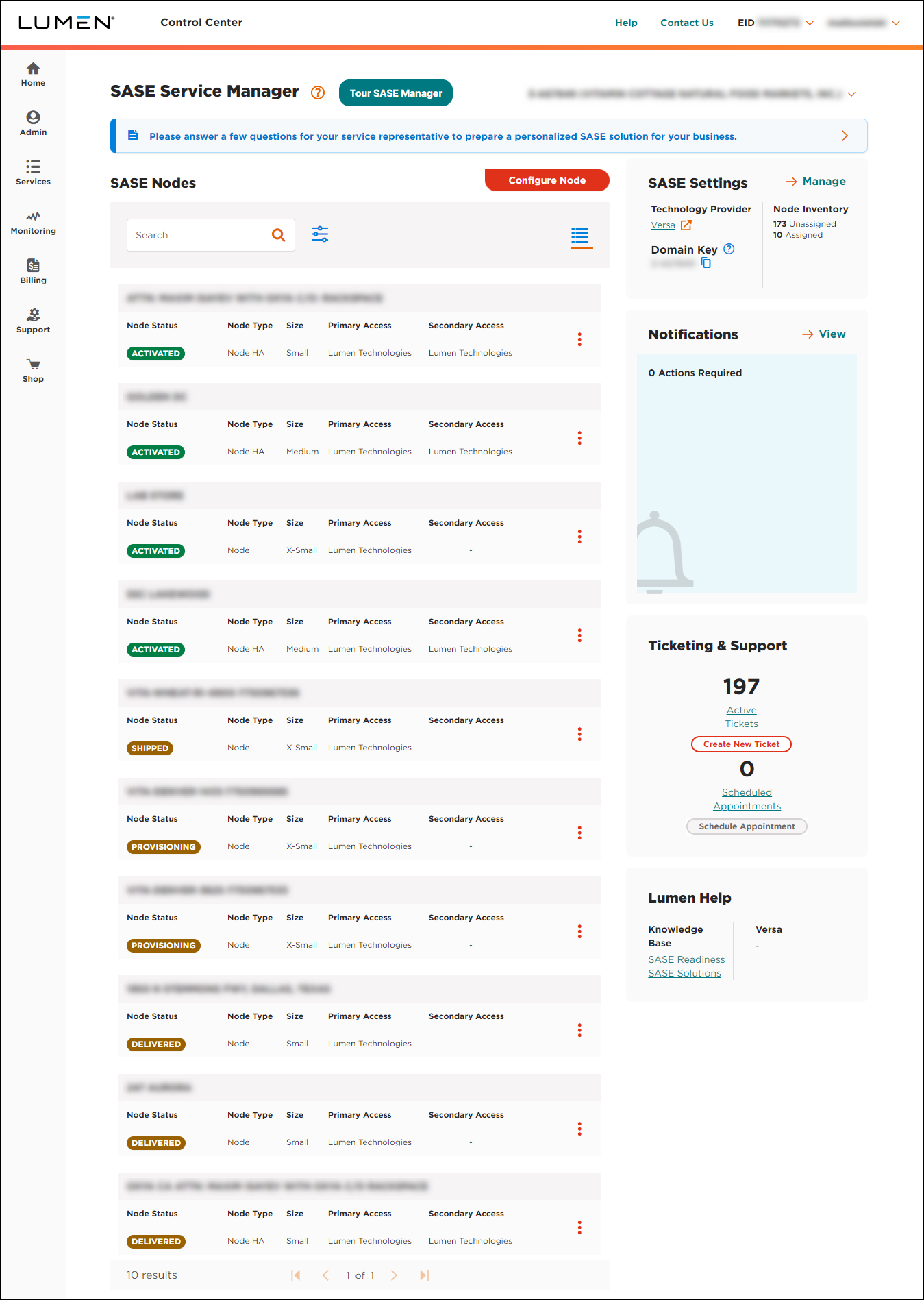
- In the SASE Nodes section, click Configure Node.
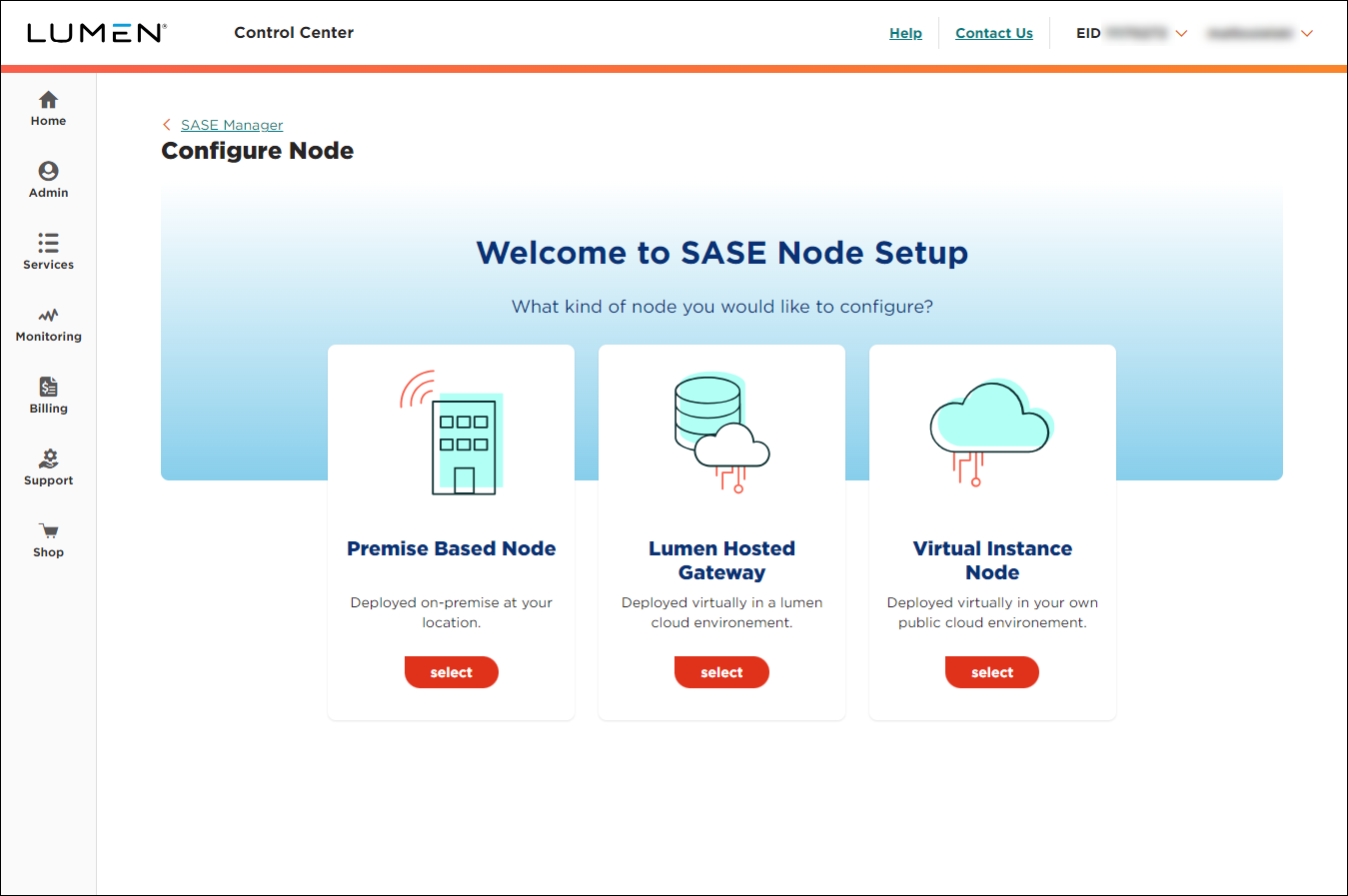
- On the Premise Based Node card, click select.
Lumen Connect shows locations with available connections for the node.
- Select the radio button for the Lumen location (and service) you want to use, then click CONTINUE. (If you don't see the location you want to use, select the Use another connection radio button, then fill in the address manually.)
Lumen Connect lists quantities of each size node available for you to configure (including how many on-site installations you have available).
- Select the tile for the size of the node you want to configure, then answer the remaining questions for the node:
- If you have on-site installation available for your service, select whether you want Lumen to install the node for you.
- If you have high-availability devices for your service, select whether you want to add a high-availability device to this node for failover. (High availability means you'll have two devices at the location: one primary, one backup.)
- Select the type of node you're creating: hub, spoke, or mesh.
- Select whether you need a rack mount for the device.
- If you have on-site installation available for your service, select whether you want Lumen to install the node for you.
- When you're done, click CONTINUE.
- Use the fields to tell us where you want the node installed: street address and building details (such as floor, suite, or room). You can add a name for the location to make it easier to identify in your list of nodes (e.g., Store #1405).
- If you want Lumen to ship the device to a different location (e.g., if this location is not secure or is under construction), clear the Same as Site Address checkbox, then tell us where you want us to ship the device. Otherwise, leave the Same as Site Address checkbox selected and we'll ship the device to this location.
- When you're done, click CONTINUE.
Lumen Connect lists the WAN configuration information for the node based on the location you selected (and the information available for that location).
- Review the information shown in the WAN Interface 1 section and make any necessary changes. To avoid delays in configuring the node, make sure the information is accurate.
- If you selected to add a high-availability device for this node, select the Lumen connection that the device will use for failover, then select the type of connection you want for the failover WAN.
- If you want to configure another WAN port for the device, click Add new WAN port+, then fill in the information for the port.
- Repeat step 13 as needed to add more ports. When you're done, click CONTINUE.
- Use the arrows to select the number and type(s) of connection you want to use for your LAN port. If you select a fiber connection, Lumen adds more SFPs (small form-factor pluggables) to the box when we ship the device(s). When you're done, click CONTINUE.
Lumen Connect shows the local and technical contacts for your SASE service.
- In the Local Contact section, review the contact information shown and make any updates to tell us who we should contact at the site for the node.
- In the Technical Contact section, review the contact information for the person we should contact with technical questions related to installing this node. If the technical contact should be the same as the local contact, select the Same as Local Contact checkbox.
- In the Shipping Contact section, tell us who to ship the device to:
- If you want us to ship the device to someone other than the local contact, clear the Same as Local Contact checkbox, then fill in the information for the person you want us to ship the device to.
- Otherwise, leave the Same as Local Contact checkbox selected.
- If you want us to ship the device to someone other than the local contact, clear the Same as Local Contact checkbox, then fill in the information for the person you want us to ship the device to.
- When you're done, click CONTINUE.
Lumen Connect shows a summary of the information for the node.
- Review the information on the screen. If you need to make changes to information shown, click the icon next to the section you want to update, make your changes, then click CONTINUE. Then, click CONTINUE on successive steps to return to the summary.
- When you're done, click DEPLOY NODE.



