

Saving and scheduling a report
For Lumen® SD-WAN with Versa Networks, you can save a report in Versa Director and schedule that report to be delivered by email to people in your organization on a regular basis.
To save and schedule a report:
- Sign in to Versa Director.
- Click the Analytics tab, click the Reporting tab, then click Build.
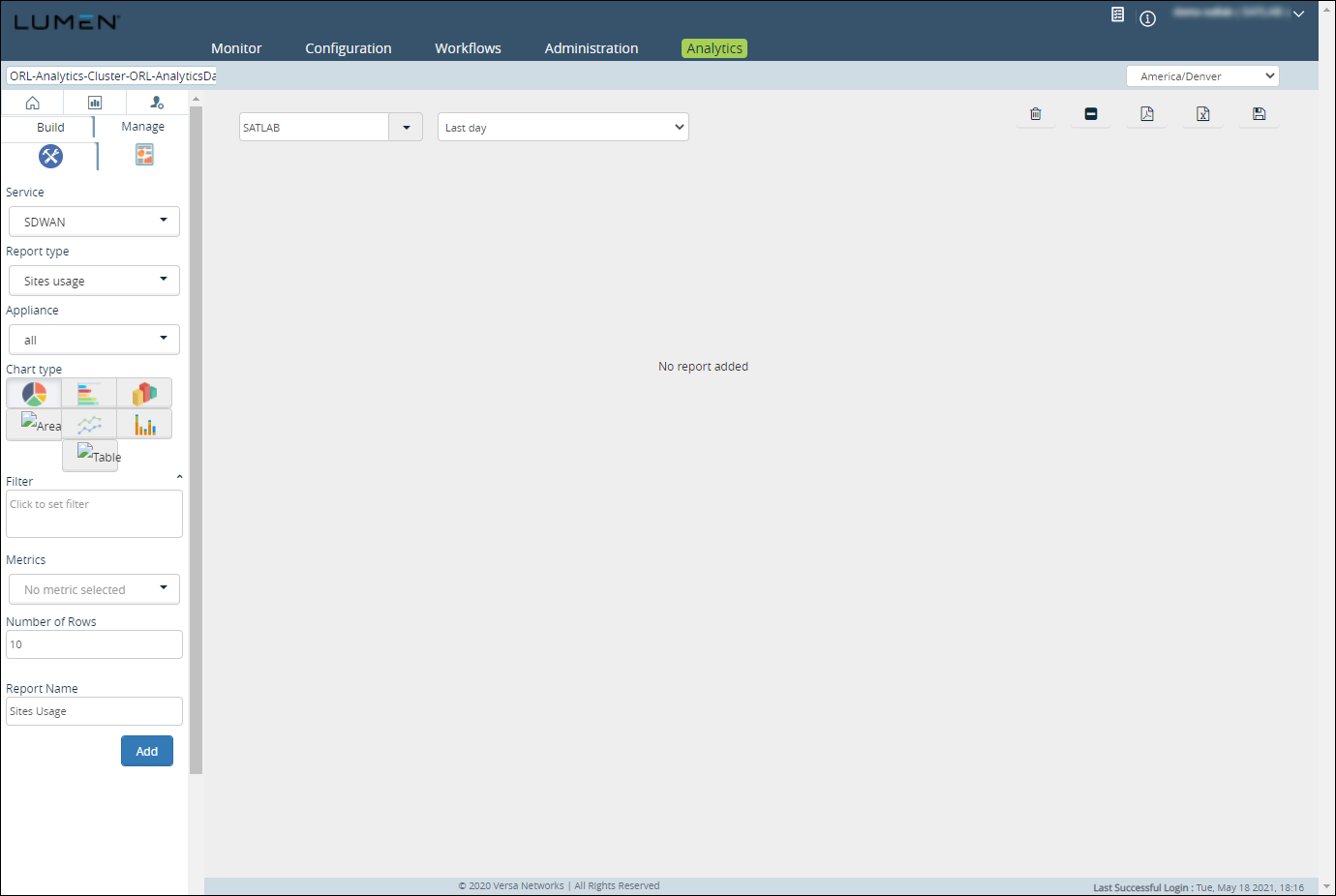
- Select the service, report type, appliance(s), chart type metrics, then click Add.
Versa Director adds the information to the report.
- Click the save icon.
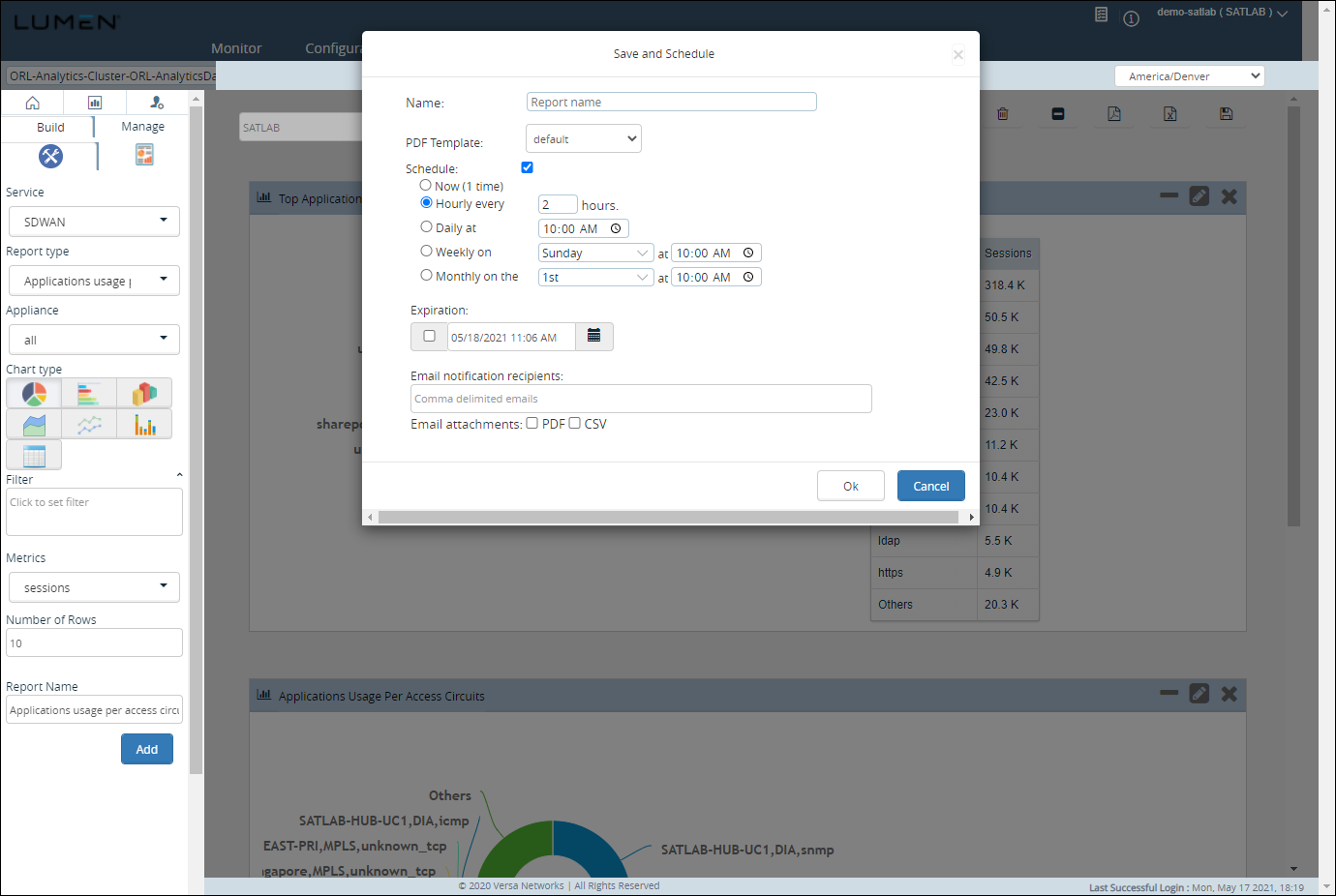
- In the Name field, type a name for the report.
- From the PDF Template list, select the template you want to use for the report. (If you don't have a template, select default.)
- If you want to schedule the report to run regularly, click the Schedule checkbox, then do the following:
- Click the radio button to select how frequently you want to receive the report.
- If you only want to receive the report until a specific day/time, click the Expiration checkbox, then set the date/time for the report to stop running.
- In the Email notification recipients field, type the email address(es) you want the report delivered to. (If you're sending the report to multiple addresses, use a comma to separate the addresses.)
- Select the checkbox to have the report delivered as a PDF, CSV, or both.
- Click Ok.
Versa Director schedules the report.
- Click the radio button to select how frequently you want to receive the report.



