

Updating a phone number for a SIP Trunking service
Using Lumen Connect, you can update the configuration of a phone number on a Lumen® SIP Trunking service depending on your organization's needs. The status of the changed phone numbers momentarily shows as update until the changes are complete, when the changes take place immediately. You can also update a phone number to change its routing plan, change its calling area, or assign it to a user. If you no longer need a phone number, you can disconnect it from the service.
Need to update multiple phone numbers? You can also save time and make bulk changes to phone numbers using Lumen Connect.
To update a phone number for a SIP Trunking service:
- In the Services widget on the dashboard, select IQ Networking from the Find by Product or Service Tool list.
Lumen Connect shows all IQ Networking services on the enterprise ID. SIP Trunking services have a service ID starting with VO-.
- Search for the service you want to work with. When you find the service you want to work with, click the hyperlinked service ID or click the icon (in the Actions column), then click View Details.
Lumen Connect shows details for the SIP Trunking service you selected.
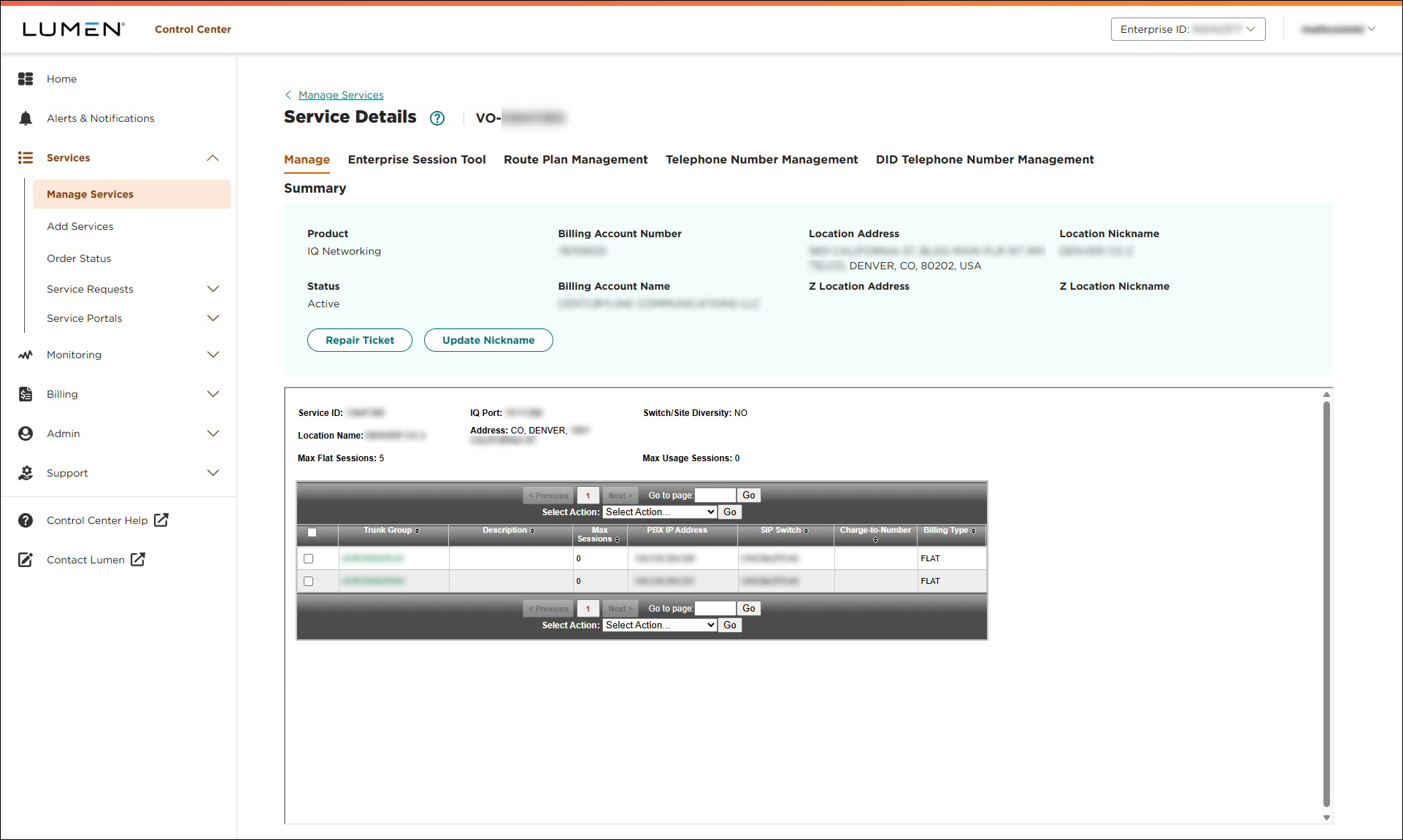
- Click the Telephone Number Management tab.
Lumen Connect shows the telephone number(s) for the service.
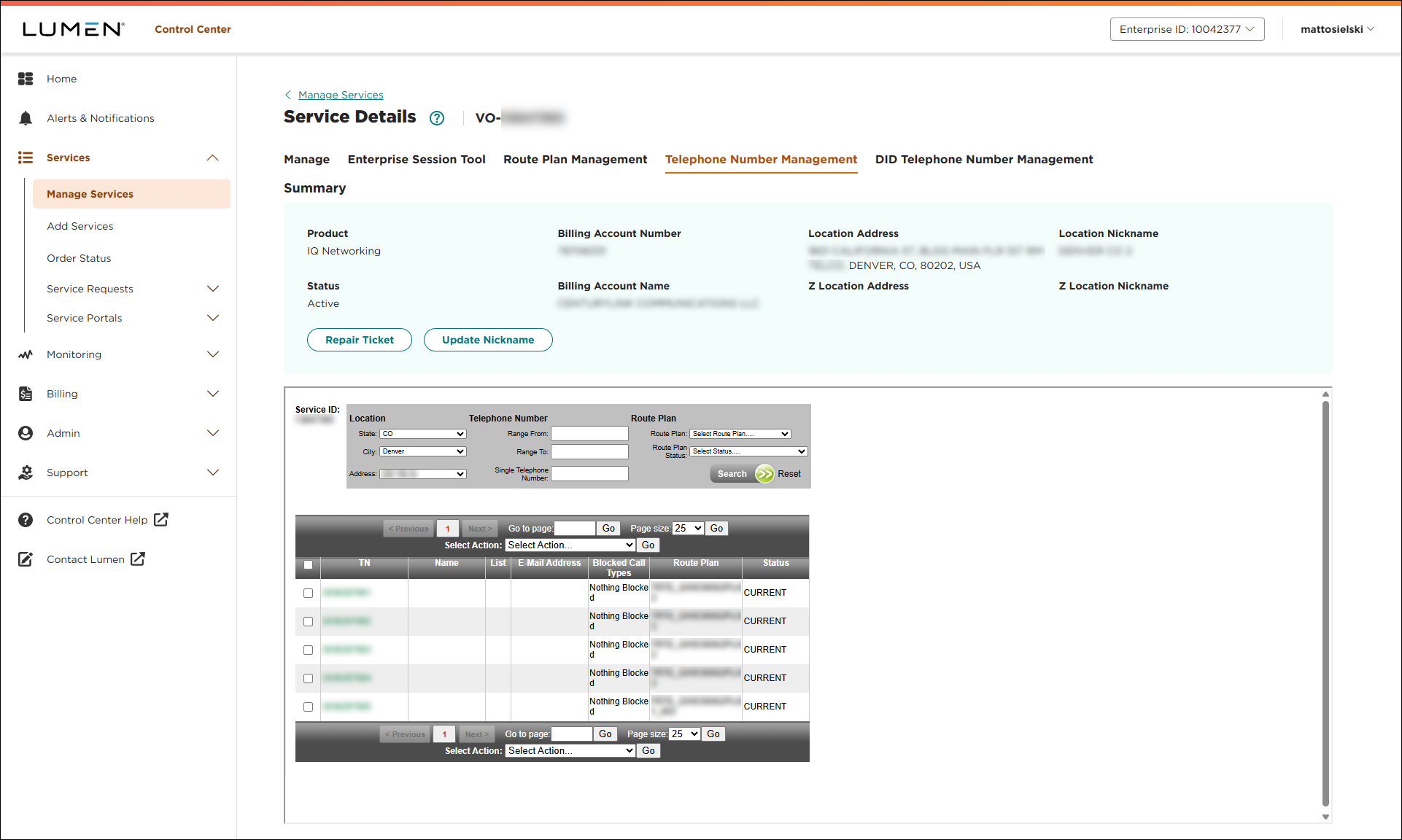
- Select the checkbox(es) next to the phone number(s) you want to modify.
- Select either Edit TNs Individually or Modify Multiple TNs, then click Go.
- Using the lists in the popup window, edit which calls are being blocked (if any), the associated route plan, and/or the PPU location. You should also add contact information (name and email address) for the phone number—which assigns the number to the user.
- Click Update.
Lumen Connect saves your changes to the phone number.
- Click the X to close the window (in the upper‑right corner).



