

Adding or changing the directory listing for a Voice Complete phone number
You can add or change directory listing information (including removing a phone number from the directory) for phone numbers on your Lumen® Voice Complete® service by submitting a change request in Lumen Connnect.
To add or change the directory listing for a Voice Complete phone number:
- Using the left menu, click Services, click Service Requests, then click Change Requests.
Lumen Connect shows all open and recently closed change requests (by default, within the past 30 days) for your organization with a status for each request.
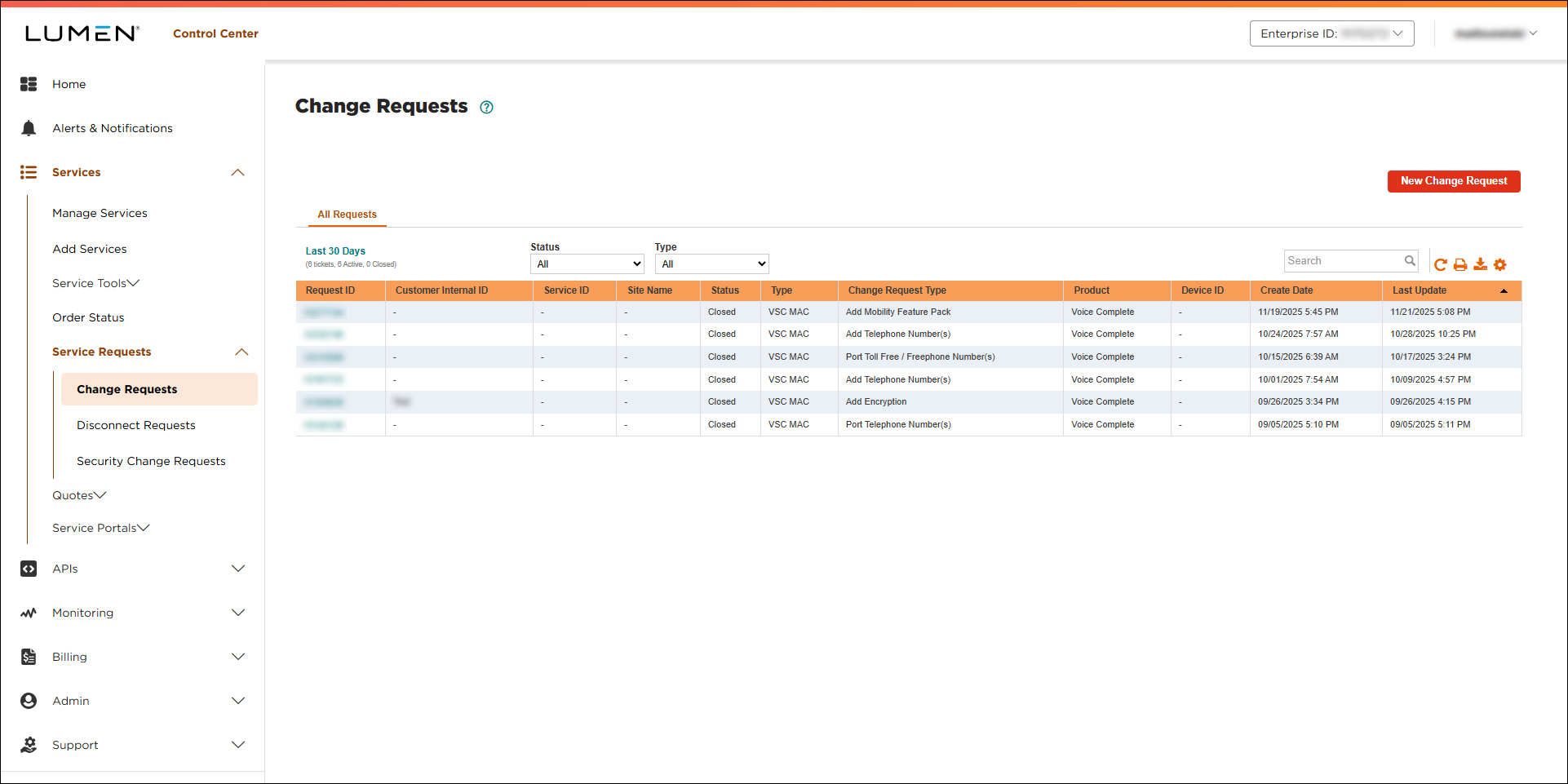
- Click New Change Request.
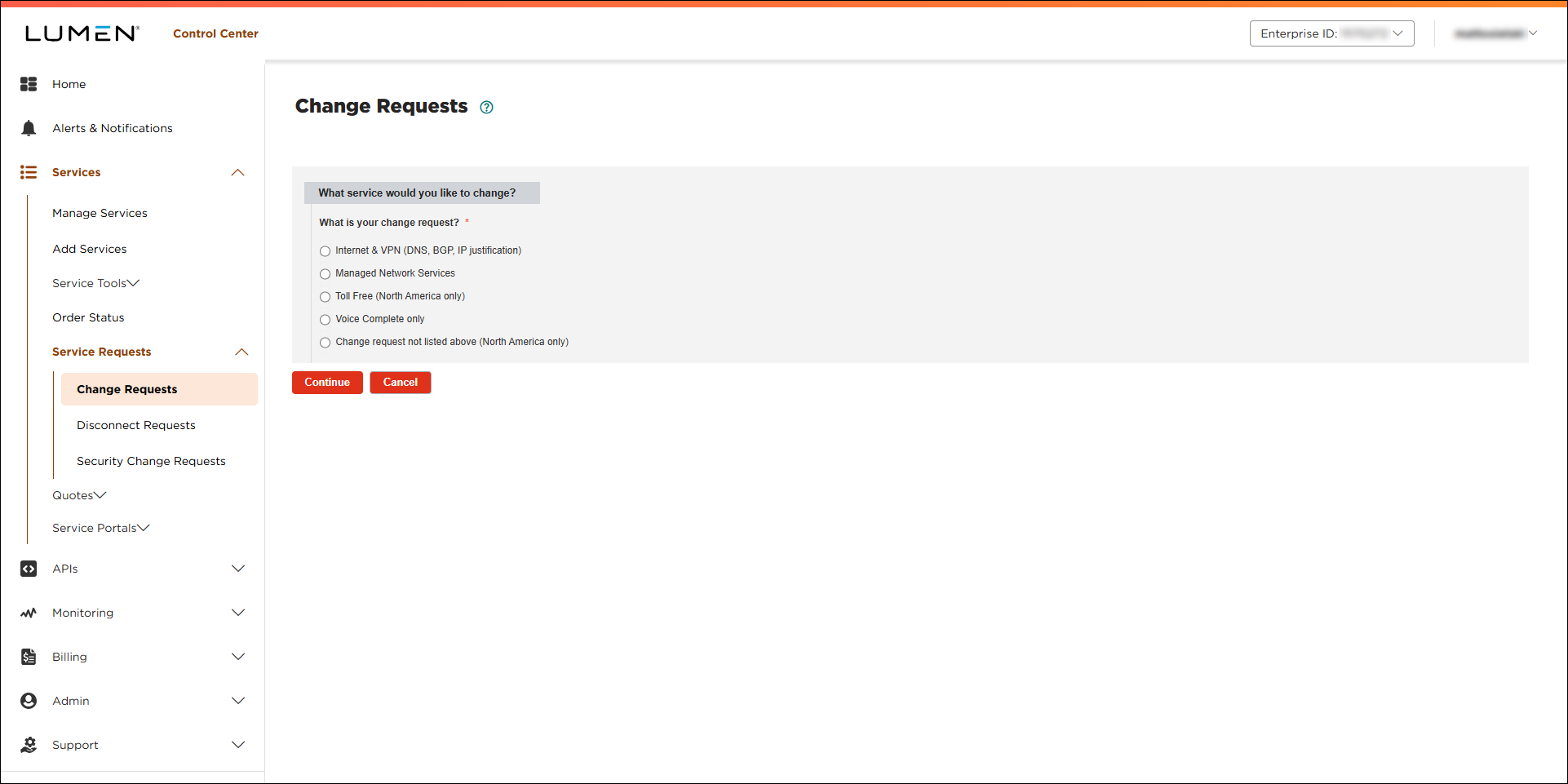
- Click the Voice Complete only radio button.
- From the Customer Number and Billing Account lists, select the customer number and billing account for the Voice Complete service.
- From the Product list, select Voice Complete.
- Click Continue.
- From the Voice Complete Change Request Type list, select Add/Change Directory Listings.
Lumen Connect creates the form to hold the information for your request and loads the Voice Complete phone numbers for the customer number and billing account number you selected.
- Make your changes to the calling name:
- To update the directory listing information one phone number at a time, do the following:
- In the Add/Change Directory Listing section, click the checkbox next to the number(s) you want to change the directory listing information for.
Lumen Connect lists the number(s) you select in the Selected Telephone Numbers section.
- For each number you selected, select the type of listing you want (listed and published, listed only, or not listed or published).
- If you selected to list or list and publish the directory listing for a phone number, type the listing name (in the Directory Listing Name field) then, select the radio button (Yes or No) to tell us whether you want the address for the phone number published.
- In the Add/Change Directory Listing section, click the checkbox next to the number(s) you want to change the directory listing information for.
- To update the directory listing information for many numbers at once, do the following:
- Click Download Bulk Template (to the right of Attachments).
- Open the bulk template and fill in the directory listing information for the numbers.
- Save the bulk template.
- Attach the bulk template to your request: click Browse (under Attachments), locate and select the file, then click Open.
- Click Download Bulk Template (to the right of Attachments).
- To update the directory listing information one phone number at a time, do the following:
- In the Additional Details section, do the following:
- In the Customer Requested Due Date field, select the date you'd like us to make the change.
- If you need to add a tracking or ticket number for your organization, fill in the Customer Internal Ticket ID field.
- If you have any additional information that would help us process your request, type it in the Additional information that could help address this change request? field.
- If you have any files to help us process your request, click Browse (under Attachments), locate and select the file(s), then click Open.
- In the Customer Requested Due Date field, select the date you'd like us to make the change.
- Fill in the Contact Information section to tell us who to communicate with for this request (and what method to use):
- Select how we should notify you of status updates for this request: Portal only; Email and Portal; or Phone, Email, and Portal.
- Verify your contact information (or update the information for the person you'd like to be contacted with updates).
- If you need to add a secondary contact for this request, click Add Secondary Contact, then type their name, phone number, and email address.
- Select how we should notify you of status updates for this request: Portal only; Email and Portal; or Phone, Email, and Portal.
- Select the checkbox acknowledging you're requesting the change on behalf of your organization and accept and charges associated with this request.
- When you're done, click Submit.
Lumen Connect submits your change request. You can now track its status online. You can also need to update your request or close the request later as needed.



