

Viewing call detail records for Voice Complete
Using Lumen Connect, you can download call detail records to view a daily account of calls that have completed for phone numbers on your Lumen® Voice Complete® service. Lumen Connect stores a downloadable (compressed due to large file size) file for each billing account on each day. Once you download the file, use our template to help parse the data. You can also view call success reports for Voice Complete.
Note: Call detail records are generally available for the past three months and the current month to date.
To view call detail records for Voice Complete:
- Using the left menu, click Monitoring, click Voice Reports, then click Voice Complete.
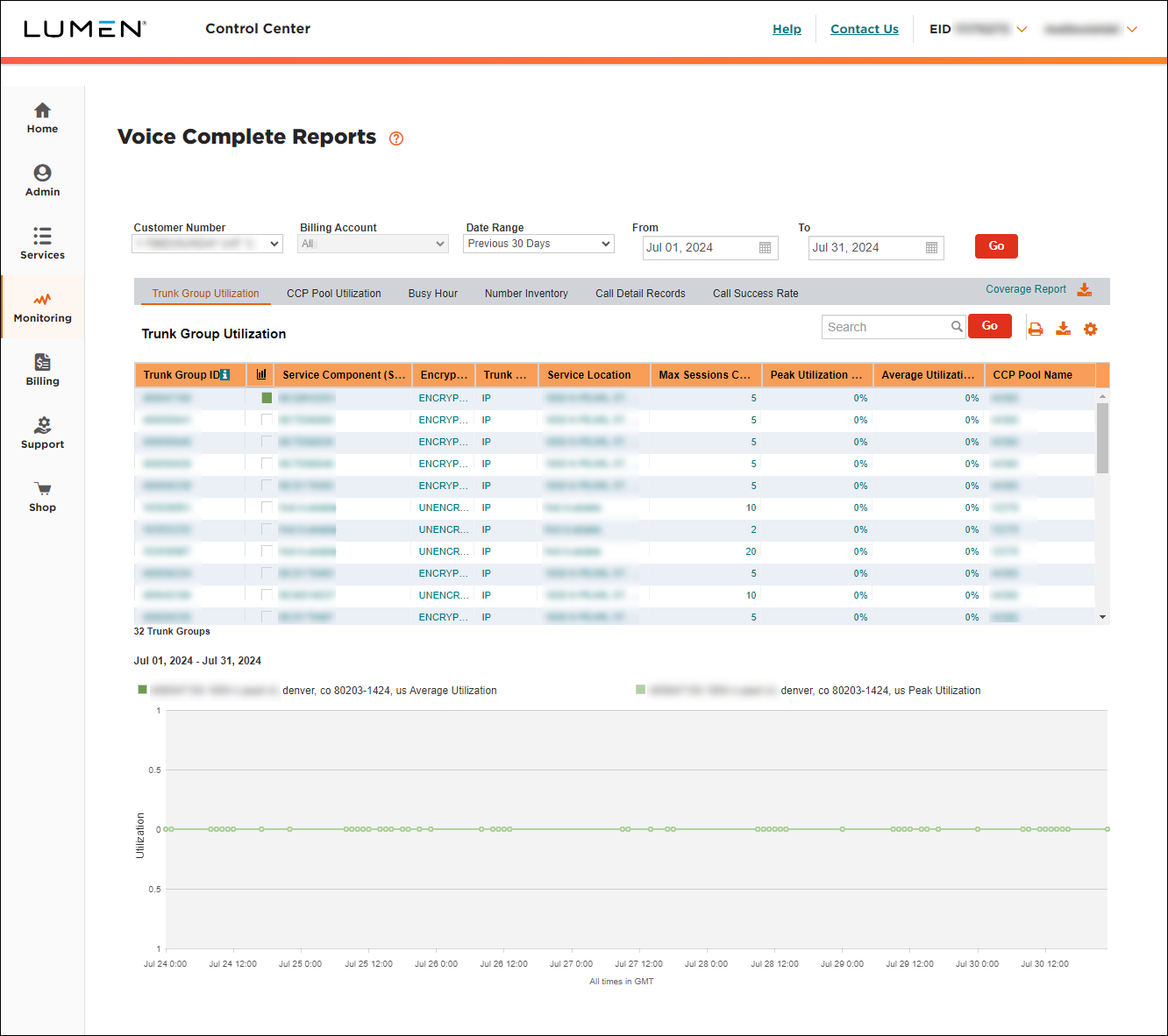
- Select the customer number and billing account number with the Voice Complete service(s) you want to view call detail records for.
- Use the Date Range field to select the time period for the report. (If you select Custom Date Range from the list, use the From and To fields to specify the date range for the report.)
- Click Go.
- Click the Call Detail Records tab.
Lumen Connect shows the call detail records for each billing account and day in the date range you specified for the customer number you selected.
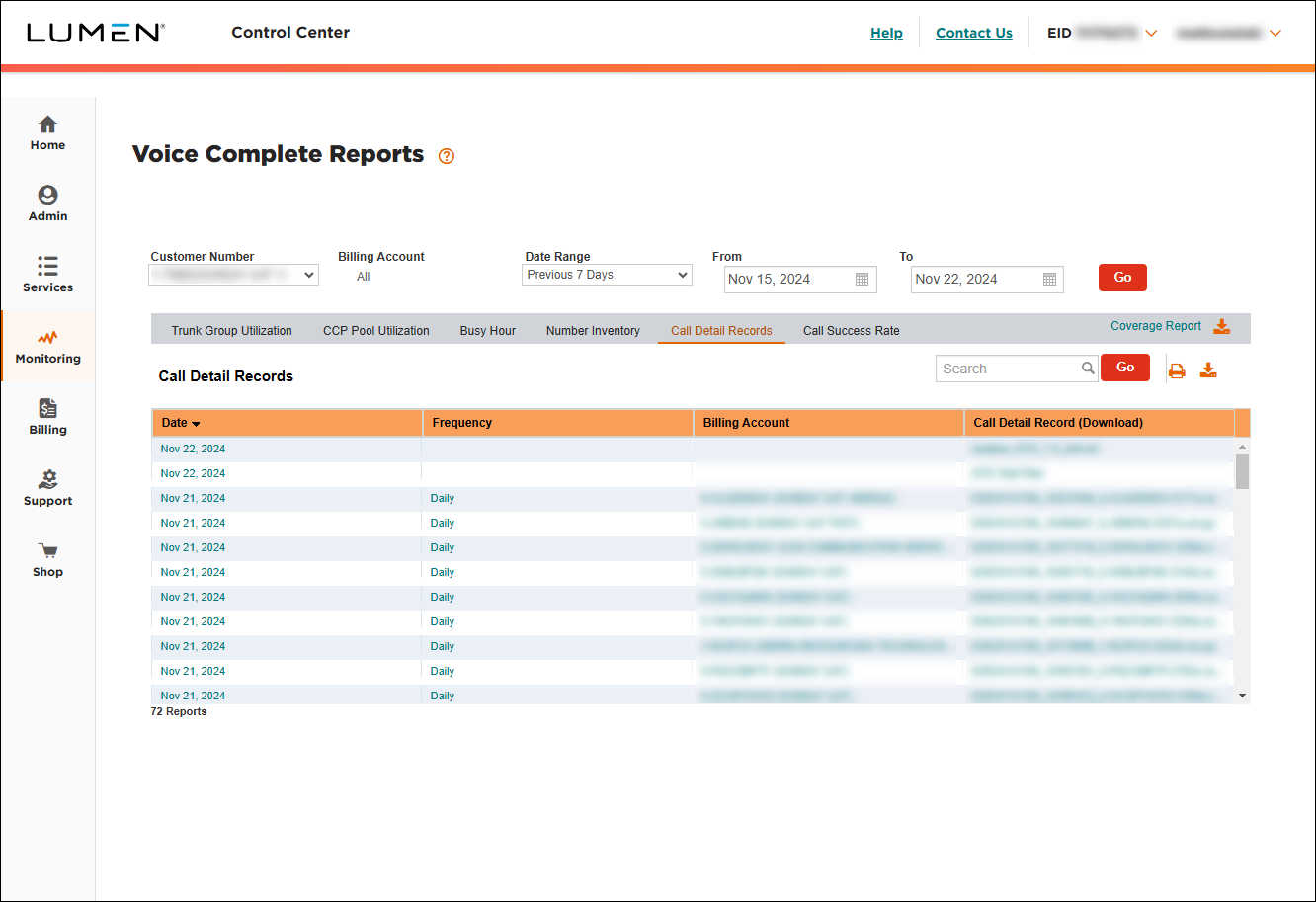
- Click the hyperlink in the Call Detail Record (Download) column to download the report(s) to your computer.
- Decompress/extract the file(s) you downloaded.
- Parse the file using the GTO CDR template.



