

Changing the statistics for the queues you monitor
From the Dashboard pane in the Contact Center Client, the queue statistics will automatically appear based on the default queue monitoring settings. You can choose the statistics you want to see on the dashboard or use the default settings. You can also change the order the statistics appear in on the dashboard.
To change the statistics for the queues you monitor:
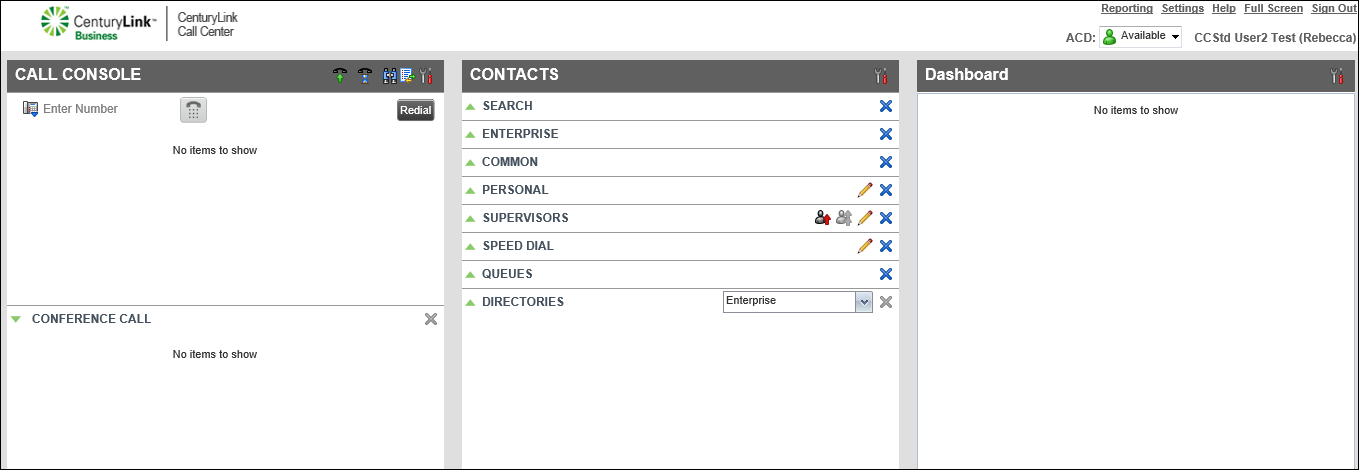
- On the header bar for the Dashboard pane, click the Options icon, then click Select Visible Fields.
- Do one of the following:
- Select the checkbox next to each statistical field you want to show on the dashboard.
- For a field you don’t want to show on the dashboard, clear the checkbox next to the option.
- Select the checkbox next to each statistical field you want to show on the dashboard.
Note: If you want to see all statistics available, select the checkbox next to Select All.
- Click Save.
The Contact Center Client saves your changes.



