

Turning Call Forwarding Always on and off
In Contact Center Client, you can use the Call Forwarding Always feature to have incoming calls to your direct line forwarded to a number you specify. It won't change your ACD status and you'll continue to get calls that come from the queue (if you're available). By default, the feature is turned on.
Turn Call Forwarding Always on
To forward incoming calls to a number different from your direct line, you'll need to turn Call Forwarding Always on.
To turn Call Forwarding Always on:
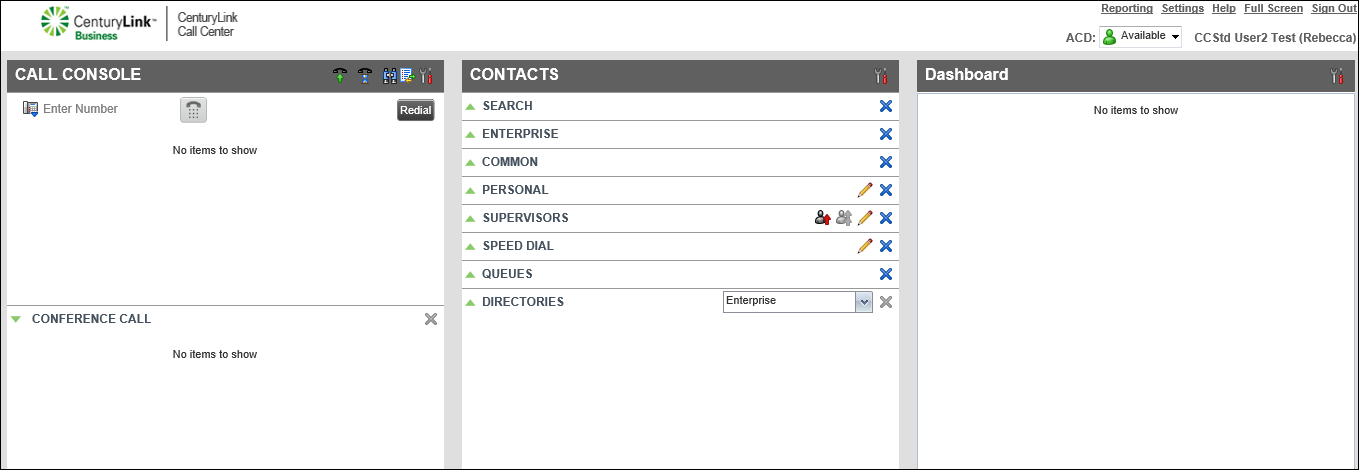
- Click Settings (in the upper-right corner).
- Click the Services tab.
The Contact Center Client shows your active and inactive services.
- In the Inactive section, click Call Forwarding Always.
- In the Service Settings section, select the Active checkbox.
- If you want a reminder that Call Forwarding Always is on, select the Ring Splash checkbox.
- Click the Forward To field, then type the phone number you want to forward calls to.
- Click Save.
Contact Center Client turns on Call Forwarding Always and lists it in the Active section.
Turn Call Forwarding Always off
To resume having calls ring to your direct line, you'll need to turn Call Forwarding Always off.
To turn Call Forwarding Always off:
- Click Settings (in the upper-right corner).
- Click the Services tab.
The Contact Center Client shows your active and inactive services.
- In the Active section, click Call Forwarding Always.
- Under the Service Settings section, clear the Active checkbox.
- Clear the Ring Splash checkbox.
- Click Save.
Contact Center Client turns off Call Forwarding Always and lists the feature in the Inactive section.



