

Conference calling (VVX 3xx/4xx series)
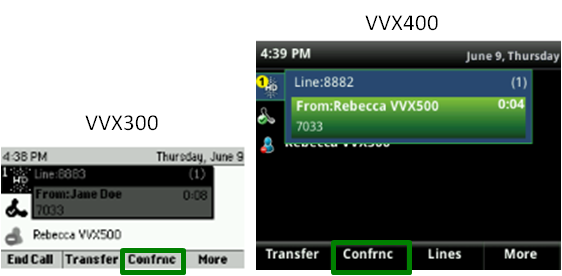
The conference calling feature is useful when you're on a call and need to add another person to it. To begin the conference call, you must be on a call. (It doesn't matter if you initiated the call or if you received the call.)
Note: You cannot remove callers from your conference call after they're added. If a person is no longer needed, the caller must hang up. If you need to continue the call after the person has left the call, as a best‑practice, you should disconnect from the current call and start the conference process again.
Starting a conference call
You can conference up to 16 people on your phone (including yourself).
To add people to a call in progress:
- Press the Confrnc soft key (you may need to press the More soft key to access the Confrnc soft key), which places your existing caller on hold.
- When you receive an interrupted dial tone, use the keypad to enter the extension or 10-digit number for the person you want to add.
- When the person answers, announce they're being added to the call.
- To add the person, press the Confrnc soft key.
- To add additional people, repeat this process.
Canceling a conference call
If the person you're adding cannot join the conference call or rolls to voicemail, and need to cancel the call:
- Press the Cancel soft key.
This returns you to your active conference call with anyone you previously added.
- Continue your call or repeat the process above to add additional people.



