

Managing shared call appearances on your phone (VVX 50x/60x series)
Shared call appearances let you see when someone else is on the phone, provide call coverage, and answer another person’s line. Shared call appearances are commonly called line appearances or shared lines. When you make a call from a shared call appearance, the caller ID will be from the monitored line and not your caller ID.
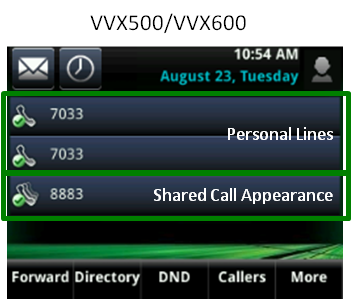
Finding shared call appearance line keys on your phone
Shared call appearances are programmed line keys that you can identify by looking for a shadowed handset/checkmark icon with the monitored person’s extension next to it. Shared call appearance line keys typically fall below your two private lines on the phone display.
Answering shared call appearances calls
Shared call appearance lines can audibly ring on your phone or you can set them to silent. If you cover calls for multiple people within your organization, each line can have its own unique ring to help distinguish between incoming calls.
To answer a call on a shared line do one of the following:
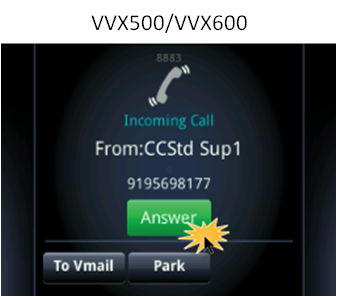
- Tap the Answer button.
- If you're already on a call and another call comes in, tap the Answer button, which automatically places your existing call on hold.
Managing multiple calls
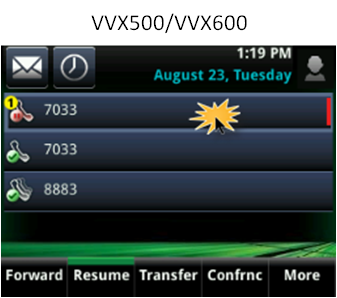
The button for a line key on hold blinks red, while an active line is solid green. There are two ways to manage active and held calls.
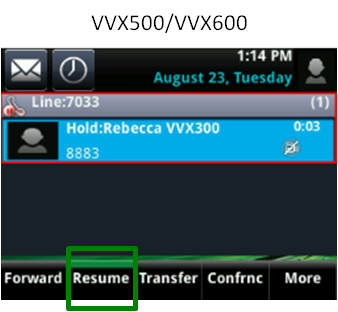
- To pick up a call in call view (the default view while on an active call), tap the Resume soft key.
- To change from call view to line view, swipe the display to the right, then tap the line to return to your caller; a verticial red bar indicates which line is on hold.
Note: If you want to compare the differences between shared call appearances and busy lamp fields, use this chart for a quick comparison of these features.



