

Conference calling from Receptionist Console
If you need to talk with more than one person at one time, you can use the Call Console pane in Receptionist Console to start a conference call. To begin a conference call, you’ll need to be on a call (it doesn’t matter if you initiated or received it). After you add people, active call details and action buttons for managing your conference call from the Conference Call pane.
Note: You can be on only one conference call at a time.
To conference call from Receptionist Console:
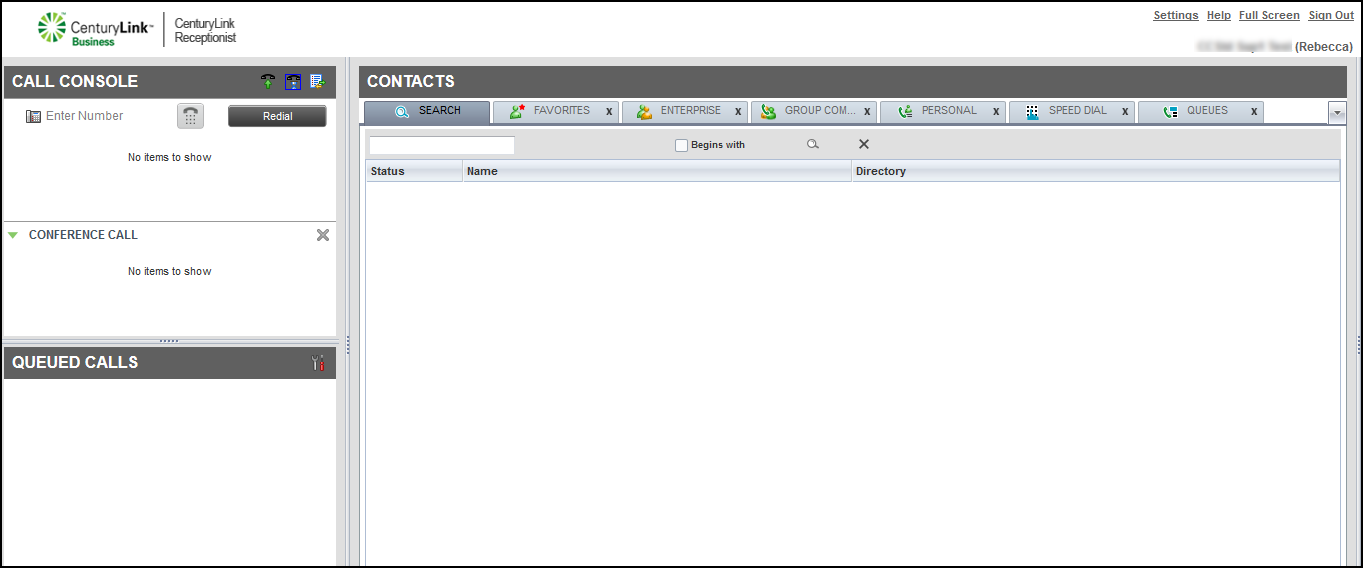
- With a call in progress, in the Call Console pane, click HOLD.
- Type the phone number of the person you want to add to the call, then click the Dial icon.
- When the person answers, use the phone’s handset, headset, or speakerphone to ask if the person wants to be added to the conference call.
- To bring the other caller back into the call, in the Call Console pane, click CONF in the held call record or use the conference keys on your desk phone.
- To add more people, repeat the process.
- You can also do any of the following:
- To drop a caller from the conference call, click END by the person’s caller ID.
- To put a caller on hold, click HOLD by the person’s caller ID.
- To put your entire conference call on hold, click HOLD on the Conference Call pane header bar.
- To end the conference call, click END on the Conference Call pane header bar.
- To drop yourself from the call, click LEAVE on the Conference Call pane header bar.
- To drop a caller from the conference call, click END by the person’s caller ID.
Note: If you initiate a conference call and leave it, the other people can continue the conference call.



