

Triggering a port for VoIP Enhanced Local or Local Inbound
Once you place an order to port phone numbers to Lumen® VoIP Enhanced Local (ELS) or Lumen® Local Inbound (LI), you can trigger the port using Lumen Connect on the day of the firm order commit (shown in the FOC Date field). You can also use Lumen Connect to check to see whether you can port a phone number to VoIP Enhanced Local or to Local Inbound.
To trigger a port for VoIP Enhanced Local or Local Inbound:
- Using the left menu, click Services, click Service Tools, then click ELS & LI Management.
- If you have more than one customer number on your enterprise ID, select the customer number you want to work with, then click PROCEED.
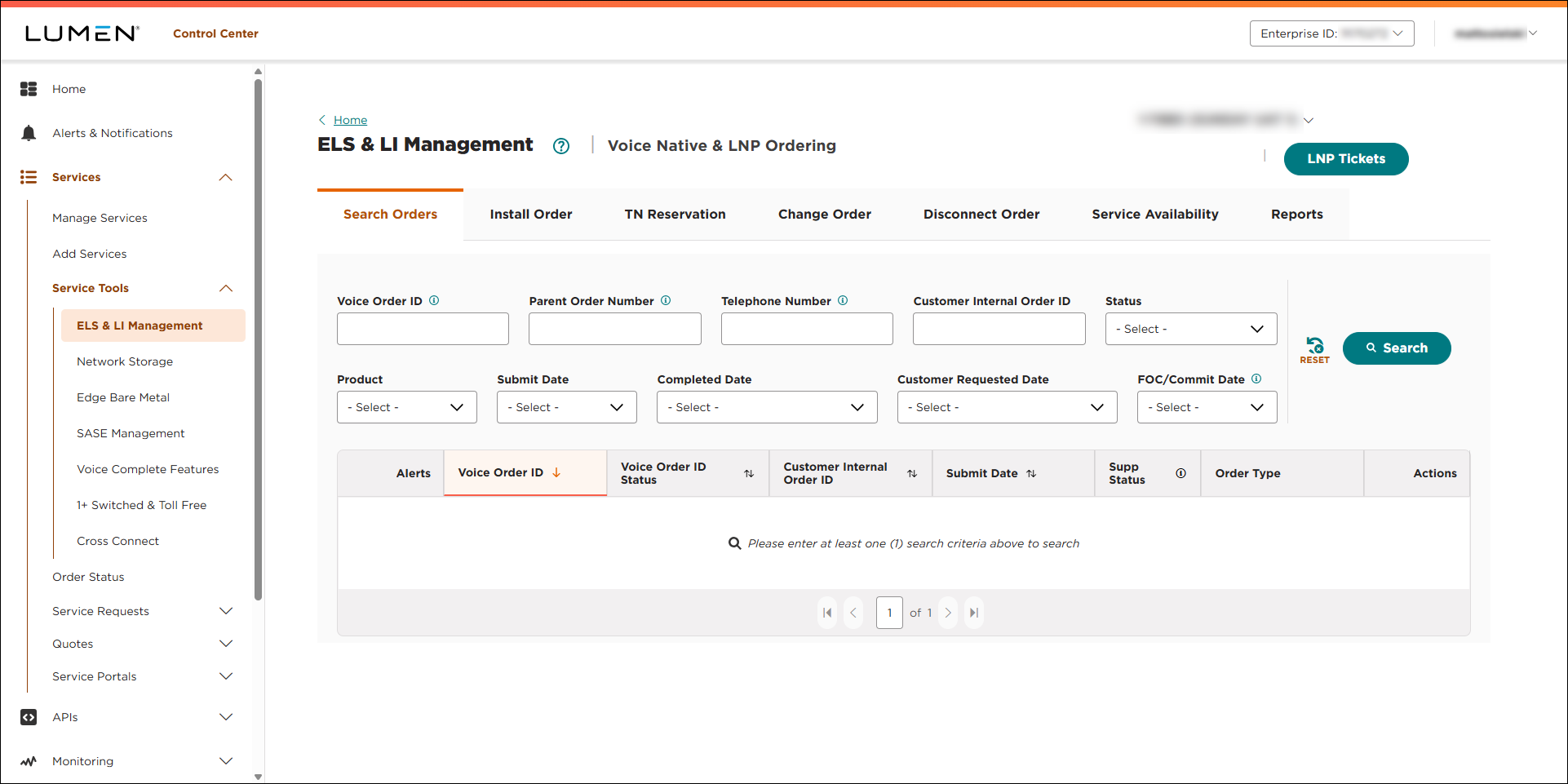
- Use the fields to search for the order:
- To search by order number, type the order number in the Voice Order ID field, then click SEARCH.
- To search by the parent order number, type the parent order number in the Parent Order Number field, then click SEARCH.
- To search by a phone number associated with the order, type the number in the Telephone Number field, then click SEARCH.
- To search by your internal order ID associated with the order, type the number in the Customer Internal Order ID field, then click SEARCH.
- To see all of your orders in a certain status, select an option from the Status list.
- To see all orders for VoIP Enhanced Local, select ELS from the Product list.
Lumen Connect filters to show all VoIP Enhanced Local orders.
- To see all orders for the Local Inbound, select LI from the Product list.
Lumen Connect filters to show all Local Inbound orders.
- To see all orders submitted within the past 30 days, select Past 30 Days from the Submit Date list. (To see orders submitted in a specifc date range, select Custom Date Range, select a start and end date, then click APPLY.)
- To see all orders completed within the past 30 days, select Past 30 Days from the Completed Date list. (To see orders completed in a specifc date range, select Custom Date Range, select a start and end date, then click APPLY.)
- To see all orders with requested due dates within the past 30 days, select Past 30 Days from the Customer Requested Date list. (To see orders with requested due dates in a specifc date range, select Custom Date Range, select a start and end date, then click APPLY.)
- To see all orders with a commit (firm order confirmation) date within the past 30 days, select Past 30 Days from the Submit Date list. (To see orders with a commit (firm order confirmation) date in a specifc date range, select Custom Date Range, select a start and end date, then click APPLY.)
Lumen Connect shows all orders matching your search criteria.
- To search by order number, type the order number in the Voice Order ID field, then click SEARCH.
- When you find the order, click the icon (in the Actions column), then click Order Details.
Lumen Connect shows details for the order you selected.
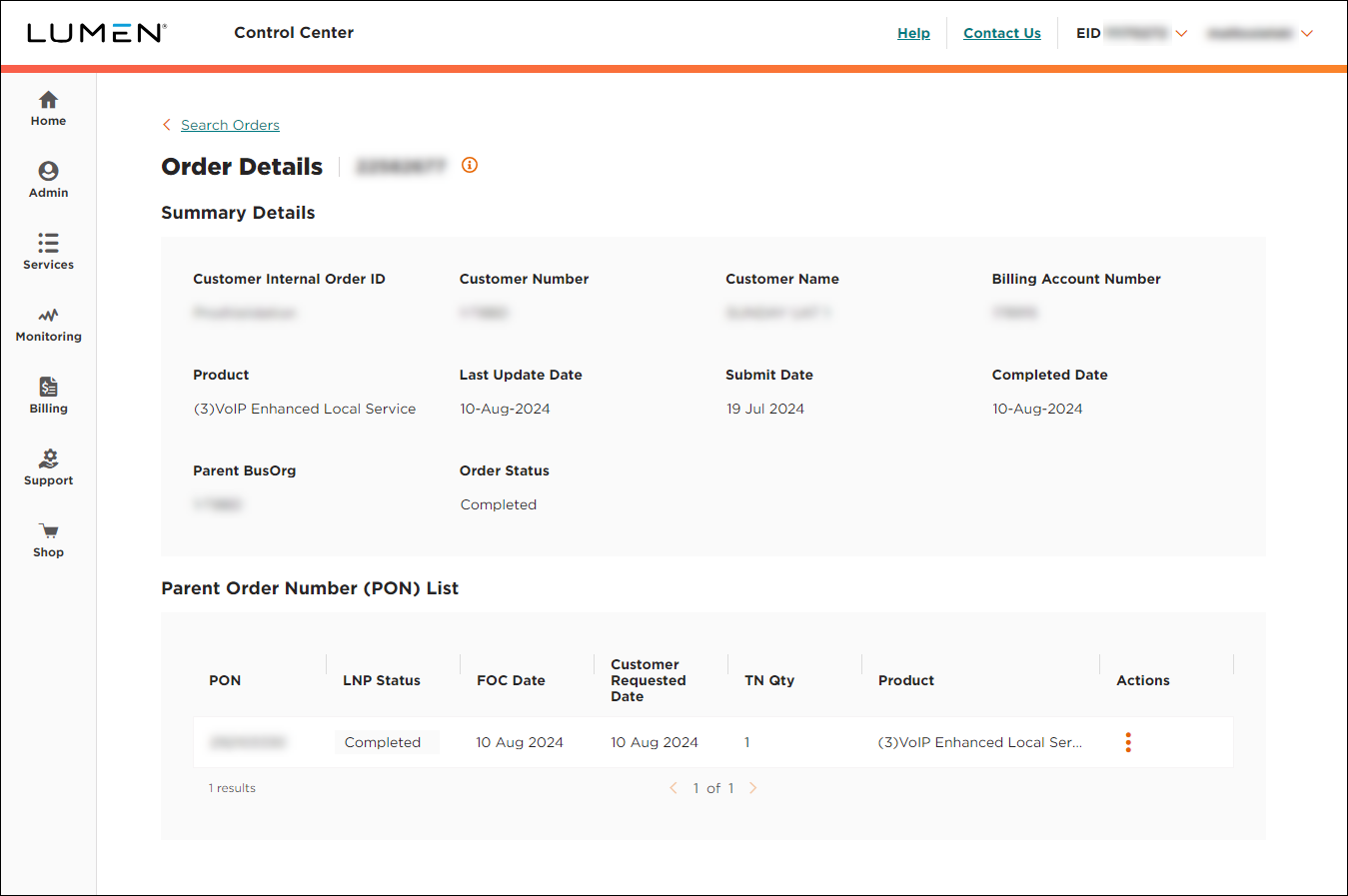
- On the row for the parent order number, click the icon (in the Actions column), then click Trigger Port.



