

Editing an SFTP location in Bill Analyst
After you add a secure file transfer protocol (SFTP) location in Bill Analyst, to transfer reports with large amounts of data, you can edit the location. You can also check the status of your SFTP locations and delete the SFTP location if you no longer need it.
To edit an SFTP location:
- Using the left menu, click Billing, then click Bill Analyst.
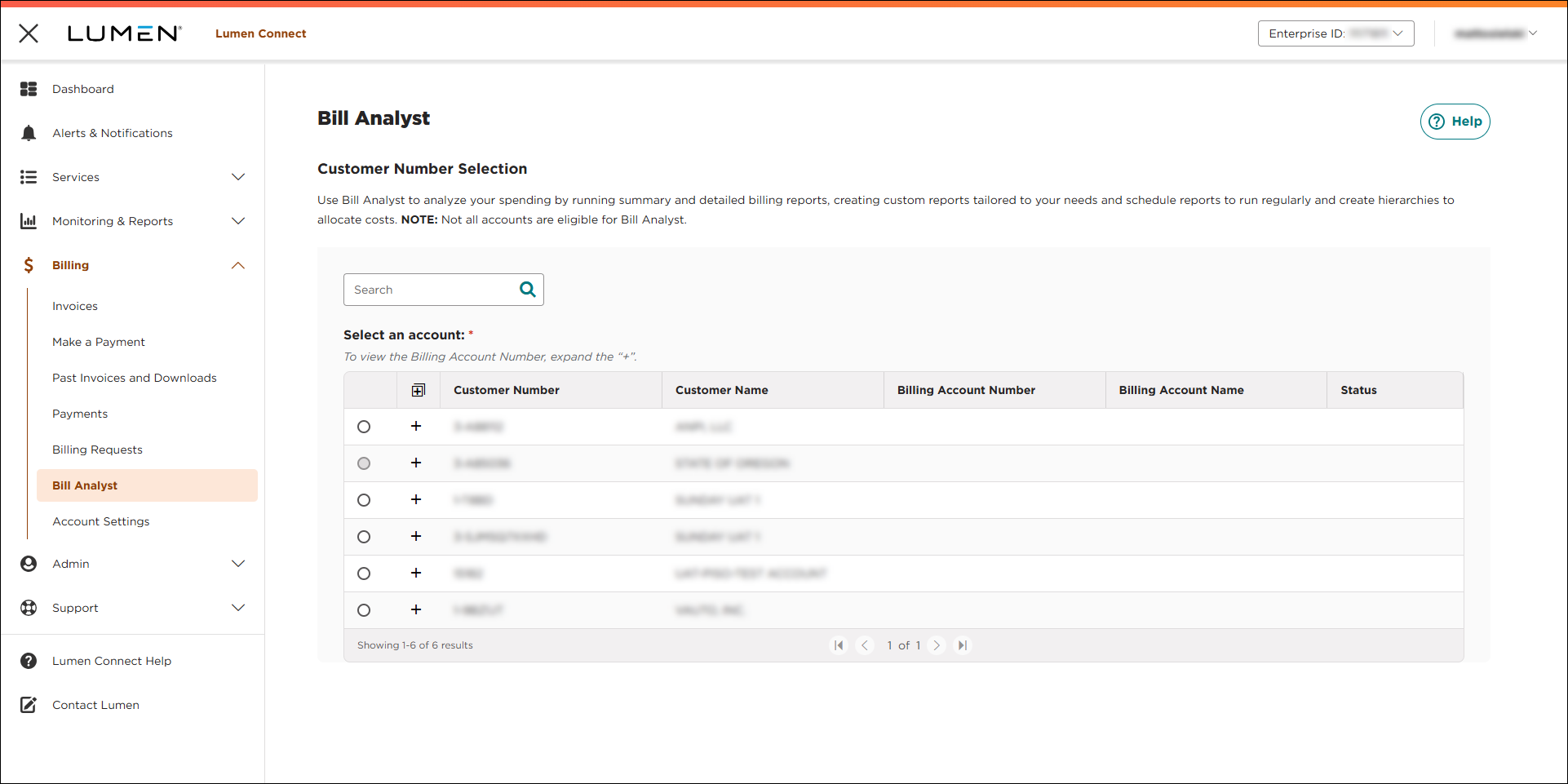
- Select the radio button next to the account you want to view, then click LAUNCH BILL ANALYST.
Lumen Connect opens Bill Analyst on a new tab.
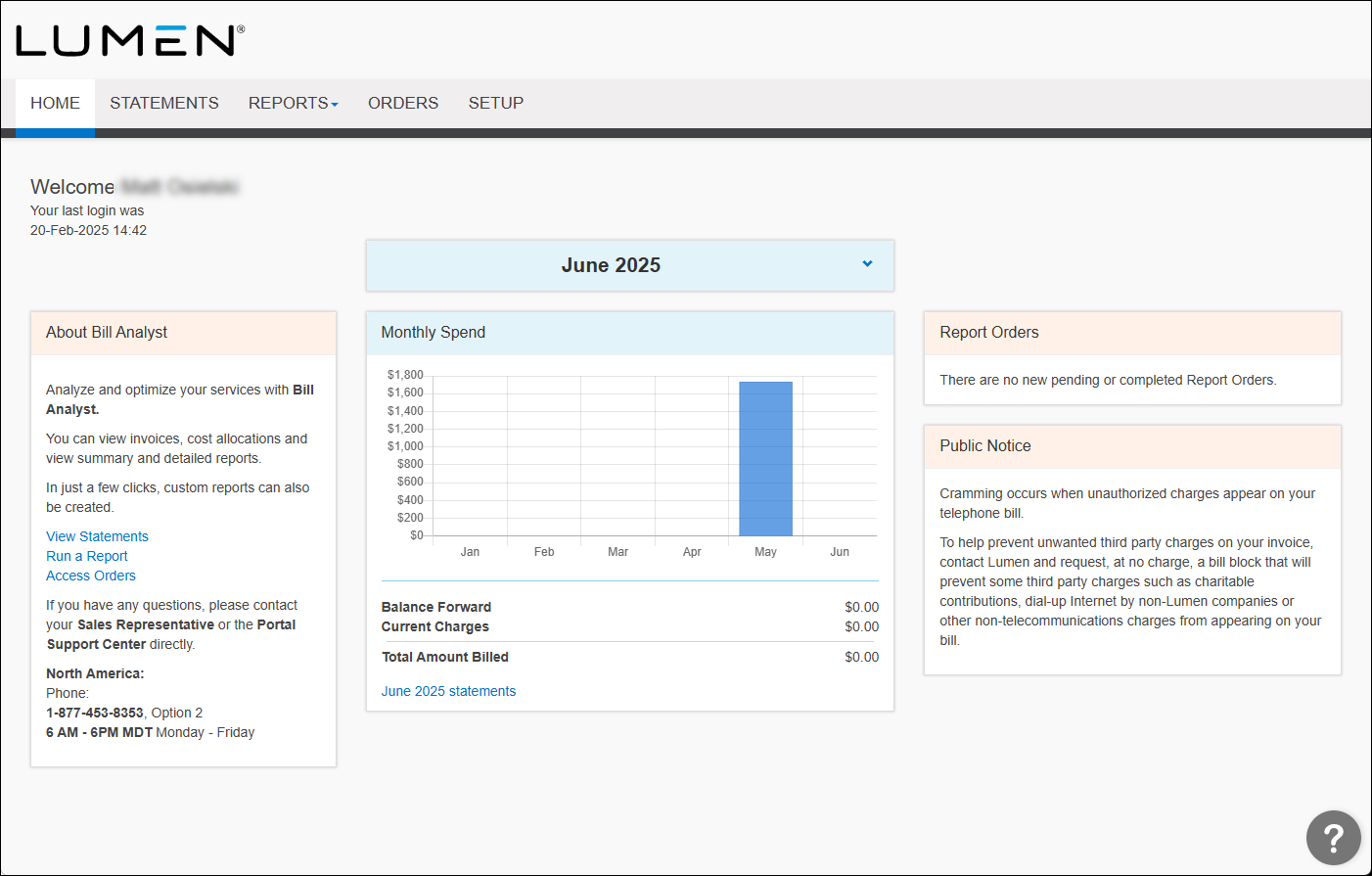
- Click the Setup tab.
- In the Account Information section, click SFTP Locations.
Bill Analyst lists the SFTP locations for your organization (if any) with a status for each location.
- Select the checkbox next to the SFTP location you want to edit, then click Edit location.
- Make your changes, then click Save.
The SFTP location appears and the status displays as pending until the page is refreshed.
Note: If there's a problem adding the location, you'll see an unable to validate—revalidate message on the SFTP locations page. In that case, you will need to edit your settings or delete your first attempt and try again.



