

Creating a notification setting
Using Lumen Connect, you can create a notification setting to be alerted to billing, repair ticket, and scheduled maintenance changes for billing accounts and/or services in your organization. After you create a notification setting, you can edit it to change your contact information or disable notifications. You can also delete a notification setting if you no longer want to receive notifications. If you're a Lumen Connect system administrator, you can also create notification settings for other users in your organization as well as for people who don't have access to Lumen Connect.
To create a notification setting:
- Using the left menu, click Alerts & Notifications.
Lumen Connect lists all your notifications. If you're a Lumen Connect system administrator, you see your notifications by default, but you can use the list to select another user in your organization to view their notifications.
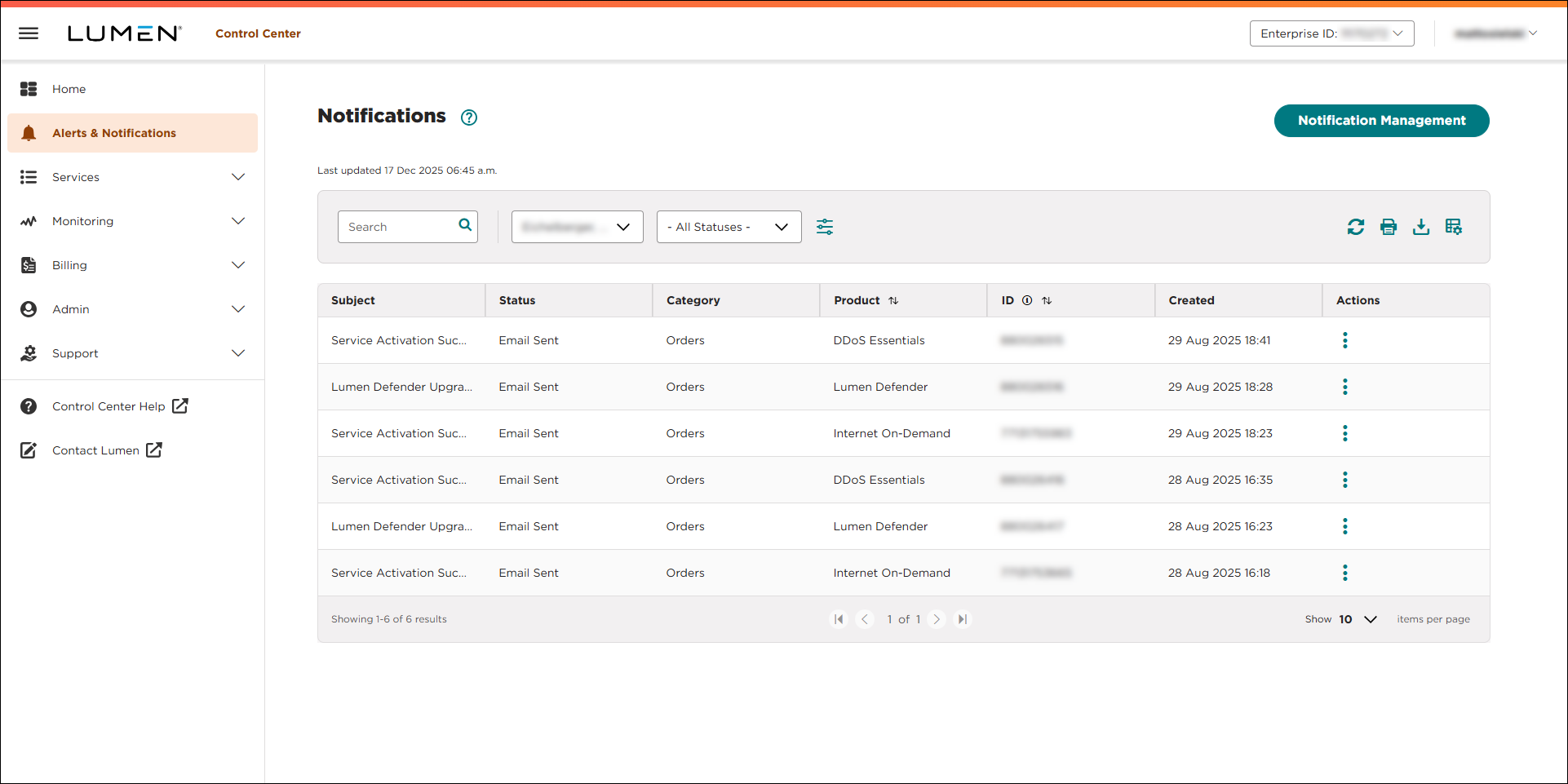
- Click Manage Notification Settings. (If you're a system administrator, click Notification Management.)
Lumen Connect lists all notification settings for your user profile. (If you're a system administrator, you'll see all the notification settings for your organization—including your own.)
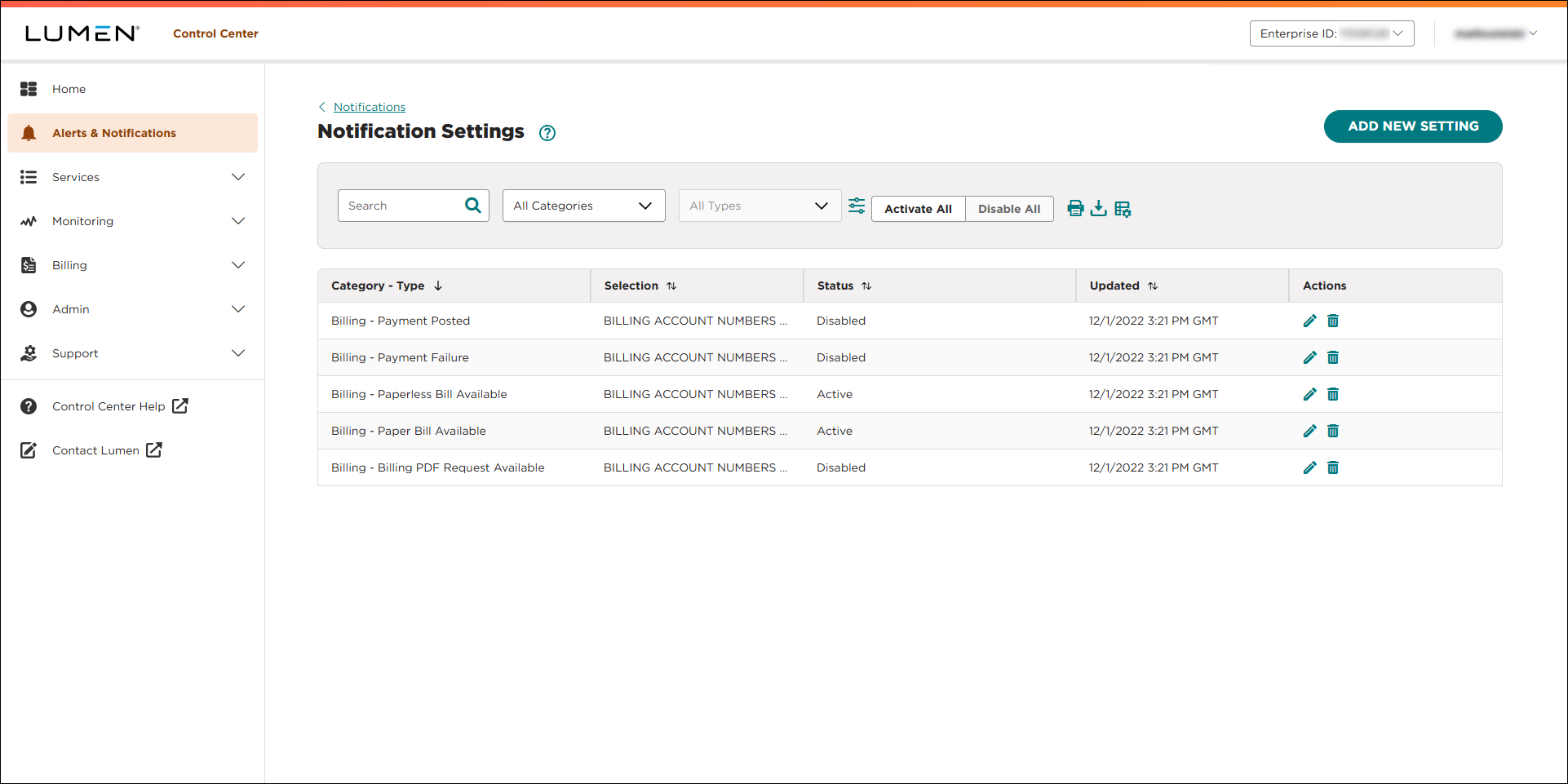
- Click Add New Setting.
- From the Category list, select the type of notification setting you want to create: billing, repair tickets, or scheduled maintenance.
- From the Type list, select the type of notification for the category you selected.
- Click Continue.
- Do one of the following to create the notification setting:
To create a billing notification setting:
- From the Customer Number list, select the customer number with accounts you want to be notified for. (To be notified for all customer numbers, select All Customer Numbers.)
- Select the billing account(s) you want to create the notification setting for:
- To be notified for all billing accounts, select All Billing Accounts.
- To specify billing accounts you want to be notified for, select Select Billing Account, then click the checkbox next to the billing account(s).
- To be notified for all billing accounts, select All Billing Accounts.
- Click Continue.
- In the Contact section, verify your contact information and make any updates.
To create a repair ticket notification setting:
- From the Customer Number list, select the customer number with accounts you want to be notified for. (To be notified for all customer numbers, select All Customer Numbers.)
- Select the billing account(s) you want to create the notification setting for:
- To be notified for all billing accounts, select All Billing Accounts.
- To specify billing accounts you want to be notified for, select Select Billing Account, then click the checkbox next to the billing account(s).
- To be notified for all billing accounts, select All Billing Accounts.
- From the Services list, select the services you want to create the notification setting for:
- To be notified for all services, select All Services.
- To select the locations you want to be notified for, select Select Locations, then click the checkbox next to the location(s).
- To select the types of services you want to be notified for, select Select Service Types, then click the checkbox next to the service category(s).
- To select the service IDs you want to be notified for, select Select Service IDs, then click the checkbox next to the service ID(s).
- To be notified for all services, select All Services.
- In the Contact section, verify your contact information and make any updates.
To create a scheduled maintenance notification setting:
- From the Customer Number list, select the customer number with accounts you want to be notified for. (To be notified for all customer numbers, select All Customer Numbers.)
- Select the billing account(s) you want to create the notification setting for:
- To be notified for all billing accounts, select All Billing Accounts.
- To specify billing accounts you want to be notified for, select Select Billing Account, then click the checkbox next to the billing account(s).
- To be notified for all billing accounts, select All Billing Accounts.
- From the Services list, select the services you want to create the notification setting for:
- To be notified for all services, select All Services.
- To select the locations you want to be notified for, select Select Locations, then click the checkbox next to the location(s).
- To select the types of services you want to be notified for, select Select Service Types, then click the checkbox next to the service category(s).
- To select the service IDs you want to be notified for, select Select Service IDs, then click the checkbox next to the service ID(s).
- To be notified for all services, select All Services.
- In the Contact section, verify your contact information and make any updates.
- When you're done, click Submit.
Lumen Connect creates the notification setting.



