

Editing a notification setting
After creating a notification setting in Lumen Connect, you can edit it to change contact information, delivery method, or to activate/disable the setting. If you no longer need a notification setting, you can delete it.
To edit a notification setting:
- Using the left menu, click Alerts & Notifications.
Lumen Connect lists all your notifications. If you're a Lumen Connect system administrator, you see your notifications by default, but you can use the list to select another user in your organization to view their notifications.
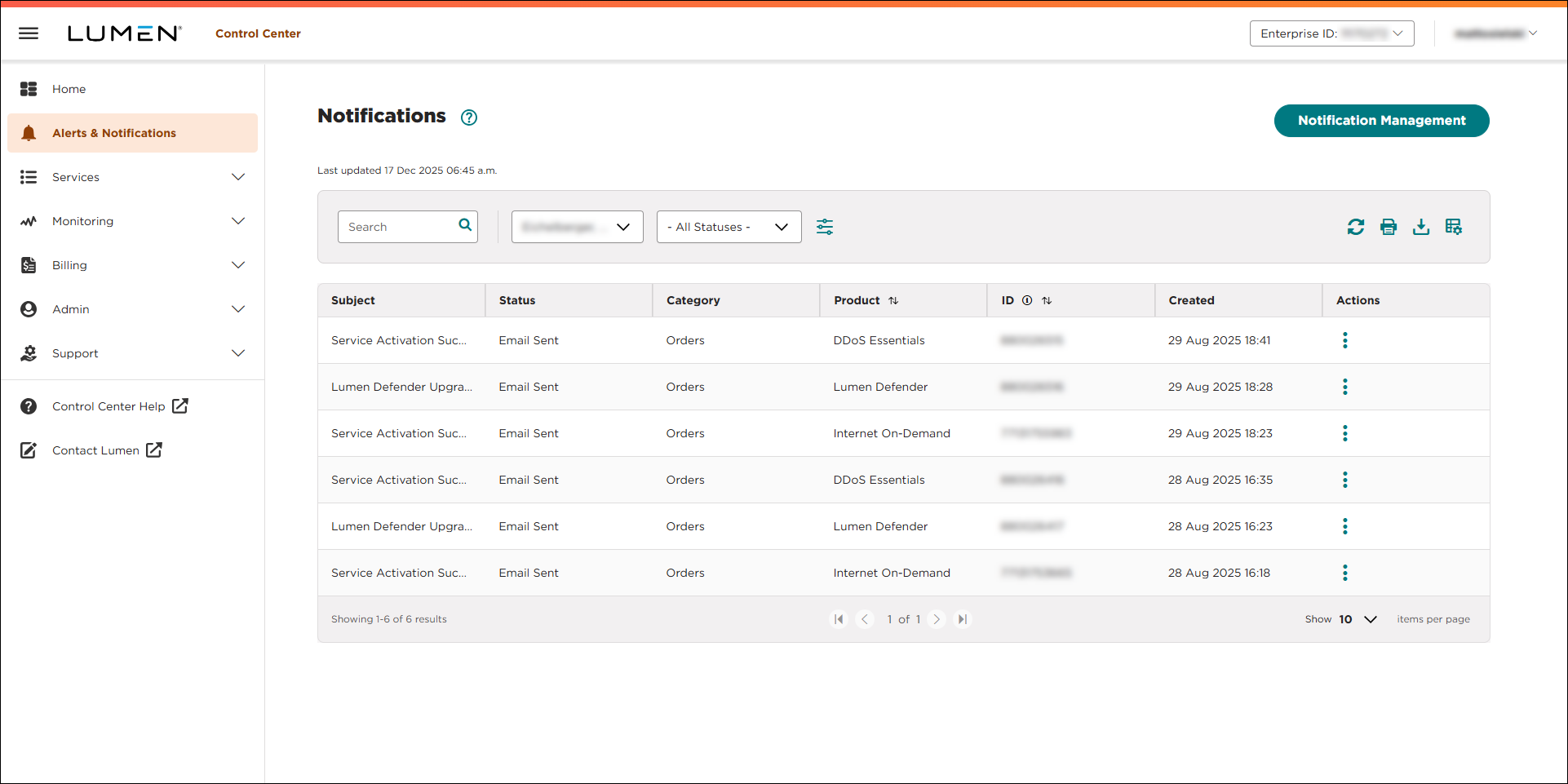
- Click Manage Notification Settings. (If you're a system administrator, click Notification Management.)
Lumen Connect lists all notification settings for your user profile. (If you're a system administrator, you'll see all the notification settings for your organization—including your own.)
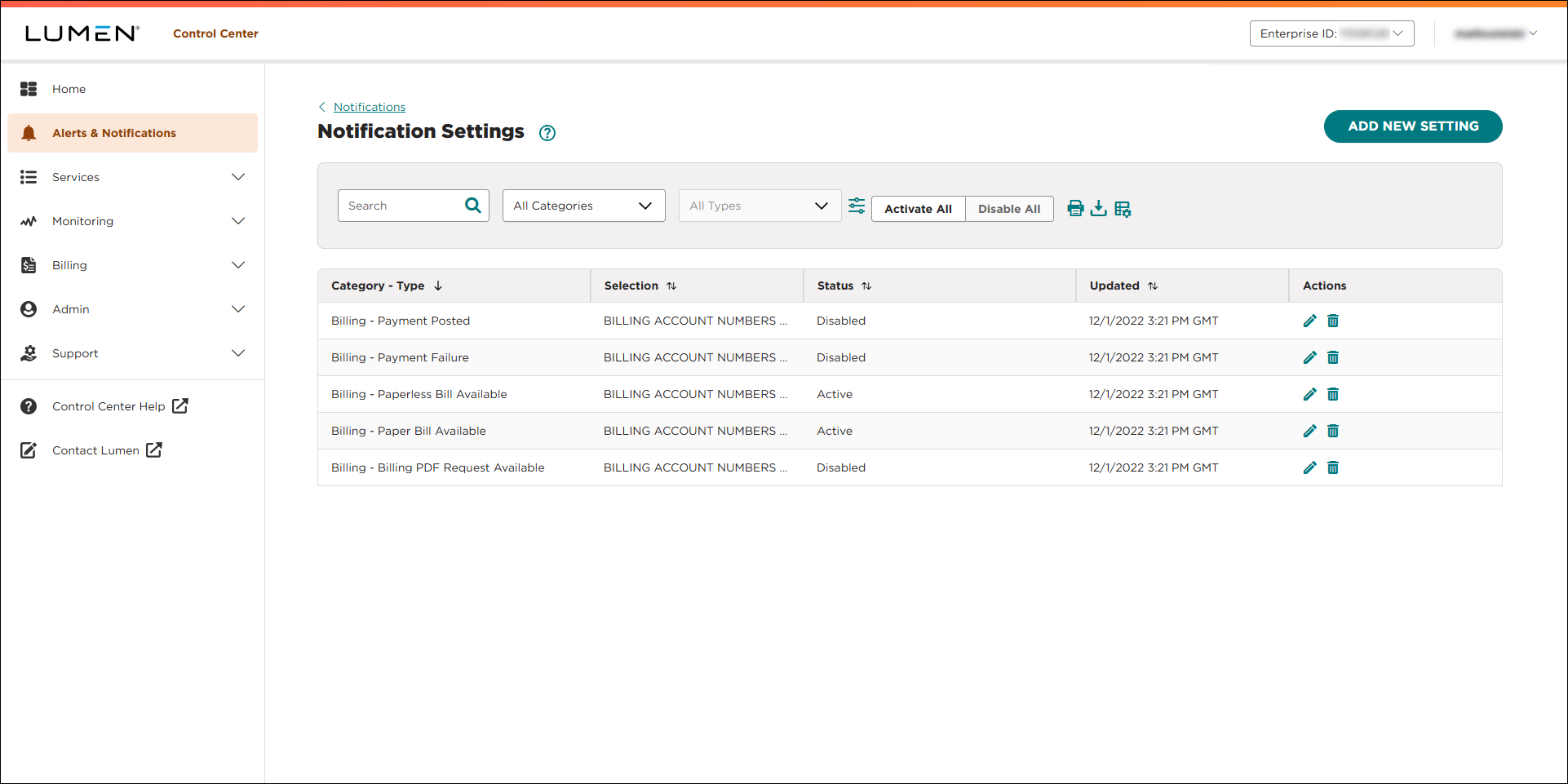
- On the row for the notification setting you want to edit, click the icon.
- Make edits to the notification setting:
- To change the contact information for the notification setting, edit the email address or phone numbers.
- To change the delivery method for the notification setting, use the checkboxes in the Delivery Method section to select how you want the user to be notified.
- To turn on this notification setting, click the Disabled radio button in the Status section.
- To turn off this notification setting, click the Active radio button in the Status section.
- To change the contact information for the notification setting, edit the email address or phone numbers.
- When you're done, click Save.
Lumen Connect saves your edits to the notification setting.



