

Uploading a Dedicated 8XX batch file
Use this process only for Dedicated 8XX batch files. The Dedicated 8XX batch file is loaded in to Lumen Connect by either uploading it directly into Lumen Connect, or using the Protected Internet Delivery (QPID) utility (for scripted uploads to the Lumen Connect folders). Both methods result in the batch file being sent to Lumen Wholesale. (To upload files for Lumen to help you resolve an issue, use the My Uploads page.)
After you upload a Dedicated 8XX batch file, you can check Preliminary Order Status.
Before uploading Dedicated 8XX batch file Validate Batch File after Upload offers two options:
- Box not checked (default): File validations will be performed real time, and errors displayed on the screen (and copied to the DIR.LOG file). File can be corrected, renamed, and uploaded again.
- Box checked: All file validations will take place after file is uploaded and DIR.LOG will be updated.
To upload Dedicated 8XX batch file:
- Using the left menu, click Orders, click Manage Orders, then click Batch.
- In the Ordering Type field, select the Dedicated radio button.
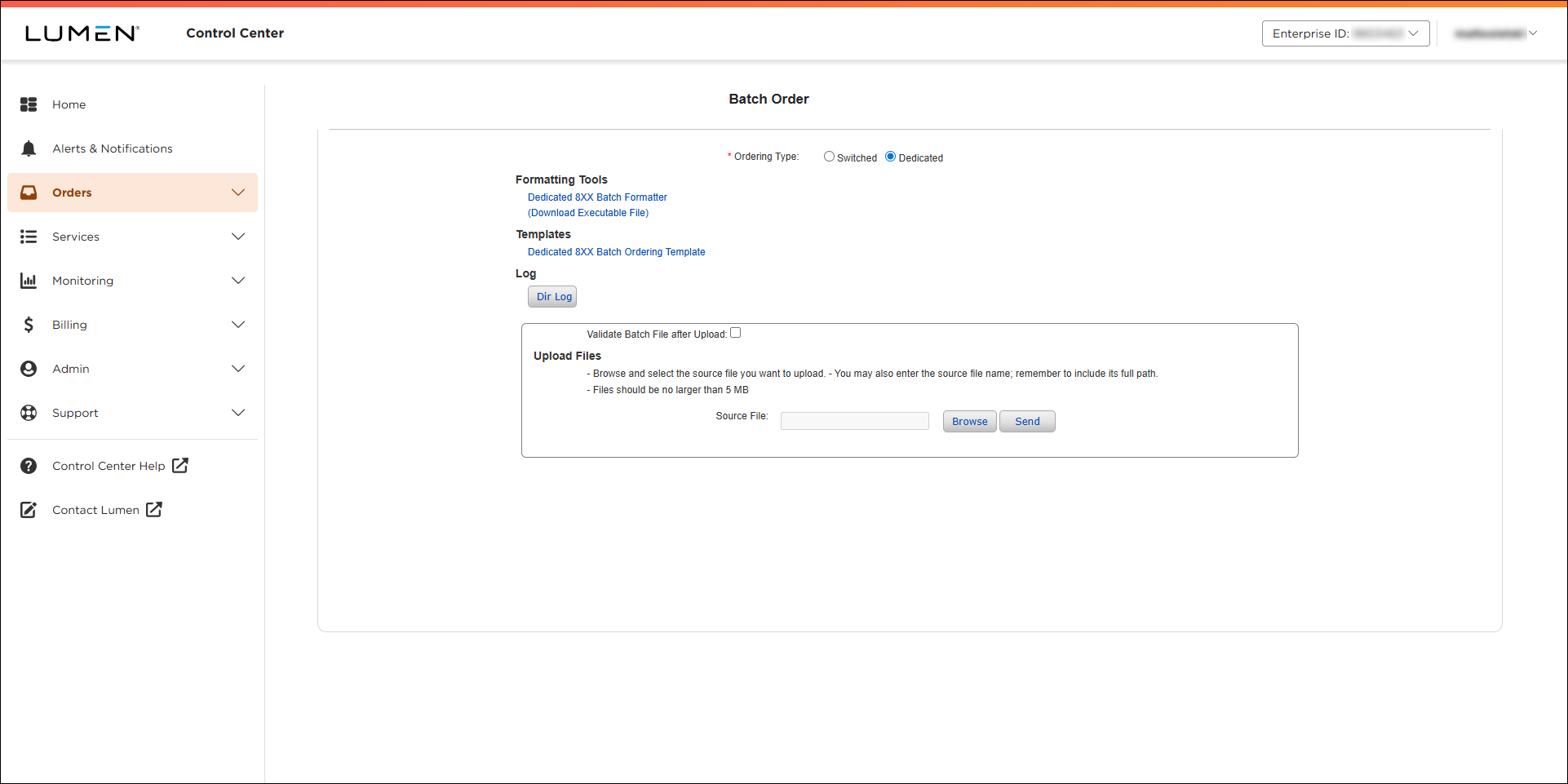
If you want realtime validation, leave Validate Batch File after Upload unchecked (the default)—any error messages will appear after the file is uploaded.
- Click Browse, locate batch file to upload and click Open.
The path and file name you selected appears in the Source File field.
- Click Send.
Lumen Connect lets you know if there are any validation errors.
- Correct any errors, rename the file, and upload it again.
Check the Validate Batch File after Upload box if you don't want realtime validation is not desired (no validation/error messages on screen). All validations will take place after file is uploaded.
To validate a batch file after upload:
- Check the box for Validate Batch File after Upload.
- Click Browse; locate batch file to upload and click Open.
The file name you selected appears in the Source File field.
- Click Send.
When the pop‑up message advises file is being processed, check DIR.LOG file.



