

Accessing a saved OLOF or DTFO order
You can save online order forms (OLOFs) and Dedicated Toll Free Origination (DTFO) orders. You can retrieve an order later in Preliminary Order Status when you are ready to submit it. Preliminary Order Status shows you your saved orders from the past 90 days.
To access a saved OLOF or DTFO order:
- Using the left menu, click Orders, click Order Status, then click Preliminary Order Status.
Lumen Connect shows all pending orders and orders completed within the past 90 days submitted using dedicated/switched batch, DTFO, or OLOF (online order forms). Lumen Connect also lists your view/modify call plan changes.
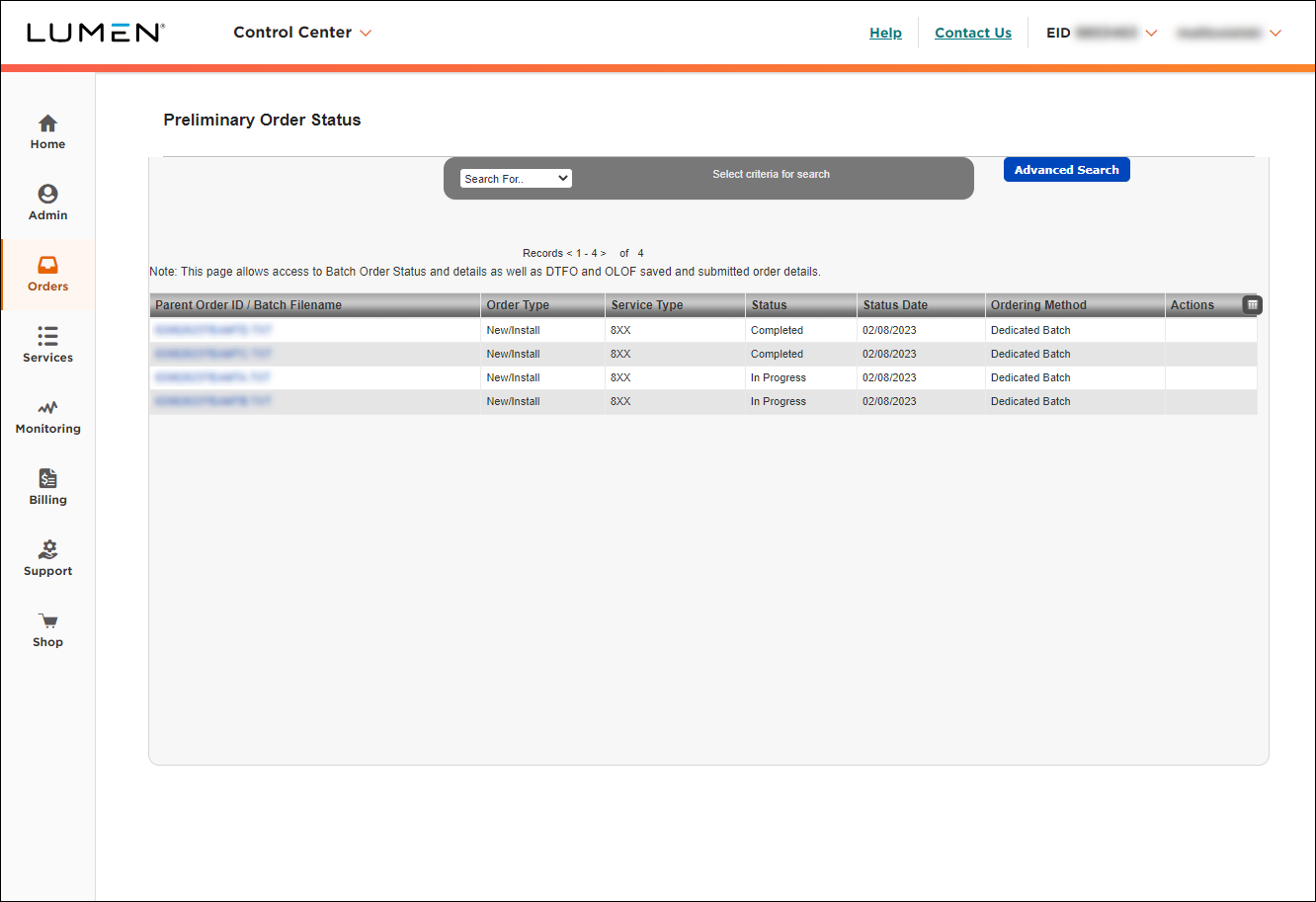
- In the “Search For…” list, select Status. The Search field will appear, enter the status of Saved. You can use enter key on your keyboard or click the icon to the right of the Search field.
Search is case sensitive. Please ensure to enter the Status as Saved, as it is shown when the Preliminary Order Status page loads. Entering saved in all lower case will not retrieve any results.
If you know the saved order ID, you can select Parent Order ID in the "Search For..." list, and retrieve that specific saved OLOF/DTFO order.
Use Reset to clear the search and show all orders.
- To enter the saved order, click the View Saved Order icon under the Actions column. The saved order will display so it can be edited, saved or submitted as needed.
Though you may have validated the Service Address before saving an OLOF, it must be validated again on saved OLOFs (and all Required Fields must be completed) to enable the Submit Request button.
Advanced search and filtering
You can also click Advanced Search, and apply advanced filtering options.
Customize columns
Use Customize Columns (icon to the right of the column headers) to customize the columns that are displayed, and in what order they display:
- Parent Order ID / Batch filename will always be the first column, and it cannot be removed from Current Columns.
- As you select a column under the Available Columns or Current Columns, the arrow between the two fields will change direction, so you can add or remove columns from your view.
- You can also use the buttons to the right to Move Up or Move Down as needed.
- Click Save to apply your changes.
- Click Reset to restore default view (or clear your cache).



