

Viewing the status of a DTFO order
Preliminary order status will provide access to the submitted DTFO order form and list the fallout 8xx and their error messages. The successfully processed 8XX are also listed. The DTFO order should be available on the Preliminary Order Status page immediately after successfully submitting.
Note: DTFO orders can be found in Submitted, Saved, and Failed statuses. Failed status can occur when all 8XX on the order fail validation.
Post-submission order status provides status dates for milestone jobsteps of the provisioning engineering orders.
Note: There can be a few hours delay between submitting a DTFO order and its appearance on the Post Submission Order Status page.
To view the status of a DTFO order:
- Using the left menu, click Orders, click Order Status, then click Preliminary Order Status.
Lumen Connect shows all pending orders and orders completed within the past 90 days submitted using dedicated/switched batch, DTFO, or OLOF (online order forms). Lumen Connect also lists your view/modify call plan changes.
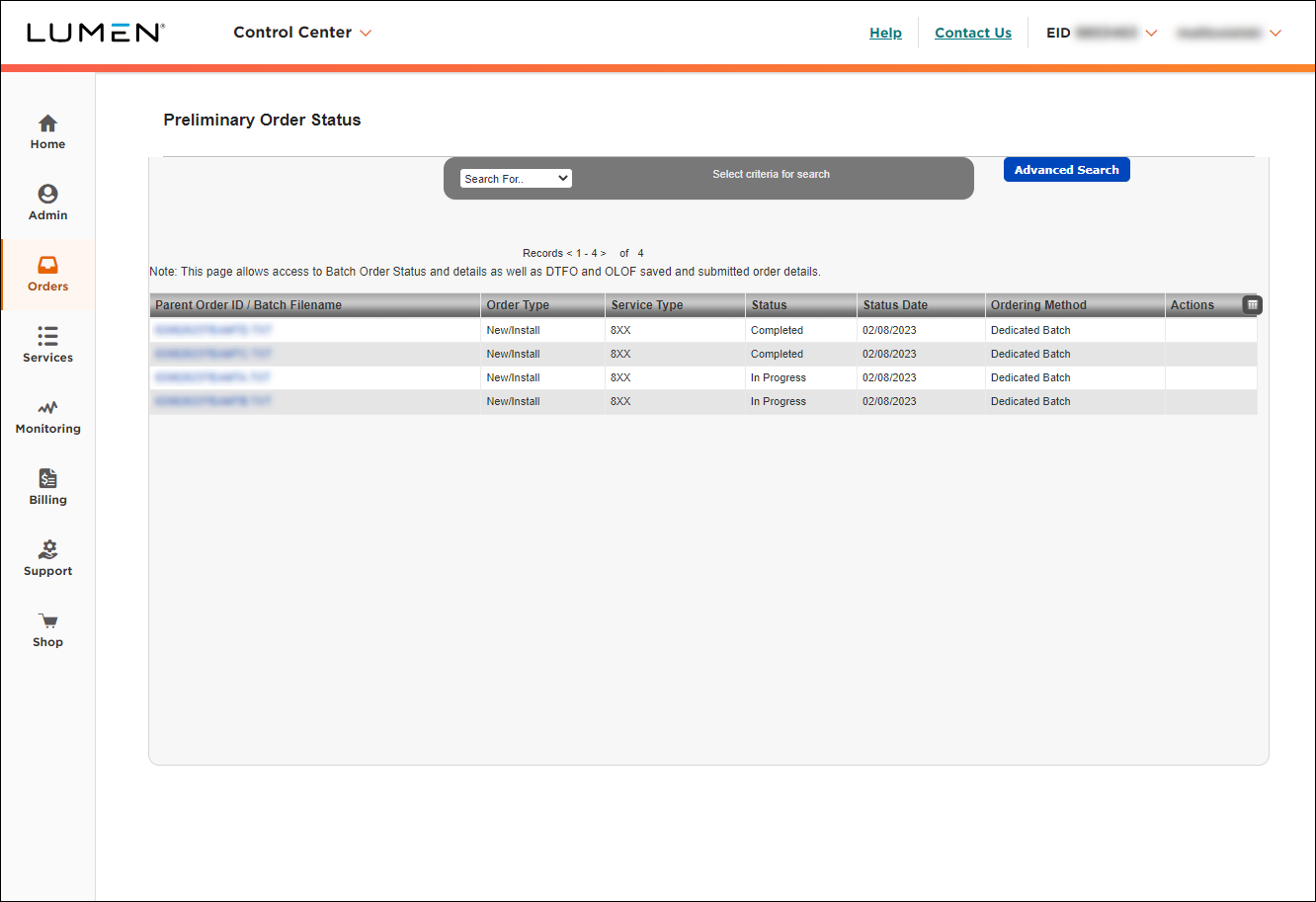
- In the “Search For…” list, select Ordering Method. The Search field will appear, enter DTFO (case sensitive). You can use enter key on your keyboard or click the icon to the right of the Search field. This will filter to only display DTFO orders. If you know the saved order ID, you can select Parent Order ID in the "Search For..." list, and retrieve that specific saved DTFO order.
You can also click the Advanced Search button, and apply Advanced Filtering Options.
Note: the Customize Columns icon (to the right of the column headers, shown below) will allow you to customize the columns that are displayed, and in what order they display:
- After clicking the icon, the Customize Column overlay will display.
- As you select a column under the Available Columns or Current Columns, the arrow between the two fields will change direction, so you can add or remove columns from your view.
- You can also use the buttons to the right to Move Up or Move Down as needed. Parent Order ID / Batch filename will always be the first column, and it cannot be removed from Current Columns.
- Click Save button to apply the changes.
- Click Reset button to restore default view.
Note: Columns will revert to default view after browser cache is cleared.
- Click on the order ID link under the Parent Order ID column.
Lumen Connect shows the submitted DTFO order form.
- Click on the Order Number link to display the Sales and Provisioning Orders overlay. In the overlay, click on each Sales Order ID to display its related Engineering orders:
- Scroll to the bottom of the form to view the following information:
- Errored 8XX section with Error Message
- Successful 8XX section
DTFO orders in Post-Submission Order Status
Post-Submission Order Status provides status dates for milestone jobsteps of the provisioning engineering orders.
Note: There can be a few hours delay between submitting a DTFO order and its appearance on the Post‑Submission Order Status page.
- Using the left menu, click Orders, click Order Status, then click Post-Submission Order Status.
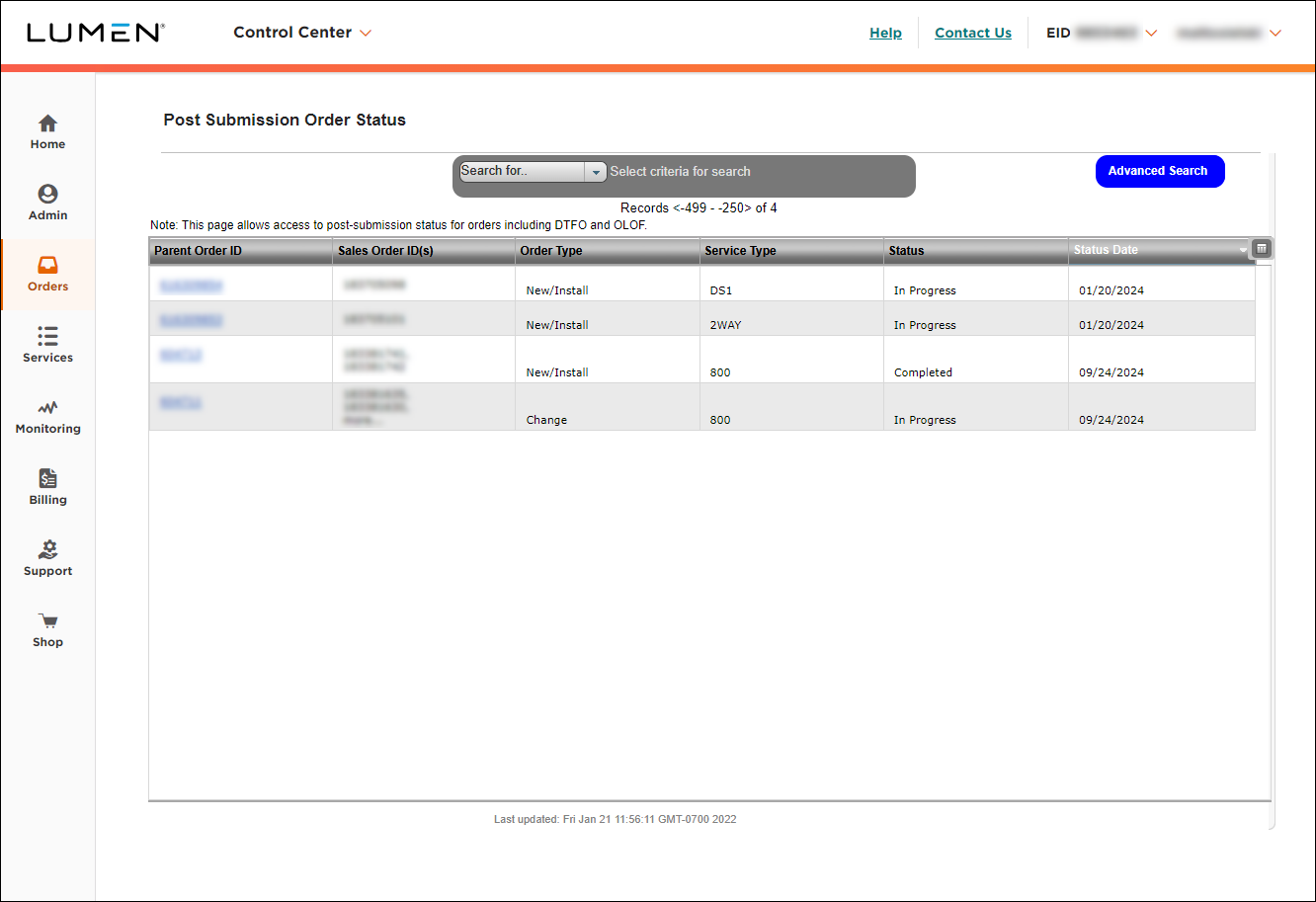
Note: In Post‑Submission Order Status, DTFO orders are Service Type 800, and the Order Type will reflect the Action of the DTFO order (New/Install [aka Add], Change or Disconnect).
- In the “Search For…” list, select Service Type, and enter 800. This will filter to display toll free orders, which includes both DTFO and OLOF orders.
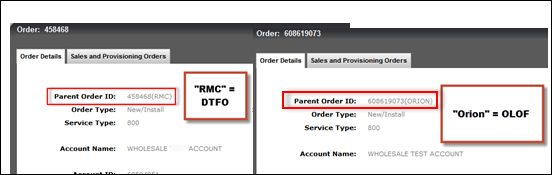
DTFO orders will have the six‑digit DTFO order ID (assigned when DTFO was submitted) in the Parent Order ID column. OLOF orders will show the Orion order ID in the Parent Order ID column.
If you know the DTFO order ID, you can “Search For” Parent Order ID.
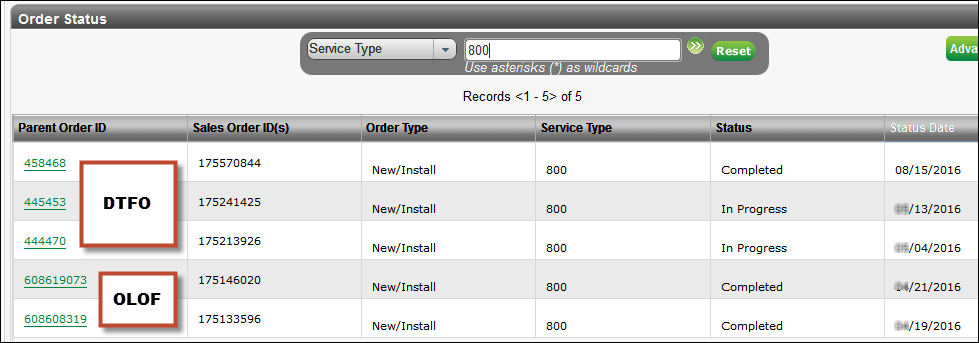
- Click on the link under the Parent Order ID column.
An overlay provides information on two tabs: Order Details, and Sales and Provisioning Orders.
Order Details tab:
- On the Sales and Provisioning Orders tab, click the order number link under Engineering/Provisioning Orders.
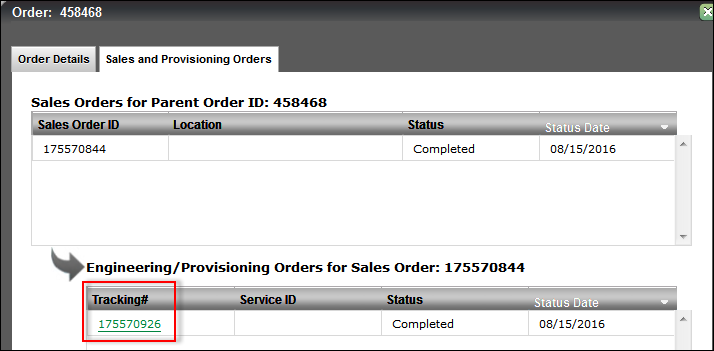
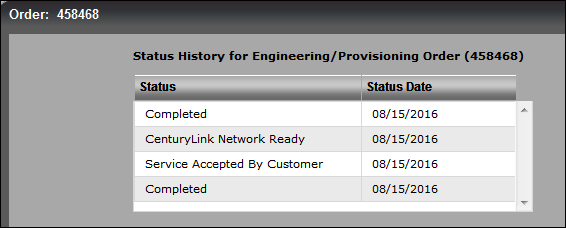
Milestone jobsteps (example Service Accepted by Customer = SABC jobstep) are displayed along with their status date:
Note: We are currently unable to provide a list of 8XX numbers on each CORE order in Lumen Connect, as was provided in RMC Order Status when reviewing the DTFO order’s Order Status Screen (magnifying glass icon). This is due to utilizing the existing Lumen Connect Order Status that is now renamed Lumen Connect Post‑Submission Order Status. This existing functionality was not modified and does not provide the 8XX number on each sales/engineering order. Lumen can provide this information if it is required.



