

Closing a security change request
If you no longer need Lumen to work on a security change request, you can close the request using Lumen Connect. You can also update information in a security change request (to add notes or attachments for the Lumen representative assigned to your request) to save closing a request and opening a new one.
To close a security change request:
- Using the left menu, click Services, click Service Requests, then click Security Change Requests.
Lumen Connect shows all open and recently closed security change requests (by default, within the past 30 days) for your organization with a status for each request.
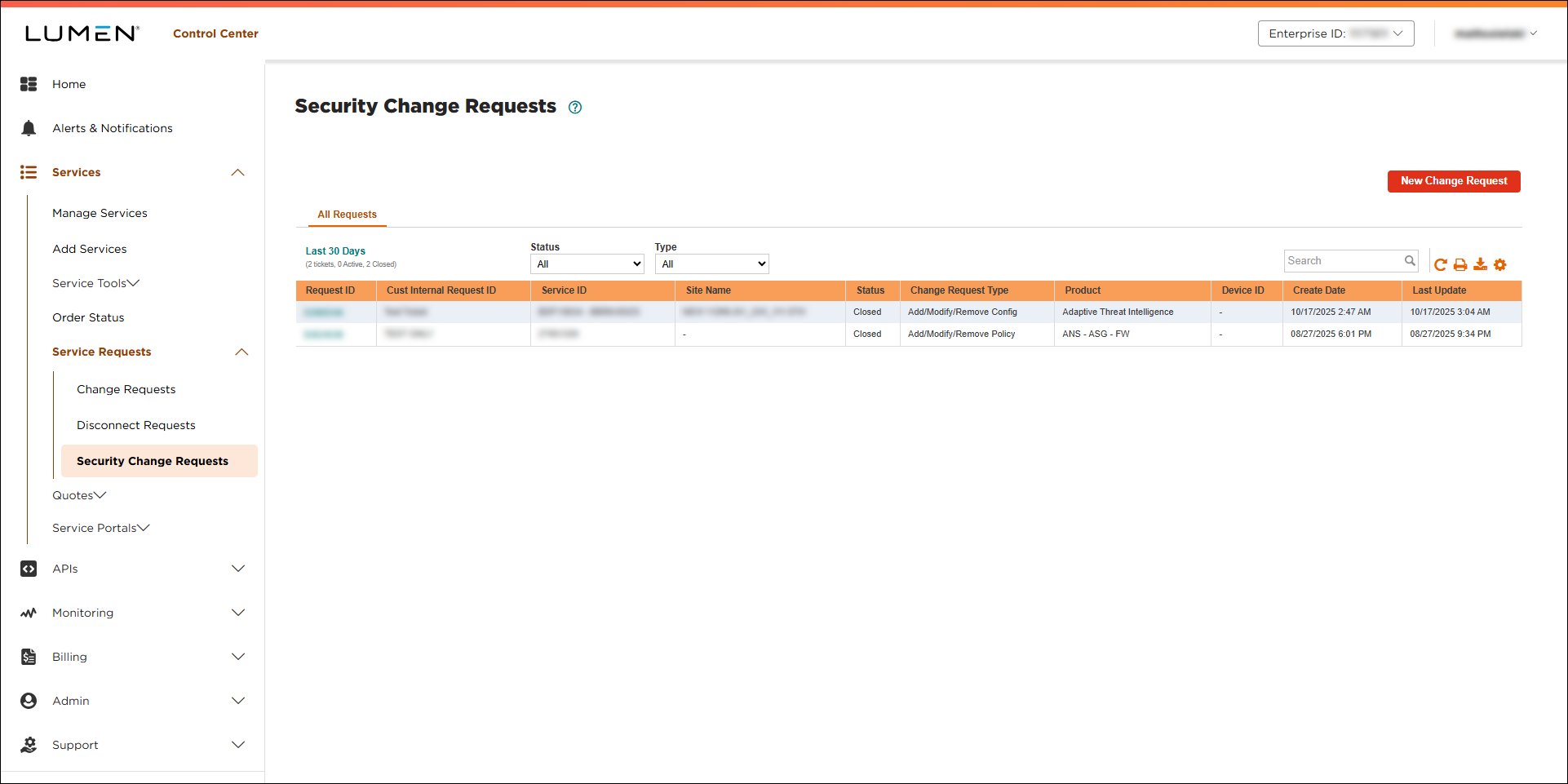
- Search for the security change request you want to work with by doing one of the following:
- Scroll through the security change requests. If you have more than 20 security change requests, you can view the rest of your security change requests by using the arrows at the bottom of the list.
- Search for the security change request by typing search criteria in the Search field.
- Filter the list of security change requests using the Status or Type lists.
- Scroll through the security change requests. If you have more than 20 security change requests, you can view the rest of your security change requests by using the arrows at the bottom of the list.
- After you find the security change request you want to close, click the request ID.
Lumen Connect shows details for the security change request. (Before you close the security change request, review it to ensure you're closing the correct one.)
- Click Close Request, type the reason you're closing the request, then click Submit.
Lumen Connect changes the status to Closed.



