

Creating a security change request
Using Lumen Connect, you can request changes to Lumen security services for your organization. For example you can request firewall rule changes, adjust web content filters, or manage anitvirus settings). Once you create a security change request, you can add notes or attachments to the request to communicate with the Lumen representative assigned to the request. If you no longer need to make the change you requested, you can also close the request. If you're having problems with a security service, you can open a security repair ticket to have Lumen research the issue.
To create a security change request:
- Using the left menu, click Services, click Service Requests, then click Security Change Requests.
Lumen Connect shows all open and recently closed security change requests (by default, within the past 30 days) for your organization with a status for each request.
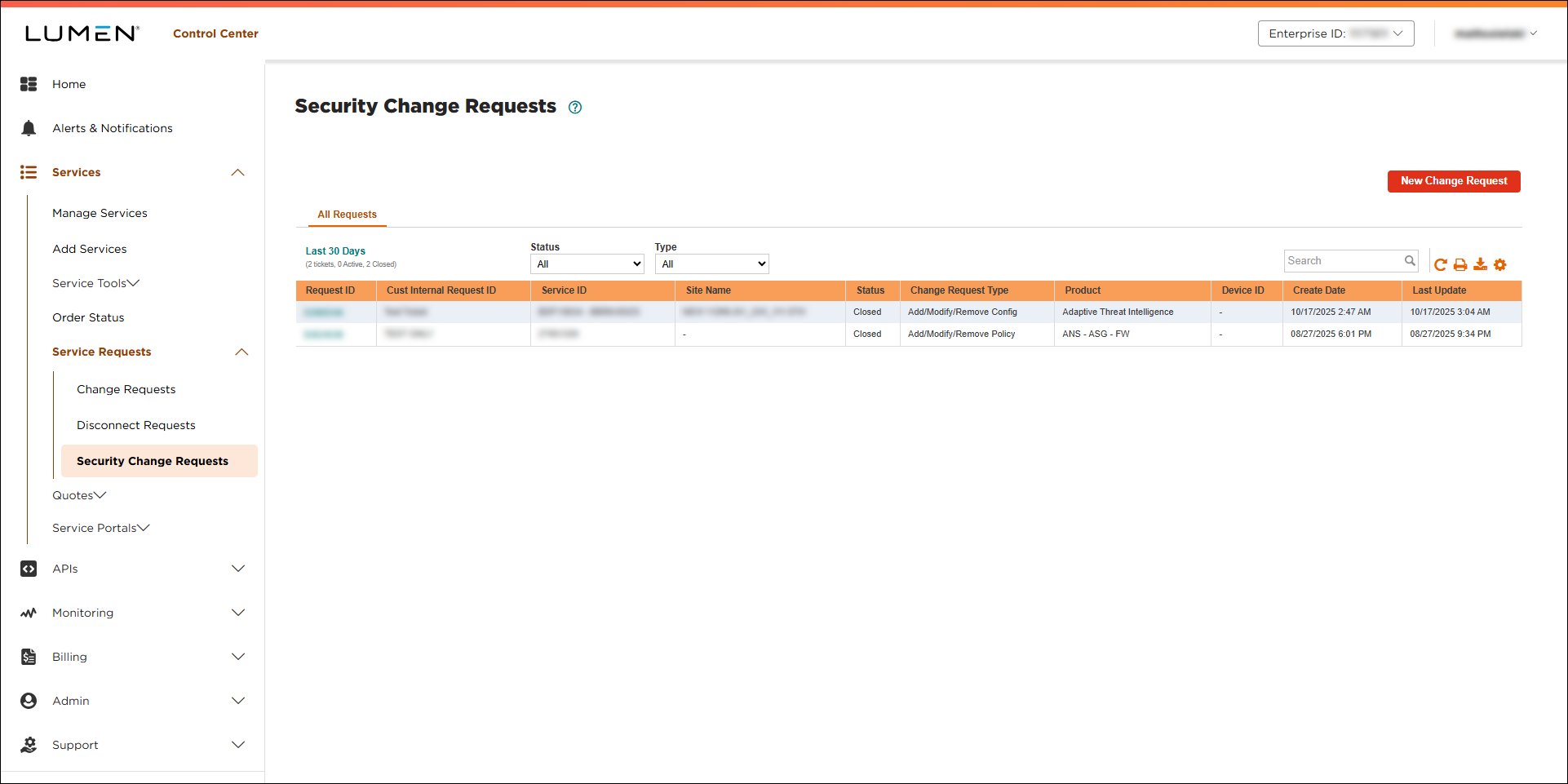
- Click New Change Request.
- Select the radio button next to the service you want to open a security change request for. (If you don't see the service listed, click Service ID not listed?, then type the service ID (13‑digit ID starting with FRO), select the product type and billing account, then select Continue.)
- Click Continue.
Based on the service you selected, Lumen Connect builds the security change request form. The fields vary from service to service.
- In the Change Detail section, fill in the details of your request.
- Depending on the service you selected, use the list and Additional information regarding this issue/request field, select the type of request from the list and type your request in the field.
- If you're tracking the ticket in another system within your organization, you can type it in the next field.
- In the Attachments section, you can attach any documents (such as a more detailed explanation of the problem or additional details pertaining to your request), you can upload up to five documents (up to 20MB each). To attach a document, click Add Attachment, browse to locate the file, then click Open.
- Depending on the service you selected, use the list and Additional information regarding this issue/request field, select the type of request from the list and type your request in the field.
- In the Contact Information section, do the following:
- From the Contact method? list, select how you want us to contact you about this issue.
- Either leave yourself as the primary contact or manually fill in the contact information for that person.
- If you want to add a secondary contact for this issue, type their information.
- From the Contact method? list, select how you want us to contact you about this issue.
- Click Submit Request.
Lumen Connect submits your security change request. You can track its status and communicate with the Lumen representative assigned to the request (once assigned).



