

Viewing the status of a security repair ticket
Using Lumen Connect, you can view the status of security repair tickets open for your organization. For open tickets, you can view and add work log notes or close tickets for issues that have been resolved. For closed tickets, you can request a reason for outage (RFO) report. To locate a security repair ticket or to help you manage a lot of tickets, learn how to search for, sort, and filter security repair tickets.
To view the status of a security repair ticket:
- Using the left menu, click Support, then click Security Repair Tickets.
Lumen Connect lists the security repair tickets you've created in the past 30 days with a status for each ticket, the service ID the ticket is for, the type of ticket, the date the ticket was created, and the date the ticket was last updated.
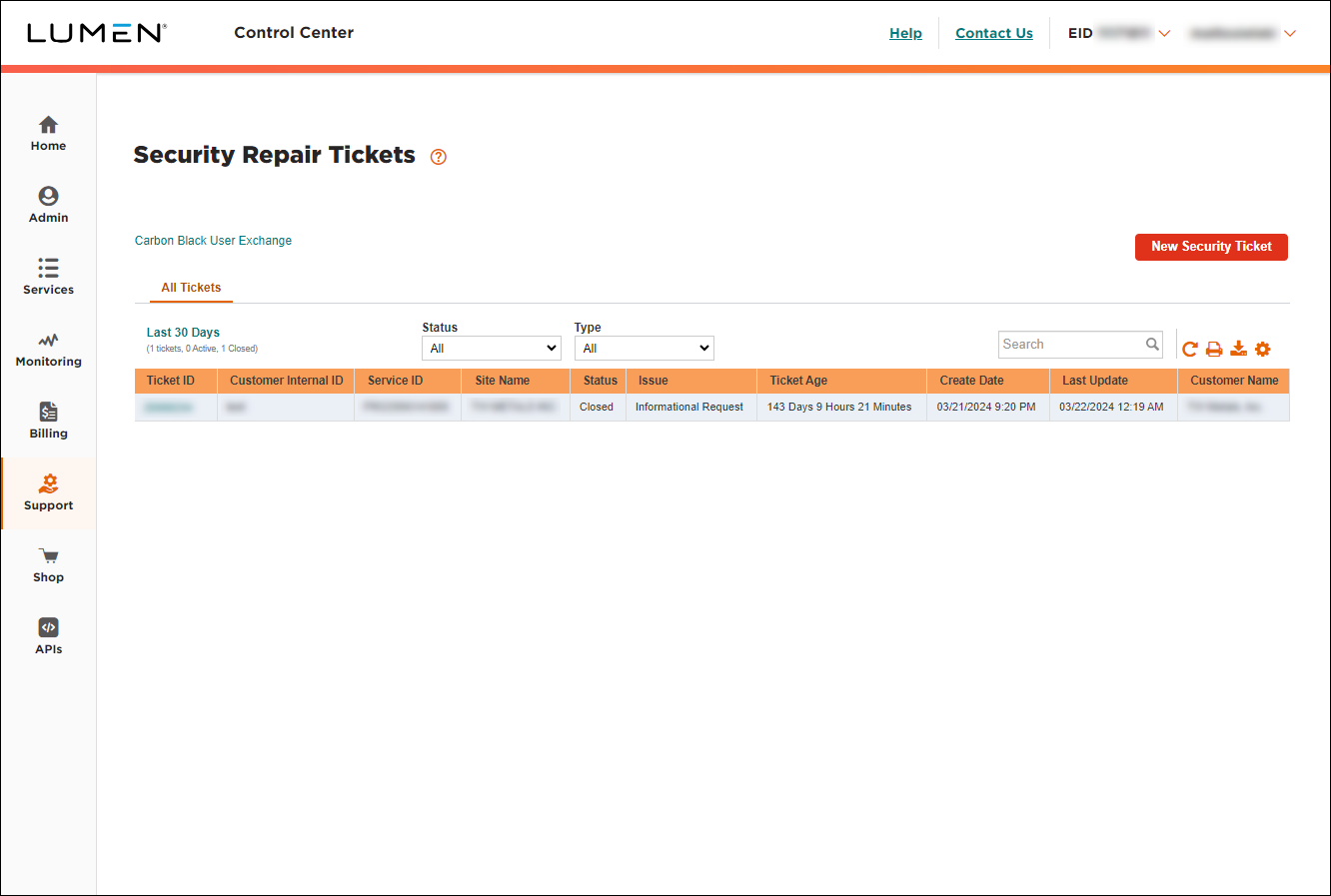
- Do any of the following:
- To view details or notes for a ticket, click anywhere on the row for the ticket.
Lumen Connect shows details for the ticket you selected. If the ticket is still open, you can add notes to communicate with the Lumen representative assigned to the ticket.
- To search for a ticket, type information related to the ticket (such as a request ID, service ID, location, or product) in the Search field.
Lumen Connect filters the list as you type search criteria.
- To filter the list so you see only a certain status or type of ticket, use the Status and Type lists.
- To refresh the list, click the icon.
- To download a spreadsheet (.xls) of the tickets, click the icon.
- To view details or notes for a ticket, click anywhere on the row for the ticket.



