

Ordering a toll‑free number
Using Lumen Connect, you can order additional toll‑free numbers for a Lumen® Toll Free Service. If you want to request a specific toll‑free number, called a vanity number, you need to reserve the number first. If you've already reserved it, have the confirmation email ready so you can type in the number while placing the order. If you don't need a specific toll‑free number, you'll leave the requested number field blank and we'll assign a number—called a random number—when we process your order. You can order up to 500 random numbers at a time.
To order a toll-free number:
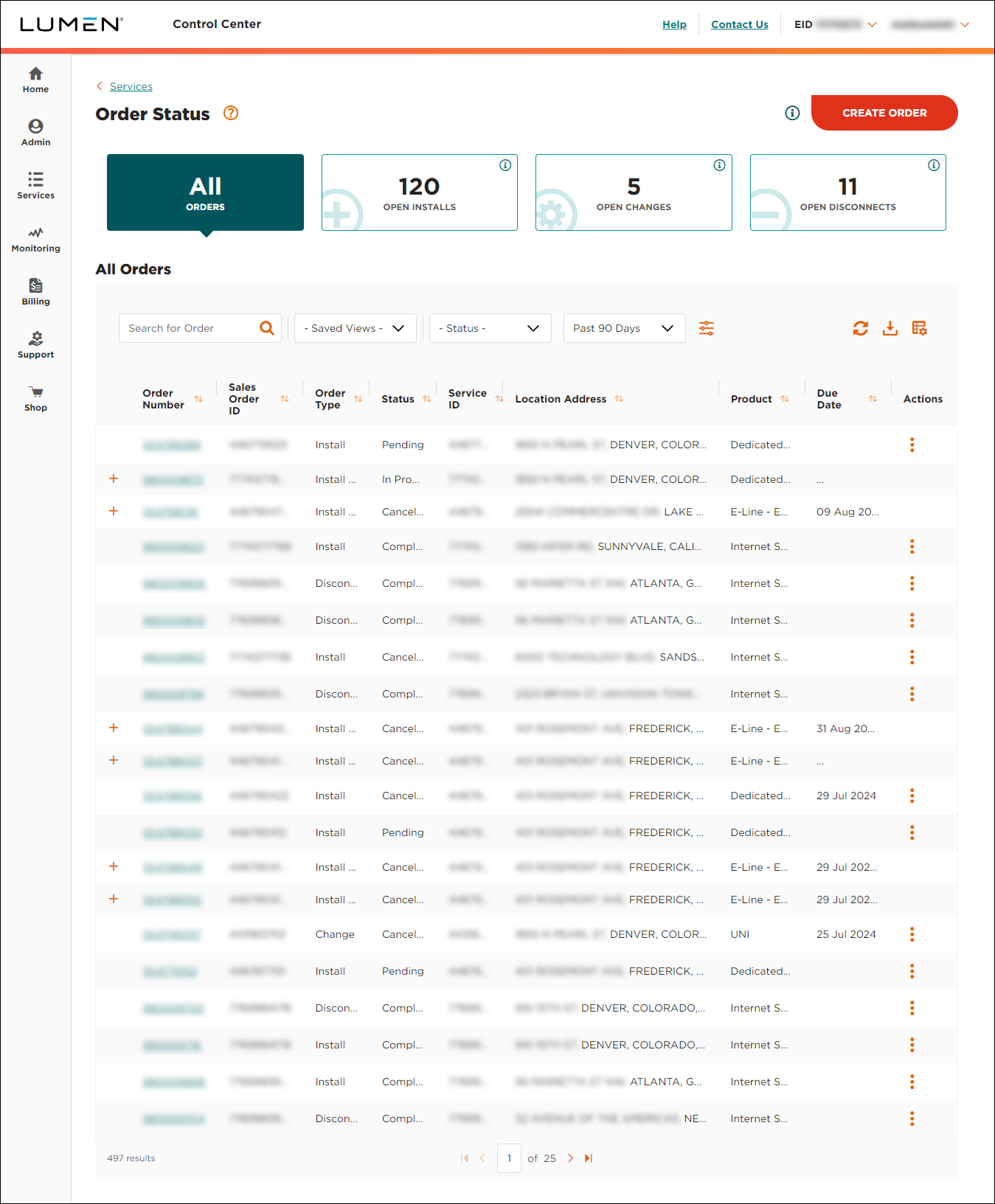
- Using the left menu, click Services, then click Order Status.
Lumen Connect shows all open orders and those completed in the past 90 days and lists status of each order in the Status column. If an order has child orders, a icon appears to the left of the order number. (You can use the cards at the top of the page to filter your orders to view install, change, or disconnect orders.)
- Pending—we priced and designed a solution and you accepted it. We’re working on the final details of the order so our team can submit your order.
- Submitted—we submitted your order and are getting credit approval. Once your credit is approved, we will assign a customer care manager to work on your order (depending on the service you purchased).
- In Progress—we’re working on building and testing your service. As progress continues, we’ll email you to let you know the status. If you have questions about your order, contact the customer care manager listed on your order.
- Cancelled—we canceled your order and your service(s). No further progress will be made. For questions concerning the cancellation, contact the customer care manager listed on your order.
- Complete—we completed your order and your service(s) is ready for you to use and manage. We’ve also started billing you for this service.
- Click CREATE ORDER.
- Click Add.
- From the Service Type list, select Toll Free (8xx).
- In the Toll Free Number to Mirror field, type a toll‑free number on the billing account you want to add your new toll‑free number to. (We'll use the number you type here to mirror the billing for your new number.)
Lumen Connect list the account number for the toll‑free number you entered.
- Click Add Toll Free Data.
- In the Reserved Toll Free Number field, type the vanity number you reserved. (If you didn't reserve a vanity number or are requesting a random toll‑free number, leave this field blank. We'll reserve a number for you when we process your order.)
- Select the type of termination by doing one of the following:
- To choose a switched termination:
- From the Type of Termination field, select SWI.
- In the ANI field, type the ANI.
- From the Area of Coverage list, select the parts of the United States, Canada, and U.S. territories you want the toll‑free number to work in.
- From the Type of Termination field, select SWI.
- To choose a dedicated termination:
- From the Type of Termination list, select DED.
- From the Primary Trunk list, select your group trunk.
- From the Area Of Coverage list, select the parts of the United States, Canada, and U.S. territories you want the toll‑free number to work in.
- From the Type of Termination list, select DED.
- To choose a switched termination:
- Click Submit Request.
You'll receive an email confirming the number(s) you've added. You can also check your order status.



