

Updating a termination number on a routing plan
In Lumen Connect, you can change the termination number(s) for a Lumen® Toll Free Service routing plan yourself (geographic routing, day‑of‑year, day‑of‑week, time‑of‑day, percentage allocation, etc.). If you need to, you can also change a termination number on multiple routing plans at once (known as bulk edit termination).
To update a terminating number on a routing plan:
- In the Services widget on the homepage, select Toll Free from the Find by Product or Service Tool list.
Lumen Connect shows all Toll Free services on the enterprise ID.
- Search for the service you want to work with. When you find the service you want to work with, click the hyperlinked service ID or click the icon (in the Actions column), then click View Details.
Lumen Connect shows details for the toll-free service you selected.
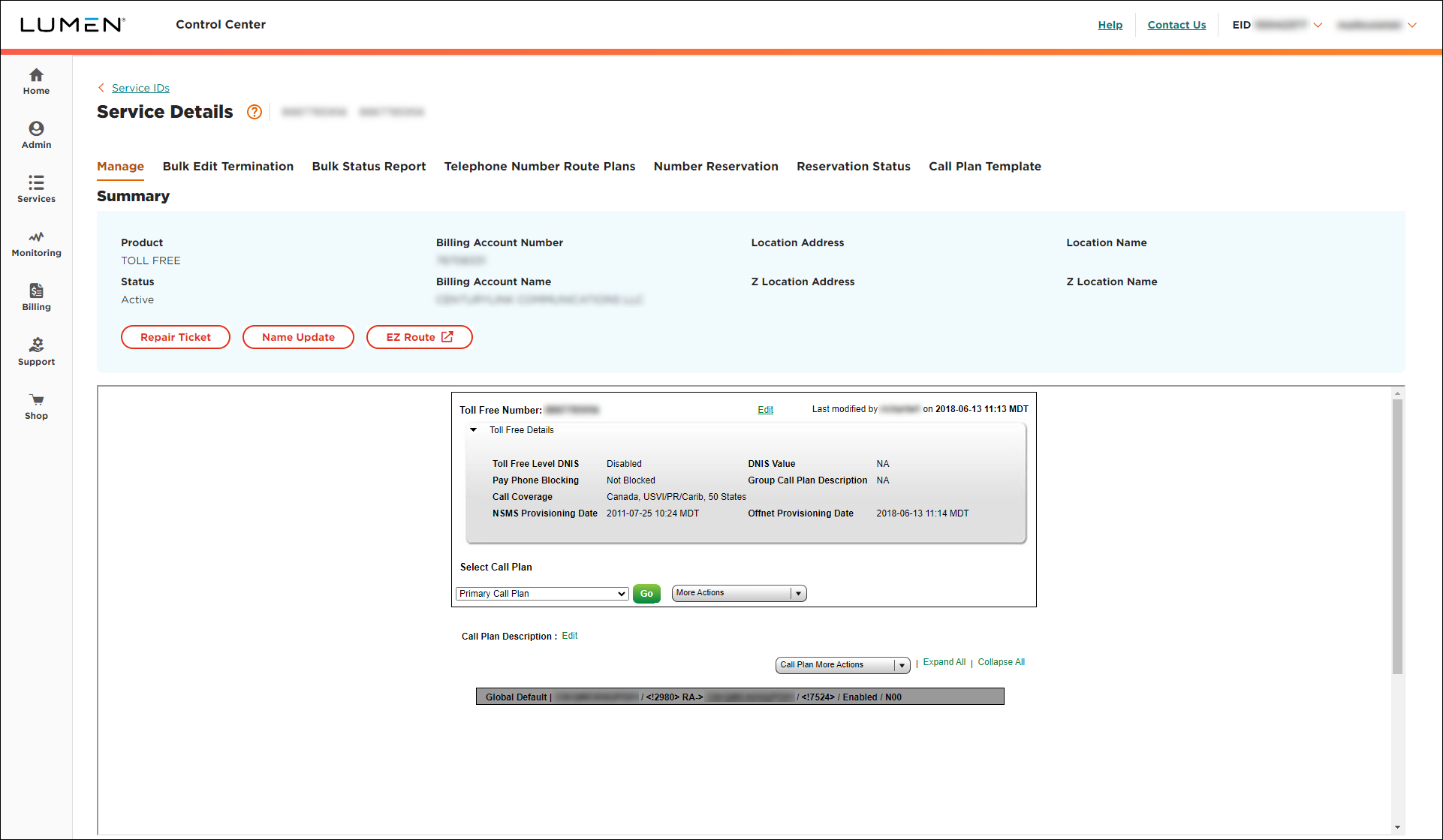
- From the Call Plan More Actions list, select Edit Call Plan.
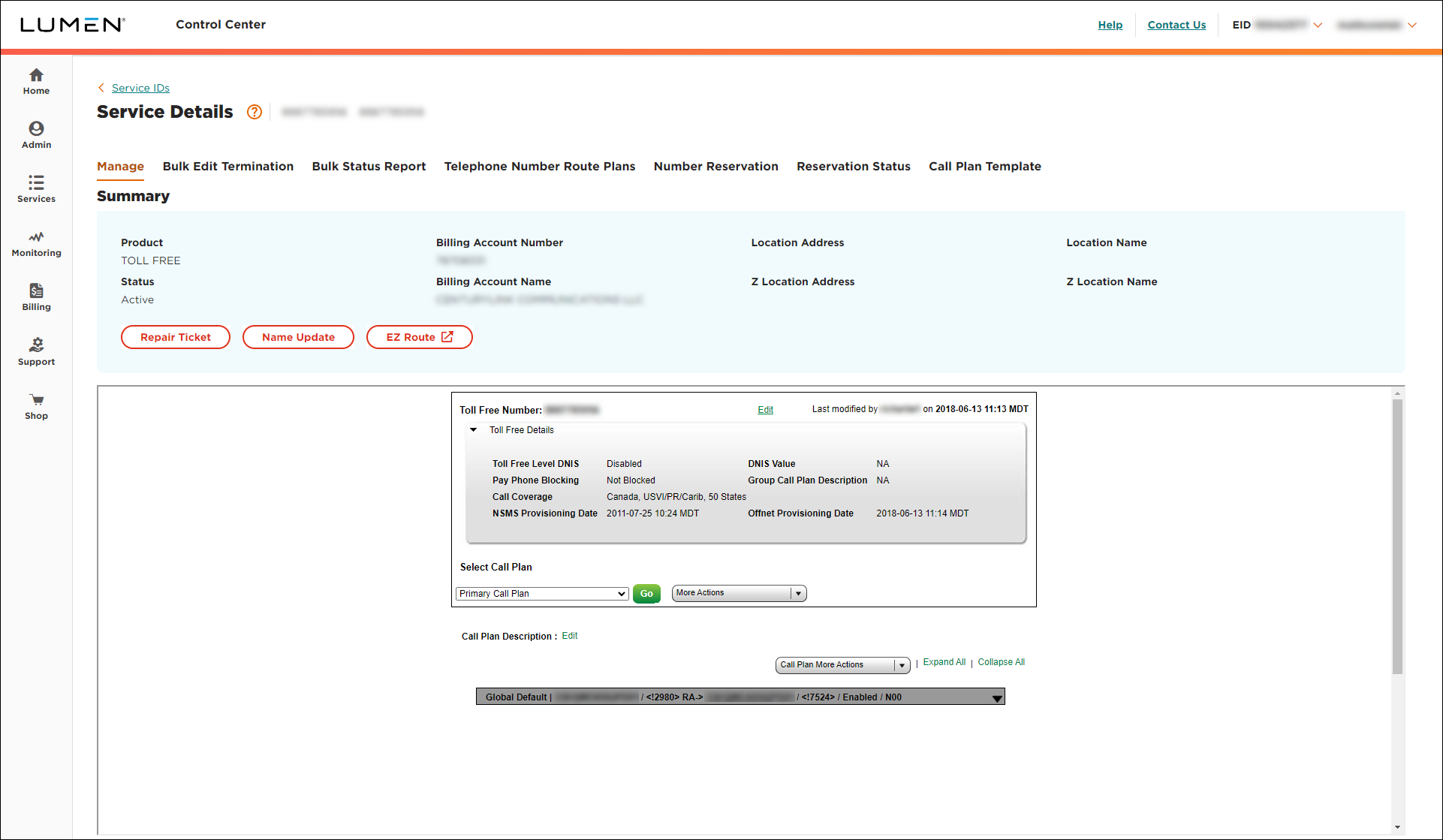
Important: In the Call Plan More Actions list, you may see an option for Terminating Addresses. Use this option to add a switched terminating address or to change the DNIS value for one or more trunk groups.
- Click the Global Default gray bar to change the terminating number or the terminating route type (e.g., switched or dedicated) for one of the rules.
- Click the light gray bar for the rule.
- Select either the DED (dedicated trunk) or SWI (switched ANI) radio button.
- From the Primary Trunk list, select a trunk. (If you don't see the trunk/ANI you need, click the ADD ANI TO THE LIST button, fill in the fields, then click Add.)
- Scroll to the bottom of that box, then click Update.
- Click Save Changes.
- Click Ok.



