

Managing calling features for your Voice Complete phone number
Use the Voice Complete Feature Manager (in Lumen Connect) to managing the calling features for your Lumen® Voice Complete® phone number. You can manage Call Forwarding features, Call Waiting, Caller ID, and incoming/outgoing calling plans for your phone number. To change your calling name, update the profile for your phone number.
To manage calling features for your Voice Complete phone number:
- Using the left menu, click Services, click Service Tools, then click Voice Complete Features.
Lumen Connect shows the calling feature settings for your Voice Complete phone number.
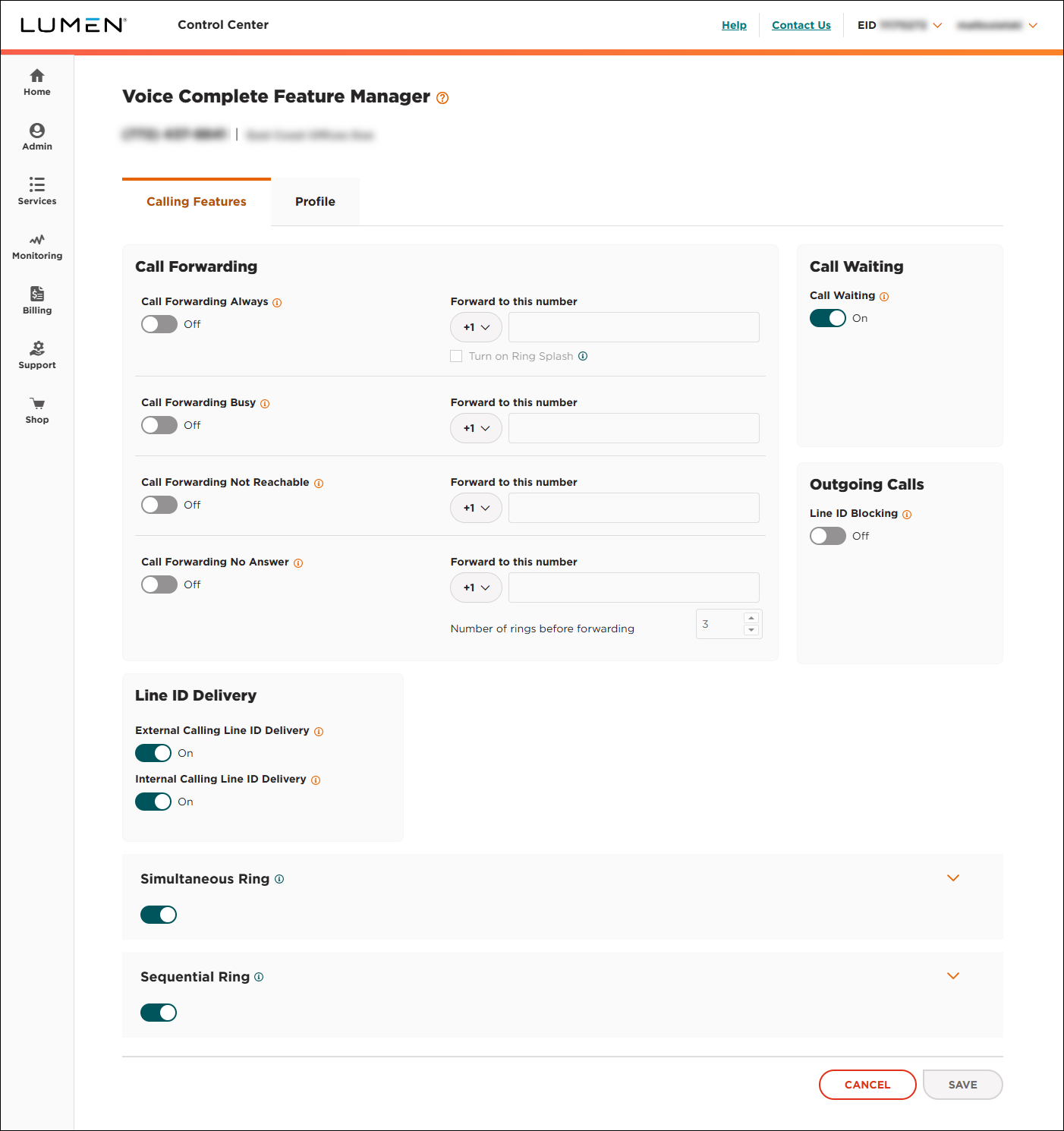
- Do any of the following to manage the calling features for your phone number:
- To manage Call Forwarding Always, use the toggle in the Call Forwarding box to turn it on or off. If you turn it on, be sure to type the phone number you want to forward all calls to.
- To manage Call Forwarding Busy, use the toggle in the Call Forwarding box to turn it on or off. If you turn it on, be sure to type the phone number you want to forward calls to when your line is busy.
- To manage Call Forwarding Not Reachable, use the toggle in the Call Forwarding box to turn it on or off. If you turn it on, be sure to type the phone number you want to forward calls to when your line isn't reachable.
- To manage Call Forwarding No Answer, use the toggle in the Call Forwarding box to turn it on or off. If you turn it on, be sure to type the phone number you want to forward calls to when you don't answer and the number of rings you want to wait before forwarding. (For example, you can forward calls to your mobile phone if you don't answer your desk phone within three rings.)
- To manage Call Waiting, use the toggle in the Call Waiting box to turn it on or off.
- To block your caller ID on outgoing calls, turn on the Line ID Blocking toggle (in the Outgoing Calls box).
- To unblock your caller ID on outgoing calls, turn off the Line ID Blocking toggle(in the Outgoing Calls box).
- To manage Call Forwarding Always, use the toggle in the Call Forwarding box to turn it on or off. If you turn it on, be sure to type the phone number you want to forward all calls to.
- To manage whether your caller ID information is sent when you make calls, use the toggles in the Line ID Delivery box. You can set your preferences for both internal and external calls.
- To manage the incoming or outgoing calling plan for your phone number, click Edit Calling Plans, then do any of the following:
- To customize the incoming calling plan, select the Custom Settings checkbox, then specify what phone numbers your phone number can receive calls from. You can select whether people outside your group can call you and whether people inside your group can call you.
- To use the incoming calling plan for the group, clear the Custom Settings checkbox, then click SAVE.
- To customize the outgoing calling plan, select the Custom Settings checkbox, then specify what phone numbers your phone number can place calls to, transfer calls to, and forward calls to. (You can specify settings for toll-free numbers, international numbers, or chargeable directory assistance.)
- To use the outgoing calling plan for the group, clear the Custom Settings checkbox, then click SAVE.
- To customize the incoming calling plan, select the Custom Settings checkbox, then specify what phone numbers your phone number can receive calls from. You can select whether people outside your group can call you and whether people inside your group can call you.



