

Viewing Edge Gateway device details
Use Lumen Edge Gateway Manager to view details about your Edge Gateway™ devices such as site locations, computing power, device identification, and information about the Virtual Network Functions (VNFs) on the device. You can also add VNFs and LTE connections, remove VNFs and LTE connections, and start, stop, or restart VNFs on devices.
Lumen Edge Gateway Manager shows the following details about Edge Gateway devices in the list section:
- Site—Location of the Edge Gateway device.
- Edge Gateway Status—The current status of the Edge Gateway device (UP or DOWN). To refresh the status, click the icon.
- VNF—The number of VNFs currently provisioned on the Edge Gateway device. All VNFs (running or not) are included.
- vCPU—The total and unallocated number of virtual CPUs on the Edge Gateway device. The total number excludes resources used by the host operating system.
- RAM (GB)—The total and unallocated amount of memory, in gigabytes, on the Edge Gateway device. The total amount excludes resources used by the host operating system.
- Edge Gateway Device—The service ID, model number, and serial number of the Edge Gateway device.
You can also expand sections on the list to view more information about VNFs and interfaces. Interfaces, or WAN transports, can be broadband connections, direct internet access connections, virtual private network (VPN) connections, and Long Term Evolution (LTE) connections. Each Edge Gateway device requires at least one transport, but cannot have more than four. You can use the name to acquire information about the transport.
To view Edge Gateway device details:
- Sign in to Lumen Edge Gateway Manager.
- Use the search field to search for Edge Gateway devices. You can search for devices using serial numbers, model numbers, IDs, address information, and names. Each search can contain multiple keywords or numbers.
Lumen Edge Gateway Manager shows Edge Gateway devices in the list section.
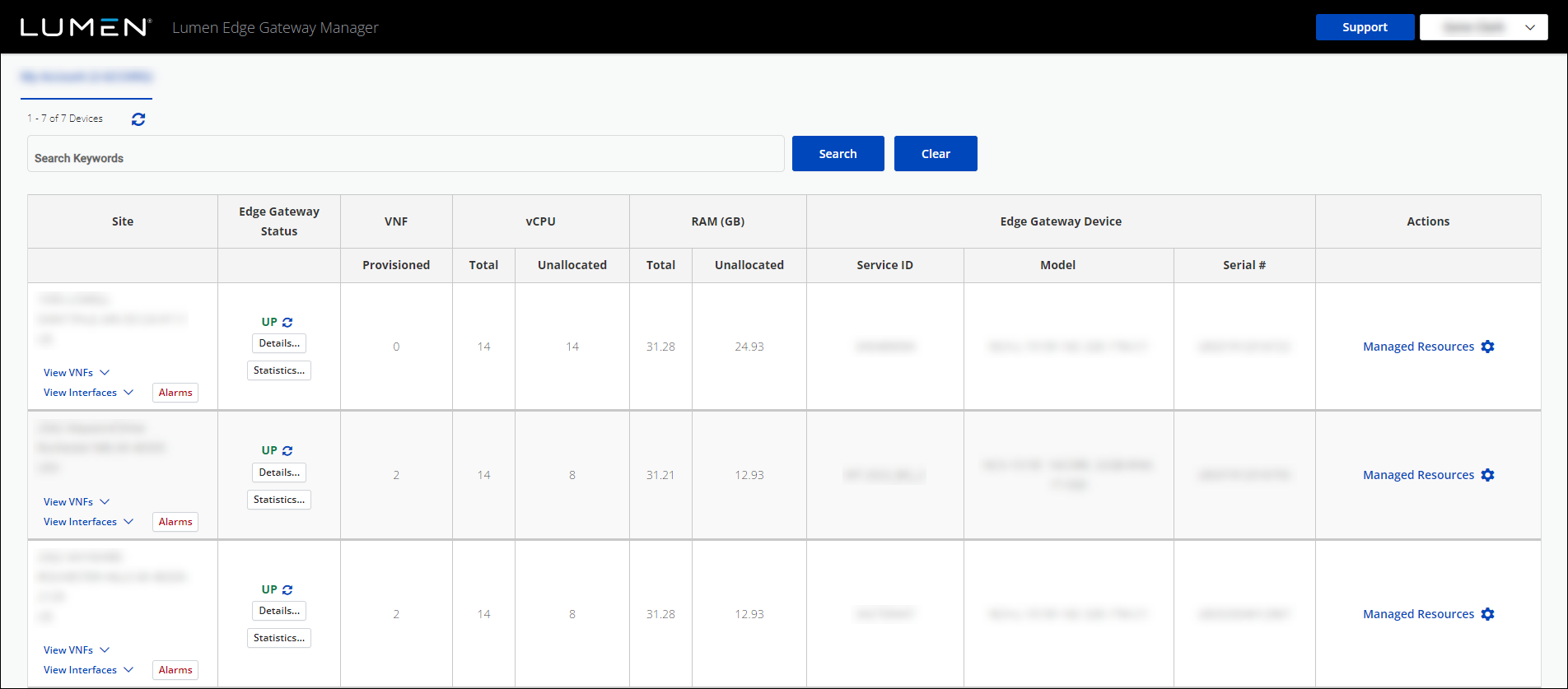
- To view the VNFs on an Edge Gateway device, click View VNFs.
The row for that Edge Gateway device expands and shows the following details about the VNFs:
- Name—Name of the VNF.
- Description—Description or purpose of the VNF.
- Managed By—VNF manager. This is always Customer.
- Type—VNF type: Router, It‑Payload, SBC (Session Border Controller).
- Status—Active status of the VNF (UP or DOWN). To refresh the status, click the icon.
- CPU Cores—Number of CPU cores allocated for the VNF.
- RAM (GB)—The amount of memory (in gigabytes) allocated for the VNF.
- Disk (GB)—The amount of storage space (in gigabytes) allocated for the VNF.
- Service ID—Identification of the service computer used by the VNF.
- To view the interfaces on an Edge Gateway device, click View Interfaces.
The row for that Edge Gateway device expands and shows the following details about the interfaces:
- Name—Name of the interface. (You can click Details... to view more information.)
- Logical Port Assignment—Port on the Edge Gateway device the interface is assigned to.
- IP Addressing—Type of addressing used for the interface. (Hover over the icon to learn more.)
- Do any of the following to view more details about the device:
- To view more details about the VNF, click Details....
- To view alarm history for the Edge Gateway device, click Alarms. (You can select different periods of time for alarm history.)
- To view more details about the current state of the device, click Details....
- To view current statistics of the device, click Statistics.... (You can select different time periods for the statistics. Hover over a specific point on the graph for more information.)
- To view more details about the VNF, click Details....



