

Creating an API key
In Lumen Connect, you create can API keys to access Lumen API product(s). Once you create an API key, you can edit it (e.g., to update the name or adjust the products the API key covers), or delete it if you no longer need it. You can also reset the client secret if it expires, if you forget it, or if you want to change it for security purposes.
To create an API key:
- Using the left menu, click APIs, then click API Keys.
Lumen Connect lists the API keys for your organization.
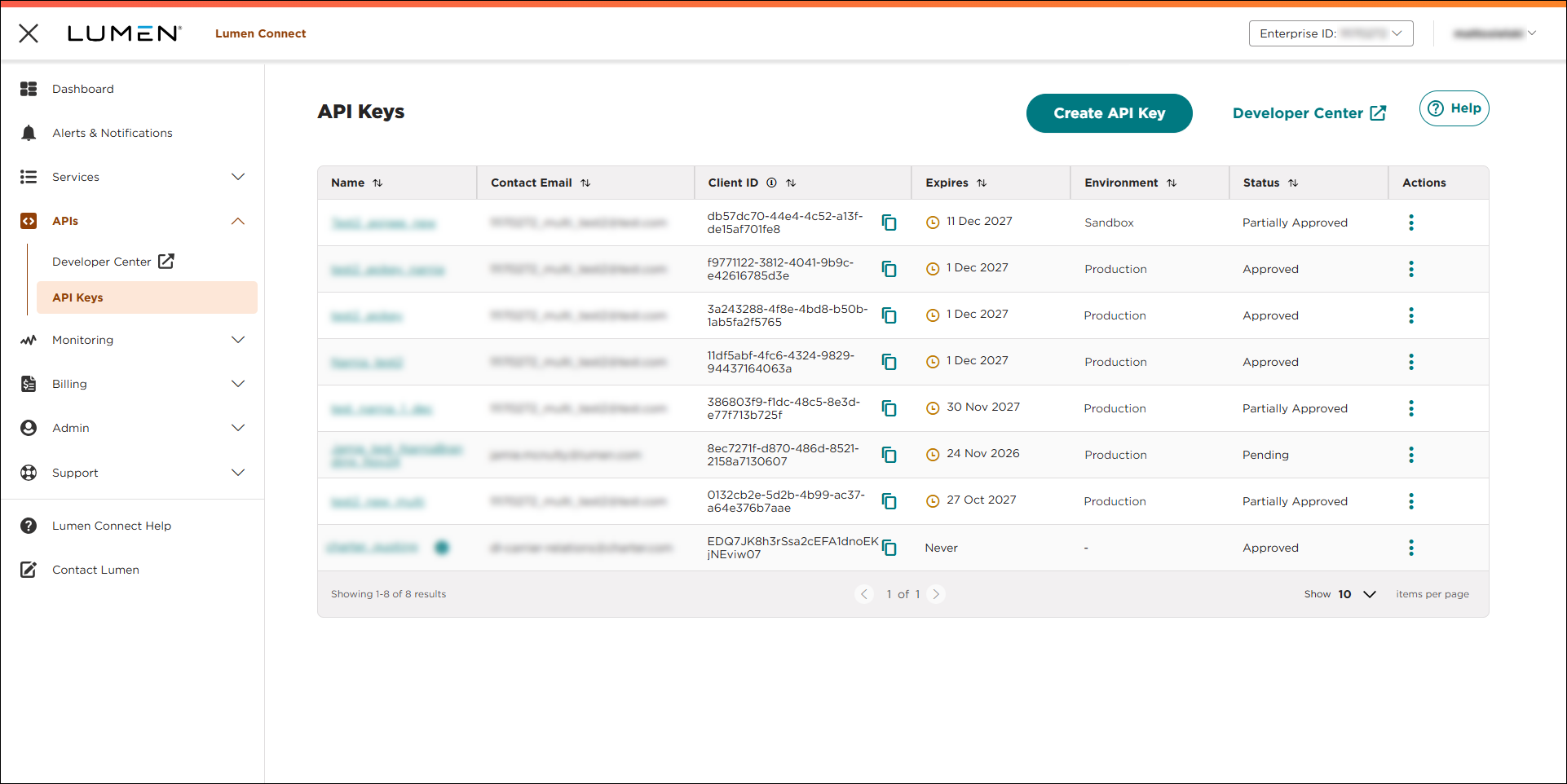
- Click CREATE API KEY.
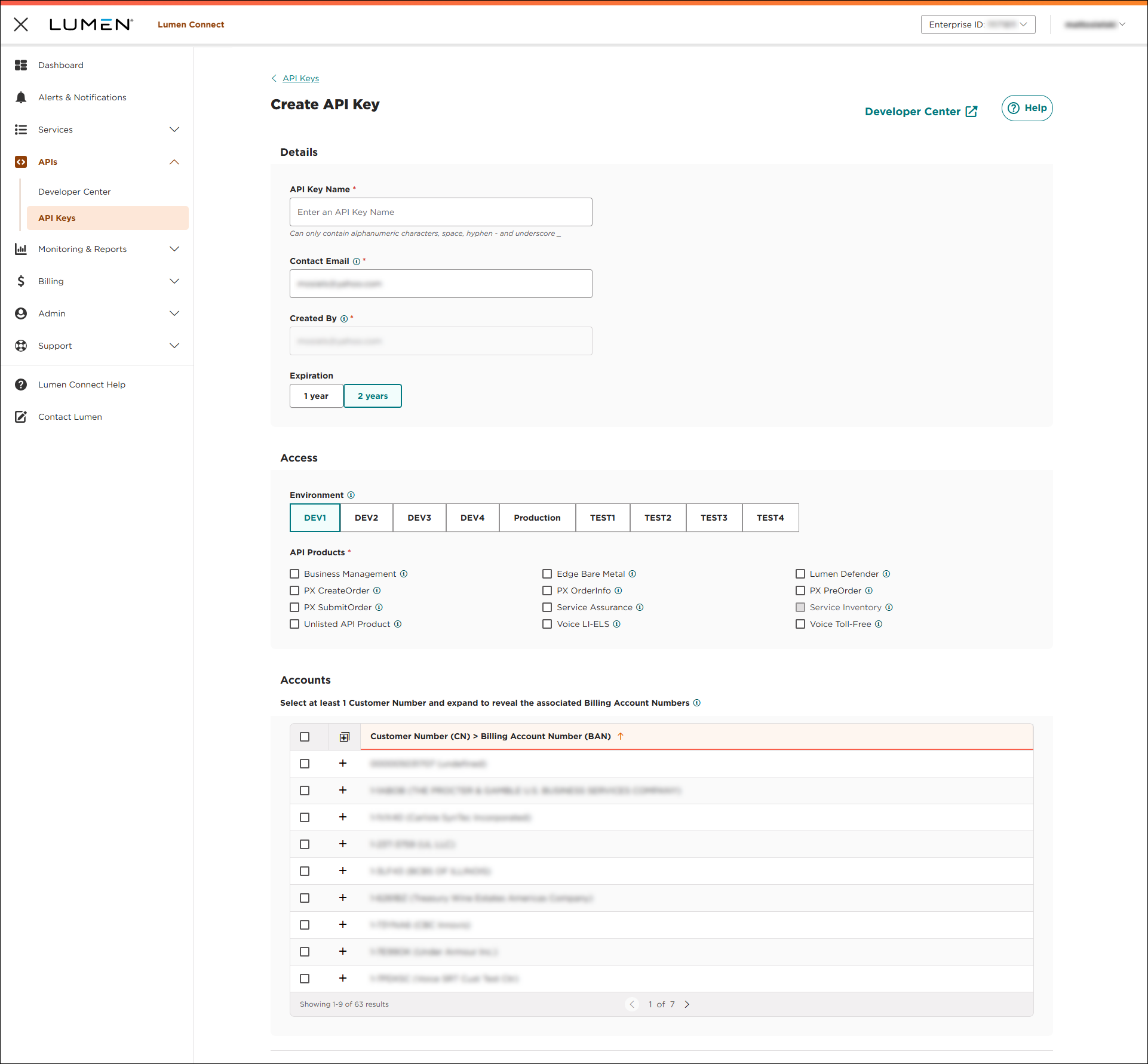
- Type a name and a contact email for the API key.
- In the Expiration field, use the toggle select an expiration period for the API key.
- Select the environment you want to add an API key for. (By default, Lumen Connect selects Production.)
- In the API Products field, click the checkbox next to the API(s) you want to use with your API key.
- In the Accounts section, click the checkbox next to the customer number(s) you want to use with your API key.
- Click SAVE.
Lumen Connect creates the API key, generates the key (Client ID) and secret (Client Secret), sends a request to the API team, and sets the status to Pending. Once the API team approves your API key, Lumen Connect changes the status to Approved. (If your API key is denied, Lumen Connect shows a status of Declined.)
Important: Make sure to copy the information in the Client Secret field for your records. You won't be able to access it later in Lumen Connect. If you forget the client secret, you can reset it later.



