

Creating a time period to segment call flow
You can use a filter to segment call flow by time period in Usage Analyst. You'll apply a specific condition to the filter. You can also edit or delete time periods as your business needs change.
To create a time period for segmenting call flow:
- Using the left menu, click Monitoring, click Voice Reports, then click Usage Analyst.
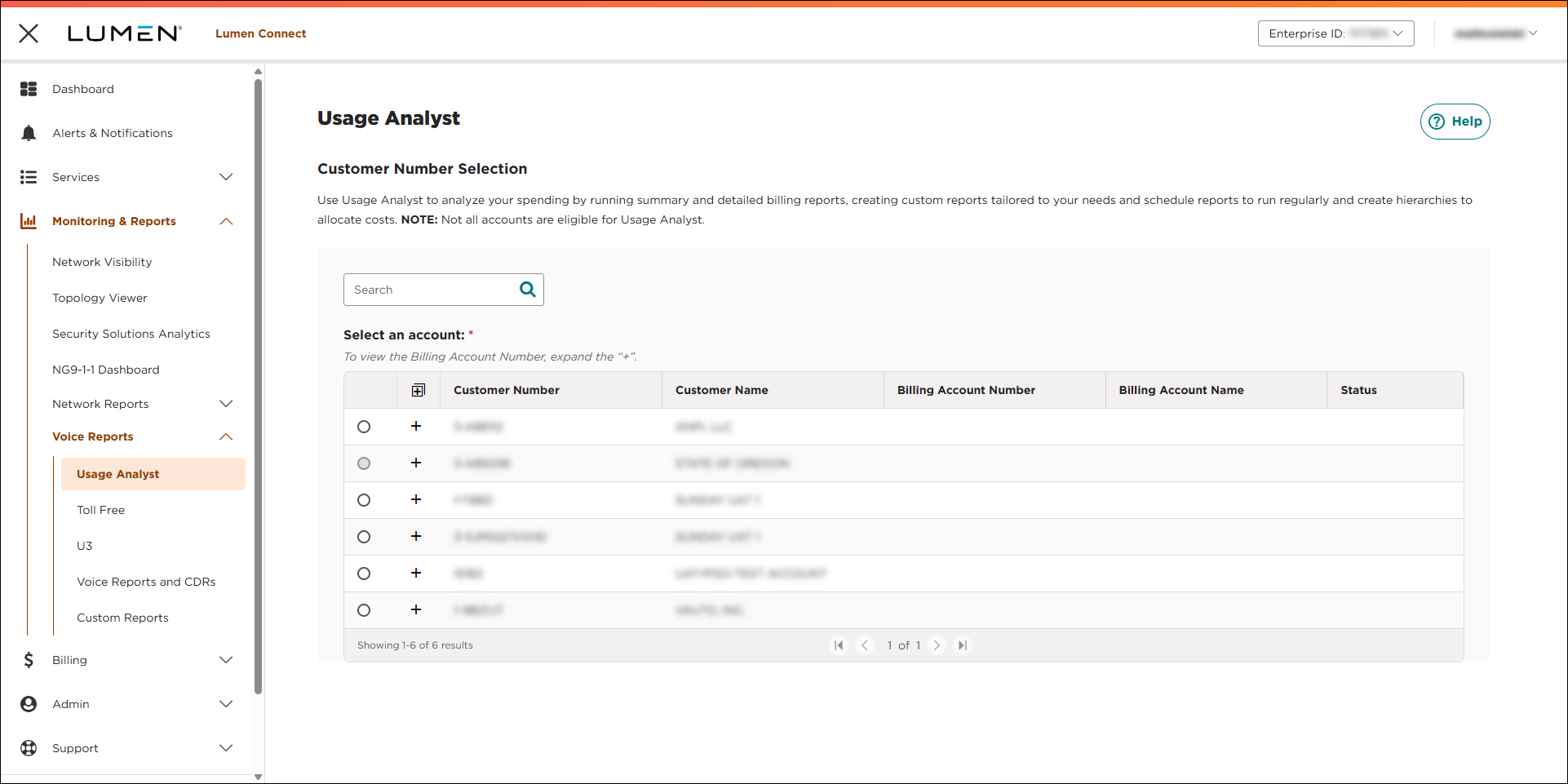
- Select the radio button next to the account you want to view, then click LAUNCH USAGE ANALYST.
Lumen Connect opens Usage Analyst in a new tab.
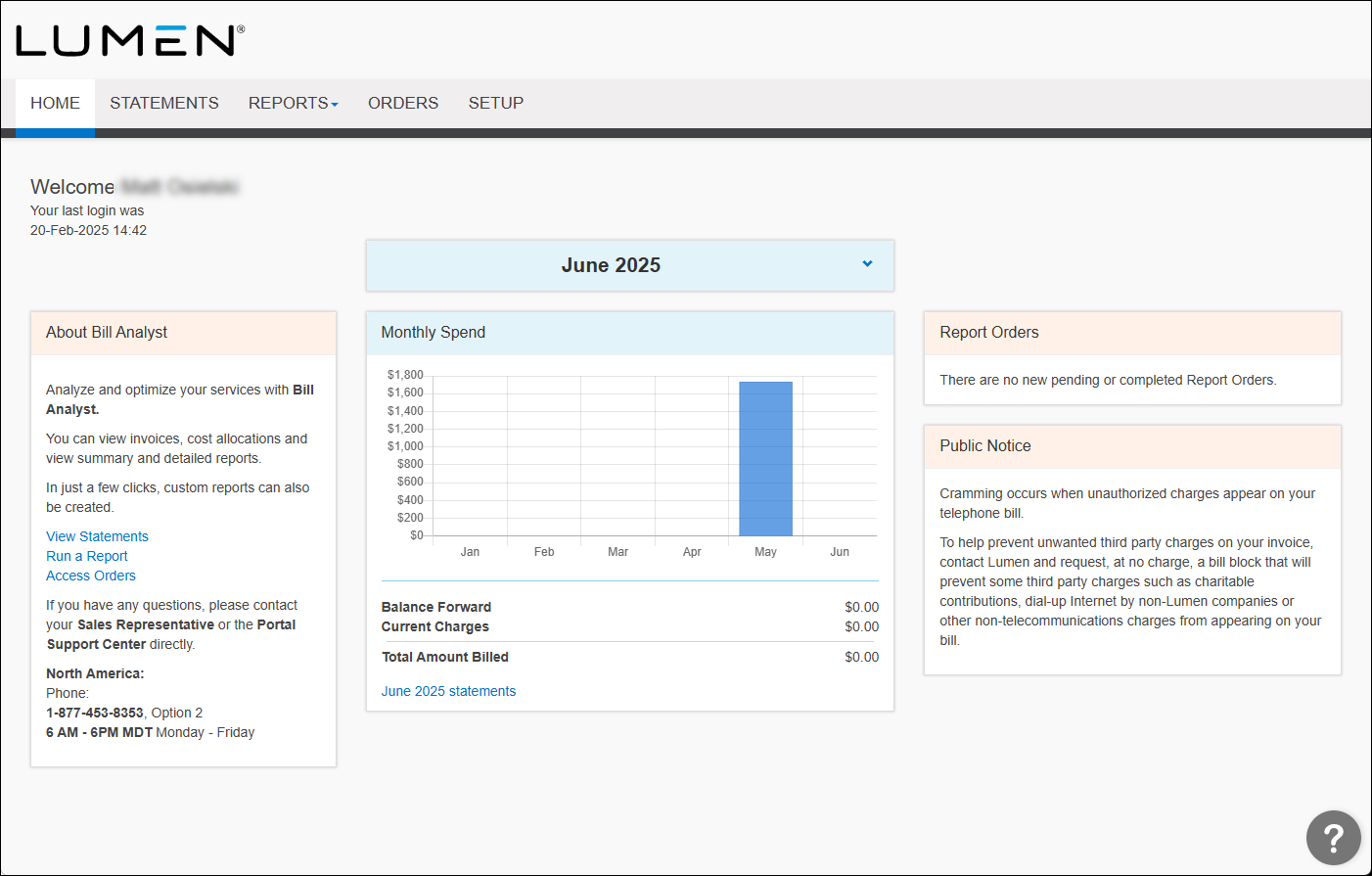
- Click the Setup tab.
- In the Tools section, click Filters.
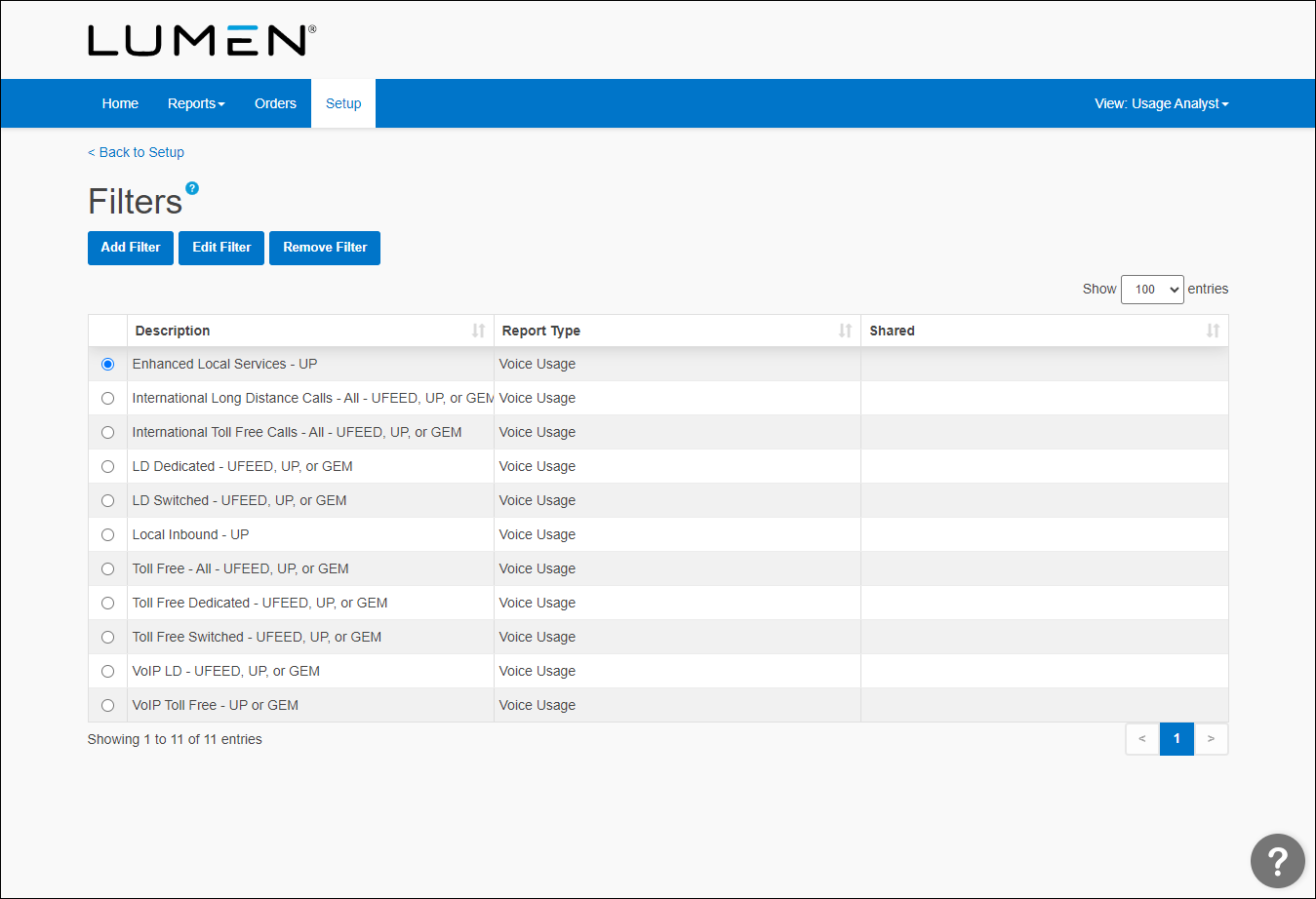
- Click Add Filter, then do one of the following:
- Select the Start with a copy of an existing filter radio button, then from the Name list, select the existing filter.
- Select the Start a new filter of type radio button, then from the Filter Type list, select the type of report.
- Select the Start with a copy of an existing filter radio button, then from the Name list, select the existing filter.
- Click Continue.
- Type a name for the filter.
- In the Criteria section, select All of the following are true, then click Add Condition.
- From the first list, select Disconnect Date.
- From the second list, select a comparison operator (e.g., contains, is equal to, starts with, etc.).
- In the third field, type the date.
- Click Add Condition.
- From the first list, select Disconnect Time.
- From the second list, select select a comparison operator (e.g., contains, is equal to, starts with, etc.).
- In the third field, type the time in hh:mm:ss format.
- In the Sharing section, select whether you want others to be able to view and use this filter: click Share this filter to share it; click Don't share this filter to keep your filter private. (A shared filter can only be edited or deleted by the person who created it.)
- Click Save.
New filters appear on the filter page (you may need to scroll down to see them). If you've shared a filter, there will be a notation in the Shared column.



