

Creating an order template
To make submitting wholesale orders to Lumen easier, you can create order templates in Lumen Connect from OnLine Order Forms (OLOF) and Dedicated Toll Free Origination (DTFO) orders. You can view a list of order templates you've created and also delete any you're no longer using.
Note: You can only create an order template using orders in Submitted status.
To create an order template:
- Using the left menu, click Orders, click Order Status, then click Preliminary Order Status.
Lumen Connect shows all pending orders and orders completed within the past 90 days submitted using dedicated/switched batch, DTFO, or OLOF (online order forms). Lumen Connect also lists your view/modify call plan changes.
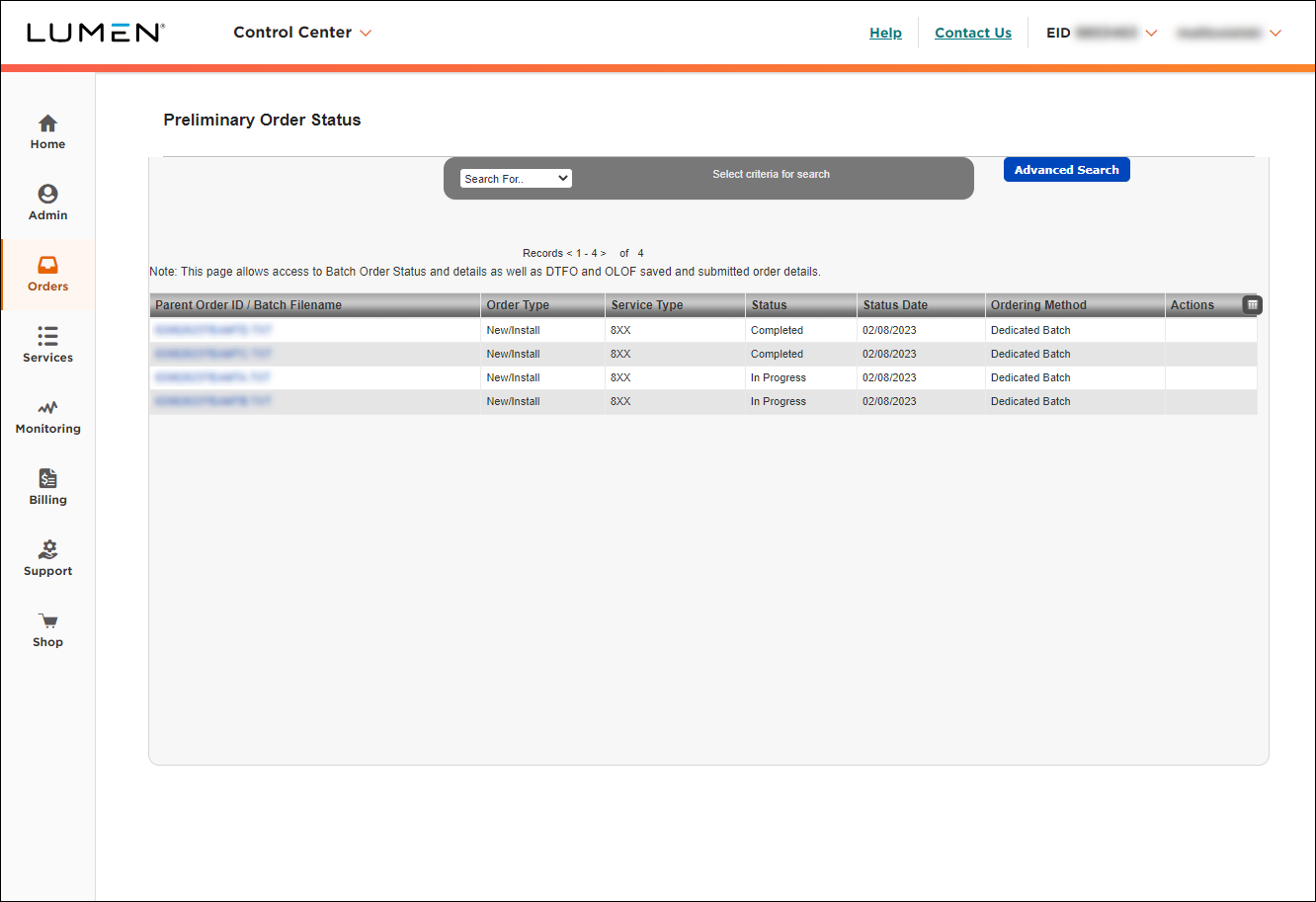
- Search for the order you want to create a template from. (Search is case‑sensitive. To search for submitted orders, select Status from the Search For… list, type Submitted in the field that appears, then press Enter.)
- On the row for the order you want to create a template from, click the T icon (in the Actions column).
- In the window that appears, type a name for the template, then click Save Template.
Lumen Connect creates a template from the order you selected.
- Do one of the following:
- To open the the template you just created, click Open Template.
The template shows the information entered on the original order. When you use the order template to submit a new order, be sure to review the information and update the order as needed.
- To close the window and go on to another task, click Close.
- To open the the template you just created, click Open Template.



